Jewelry photos often look dull, flat, or full of tiny imperfections — even when you use a good camera. Dust, scratches, poor lighting, and reflections can easily ruin the final look of your product images.
That’s where Photoshop comes in.
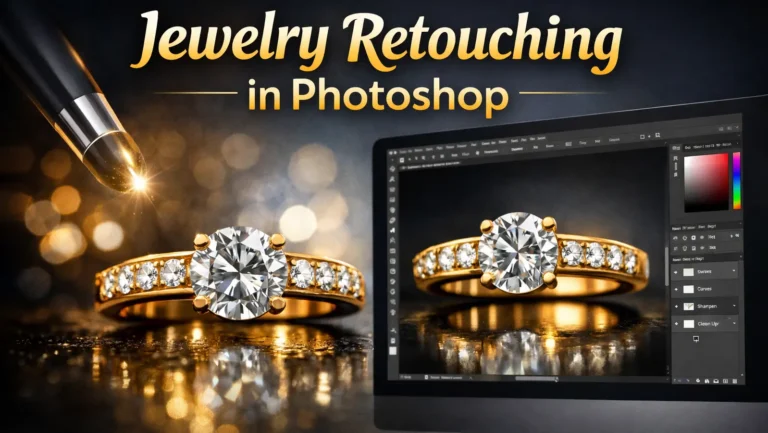
With the right techniques, you can transform ordinary shots into clean, high-end visuals that actually sell. In this guide, you’ll learn practical and easy jewelry retouching in Photoshop methods — from basic corrections to advanced detailing — so your images look sharp, polished, and professional.
Getting Started with Jewelry Retouching
Before you start editing, it’s worth taking a few minutes to set things up properly. It might feel like a small step, but it actually makes a big difference later. When your workspace is organized, everything just feels smoother and less frustrating.
Setting Up Your Workspace
Start by arranging your Photoshop workspace in a way that feels comfortable to you. You don’t need anything fancy here. Just make sure tools like the Healing Brush, Clone Stamp, and Adjustment Layers are easy to find. Otherwise, you’ll keep stopping in the middle of editing to look for them, which slows everything down.
Importing Your Images
When it comes to images, quality really matters. Try to use high-resolution photos whenever you can. If you have RAW files, that’s even better. They give you more control when adjusting colors, light, and tiny details. And when you’re working with jewelry, those small details are exactly what people notice first.
Basic Corrections in Jewelry Photos
Now that your image is open, it’s a good idea to start with the basics. These are simple fixes, but honestly, they do most of the heavy lifting. If this part is done right, everything else becomes much easier.
Adjusting Exposure and Contrast
Take a look at your image first. Does it feel too dark? Or maybe a bit washed out? If yes, then start by adjusting the exposure until it looks more balanced.
After that, you can increase the contrast a little. This helps bring out the fine details in the jewelry, especially around edges and textures. But be careful here. If you push it too much, the metal can start looking unnatural, which you definitely don’t want.
Correcting White Balance
Colors are just as important as lighting. Sometimes, because of studio lights or background reflections, the image gets a strange color tone. It might not be obvious at first, but it affects the overall look.
So, try adjusting the white balance slowly. Keep an eye on how the metal looks. Gold should feel warm, not overly orange. Silver should look clean and neutral, not bluish. When the colors feel right, the whole image suddenly looks more real.
Cleaning and Fixing Imperfections
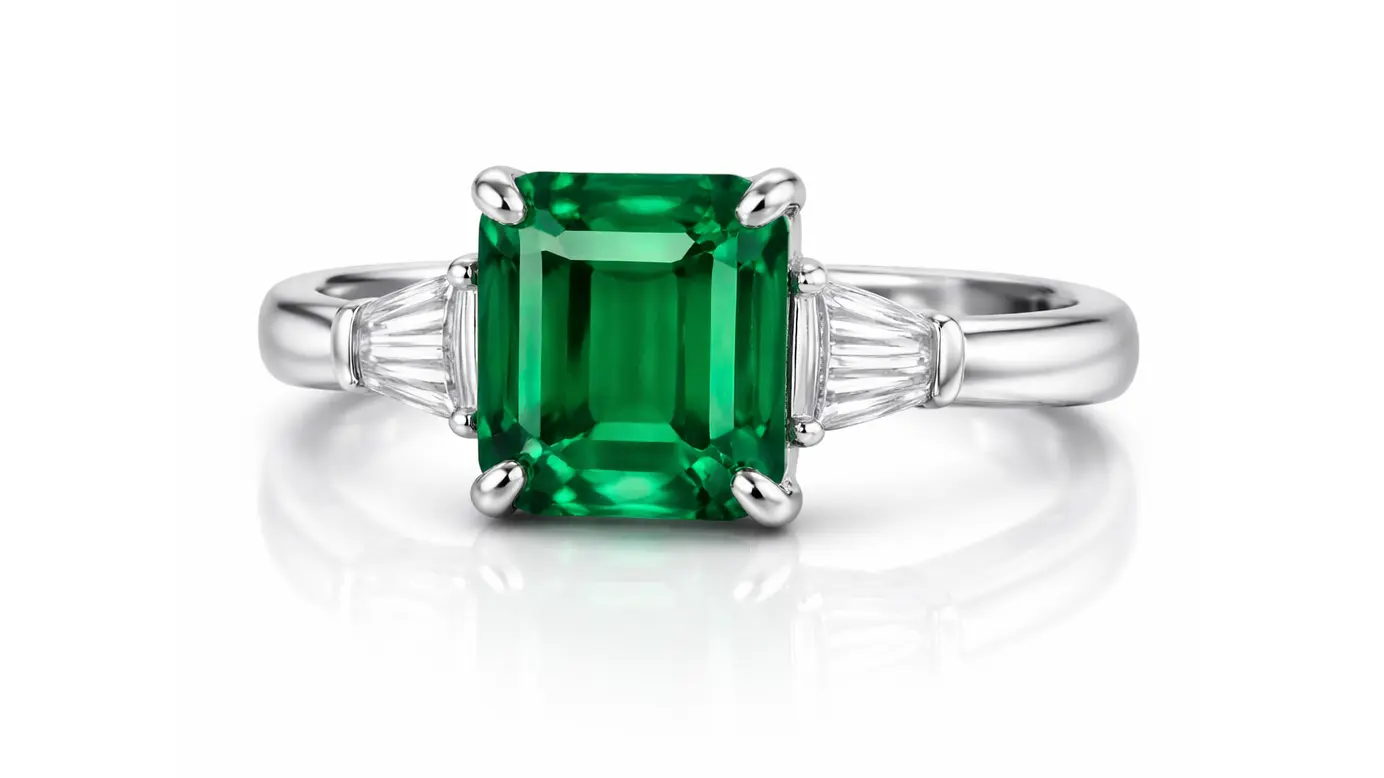
Once the basic adjustments are done, it’s time to clean up the small flaws. Jewelry photos often have tiny dust spots, scratches, or marks that you may not notice at first. However, these imperfections can stand out a lot after editing.
Removing Dust and Scratches
Start by zooming in on the image. You’ll probably notice small dust particles or fine scratches on the surface. This is completely normal, especially in close-up shots.
Use the Spot Healing Brush for quick fixes. It works well for small spots and saves time. For slightly bigger areas, the Clone Stamp tool gives you more control. Just sample a clean area and carefully paint over the imperfection.
Using the Healing Brush Tool
For areas that need a bit more precision, the Healing Brush tool works better. It blends the texture and color more naturally, so the edit doesn’t look obvious.
Still, try not to rush this step. Take your time and work slowly. If you over-edit, the surface can start looking too smooth, which feels unrealistic. A clean but natural look is always the goal here.
Enhancing Colors and Shine
At this stage, your image should already look clean. Now comes the part where you make it more eye-catching. A small adjustment in color and shine can completely change how the jewelry feels and how people notice it.
Adjusting Color with Hue and Saturation
Start by looking closely at the colors, especially the gemstones. Sometimes they appear a bit dull after basic edits, so increasing the saturation slightly can help bring them back to life. However, it’s important to go slowly, because too much saturation can make the colors look unnatural. Try making small adjustments and stop as soon as the image feels balanced and realistic.
Using Vibrance for a Softer Effect
If you want a more natural result, vibrance is often a better option. It increases weaker colors without affecting the already strong ones too much, which helps maintain a realistic look. Because of this, it’s a safer choice for beginners, and it gives the image a richer feel without making it look over-edited.
Adding Shine and Depth
Now focus on the metal parts of the jewelry. If they look flat, you can slightly enhance the highlights and shadows to add depth and dimension. You don’t need heavy editing here—just a subtle touch can make the surface look more polished and premium. When done right, this step gives the image that final “expensive” look.
Working on Metal and Gemstones
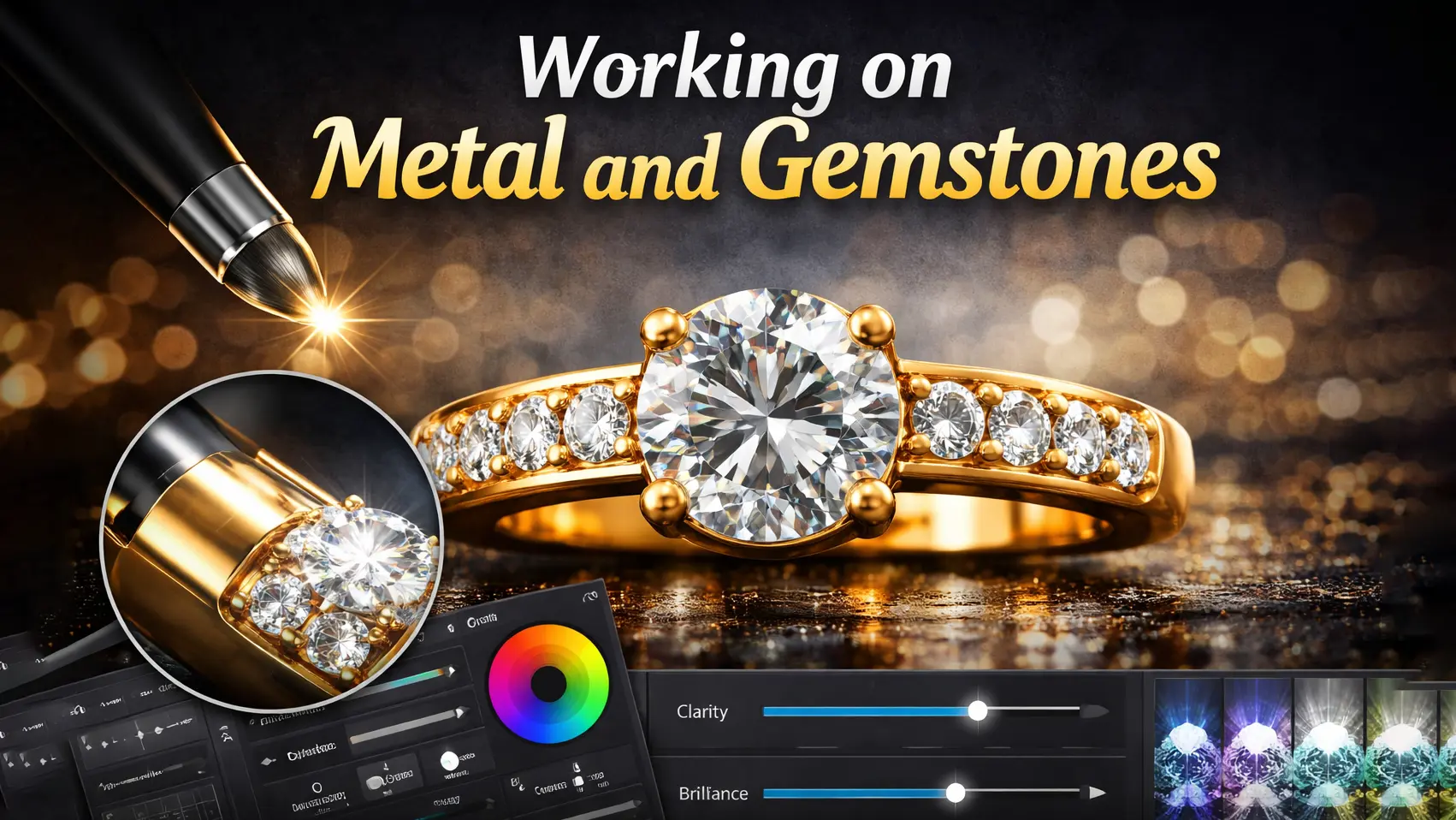
After fixing colors and basic details, it’s time to focus on the most important parts of the jewelry—the metal and the gemstones. These are the areas that people notice first, so even small improvements here can make a big difference in the final image.
Refining the Metal Surface
Metal surfaces often show uneven reflections, rough spots, or slight discoloration, especially in close-up shots. To fix this, you can gently smooth the surface using tools like the Blur tool or by lightly blending areas where reflections feel too harsh. At the same time, try to keep the natural texture intact, because over-smoothing can make the metal look fake. A balanced approach works best, where the surface looks clean but still realistic and slightly reflective.
Enhancing Gemstone Clarity
Gemstones need to look sharp, clear, and slightly vibrant to stand out properly. If they appear dull, you can enhance them by carefully increasing sharpness and adjusting brightness or contrast in a controlled way. However, it’s important not to overdo this step, as too much sharpening can introduce noise or make edges look unnatural. When done correctly, the gemstone should look crisp and eye-catching without losing its natural appearance.
Adding Highlights and Shine
To give the jewelry a more premium and polished look, you can subtly enhance highlights on both metal and gemstones. This can be done by lightly brightening specific areas where light would naturally hit. The goal is not to create fake shine, but to improve what’s already there so it looks more defined and three-dimensional. Even a small touch here can make the jewelry feel more expensive and visually appealing.
Advanced Jewelry Retouching Techniques
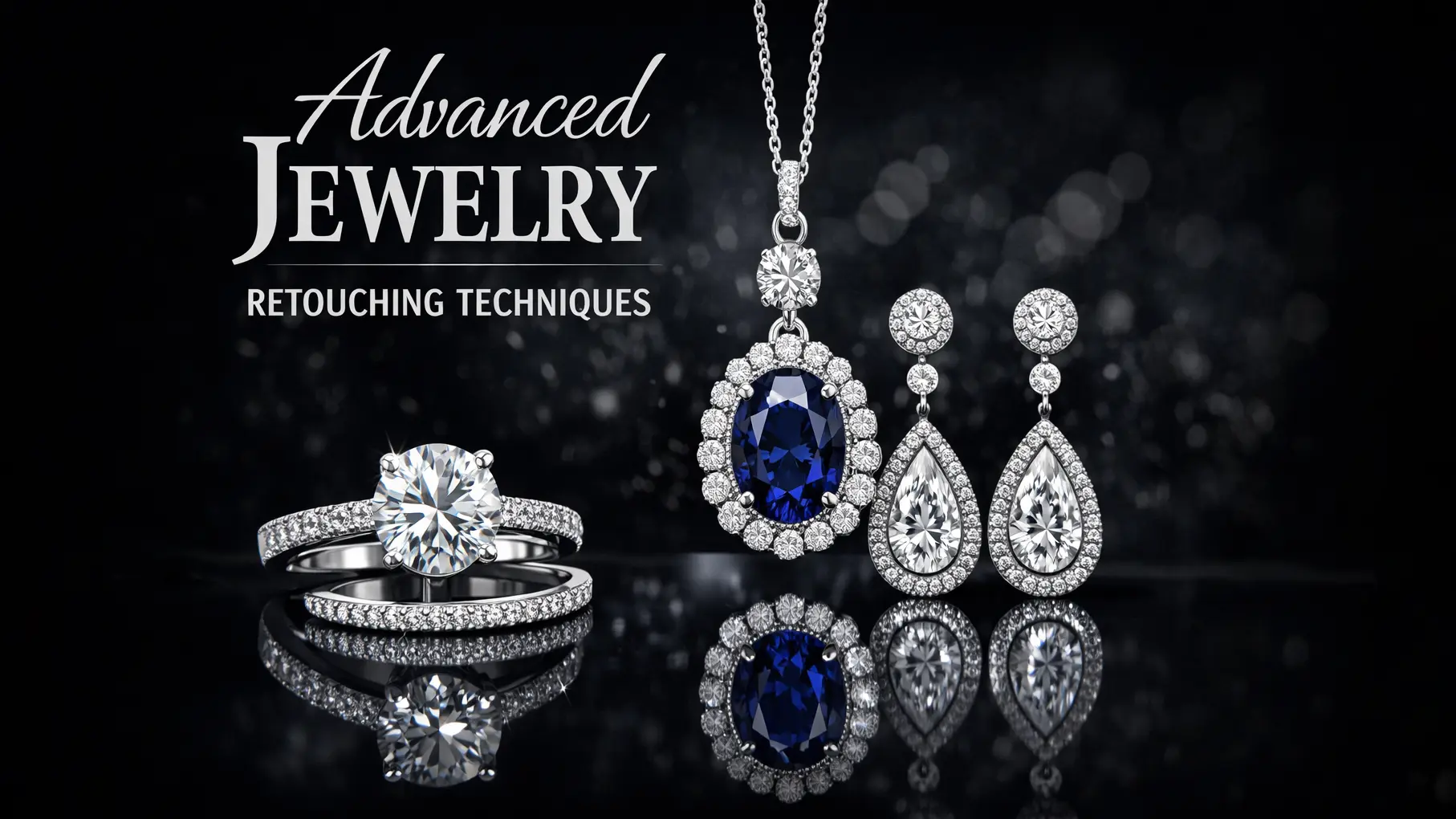
After you get used to the basic edits, you’ll probably notice that your images still don’t look fully “premium.” That’s normal. This is where a few advanced techniques can really change the result and make the jewelry stand out more.
Using Dodge and Burn for Depth
Dodge and Burn might sound complicated at first, but it’s actually very useful once you get the idea. You simply brighten some areas and darken others to control how light looks on the surface. If you do it carefully, the jewelry starts to feel more three-dimensional instead of flat. Just don’t rush it. Strong strokes can ruin the natural look, so it’s better to build it up slowly.
Frequency Separation for Detailed Retouching
This technique is usually used when you want more control over small details. It lets you work on color and texture separately, which can be really helpful for jewelry. For example, you can smooth uneven tones without affecting sharp edges or fine lines. It may feel a bit confusing in the beginning, but once you try it a few times, it starts to make sense.
High-End Sharpening Techniques
At the final stage, sharpening helps bring everything together. You can use tools like Smart Sharpen or High Pass, but honestly, a little goes a long way here. If you overdo it, the image starts to look noisy or too sharp, which feels unnatural. So, it’s better to keep it subtle and only enhance the details that actually need it.
Common Mistakes to Avoid
Even if you follow all the steps, small mistakes can still affect the final result. Most beginners don’t notice these at first, but over time, they make a big difference in how professional the image looks.
Over-Editing the Image
One of the most common mistakes is doing too much. It’s easy to keep adjusting colors, sharpness, or brightness until the image looks unnatural. At first it might seem better, but after a point, the jewelry starts losing its real look. So it’s always a good idea to stop for a moment and check if the image still feels natural.
Ignoring Small Details
Sometimes people focus only on big edits and forget the tiny imperfections. Small dust spots, rough edges, or uneven reflections can still be visible if you zoom in. These little things might seem minor, but they can reduce the overall quality of the image. Taking a bit more time to fix them makes a noticeable difference.
Using Too Much Sharpening
Sharpening helps bring out details, but too much of it can create unwanted noise or harsh edges. This makes the image look artificial instead of clean. It’s better to apply sharpening slowly and only where it’s needed, rather than increasing it across the whole image.
Jewelry Retouching Tips for Beginners
If you’re new to jewelry retouching, it can feel a bit confusing in the beginning. There are so many tools in Photoshop, and it’s not always clear what to use first. But honestly, you don’t need to worry about everything at once. It’s better to keep things simple and build your skills step by step.
Start with Simple Edits First
A common mistake beginners make is jumping straight into advanced techniques. It sounds exciting, but it often leads to messy results. Instead, start with basic things like fixing brightness, adjusting colors, and cleaning small spots. Once you get used to these, everything else starts to feel easier.
Zoom In and Work Carefully
Jewelry has a lot of tiny details, so zooming in really helps while editing. You’ll notice small dust or marks that you might miss otherwise. But at the same time, don’t stay zoomed in the whole time. It’s a good idea to zoom out now and then, just to see how the image looks overall.
Don’t Rely on One Tool Only
It’s pretty common to get comfortable with one tool and use it for everything. But that usually doesn’t give the best result. Different tools do different jobs, and once you start trying them out, you’ll see the difference. It takes a bit of time, but it’s worth it.
Practice and Be Patient
At the end of the day, this is something you improve with practice. Your first edits might not look great, and that’s okay. Everyone goes through that phase. The more you work on it, the more natural your edits will start to look.
Best Photoshop Tools for Jewelry Editing
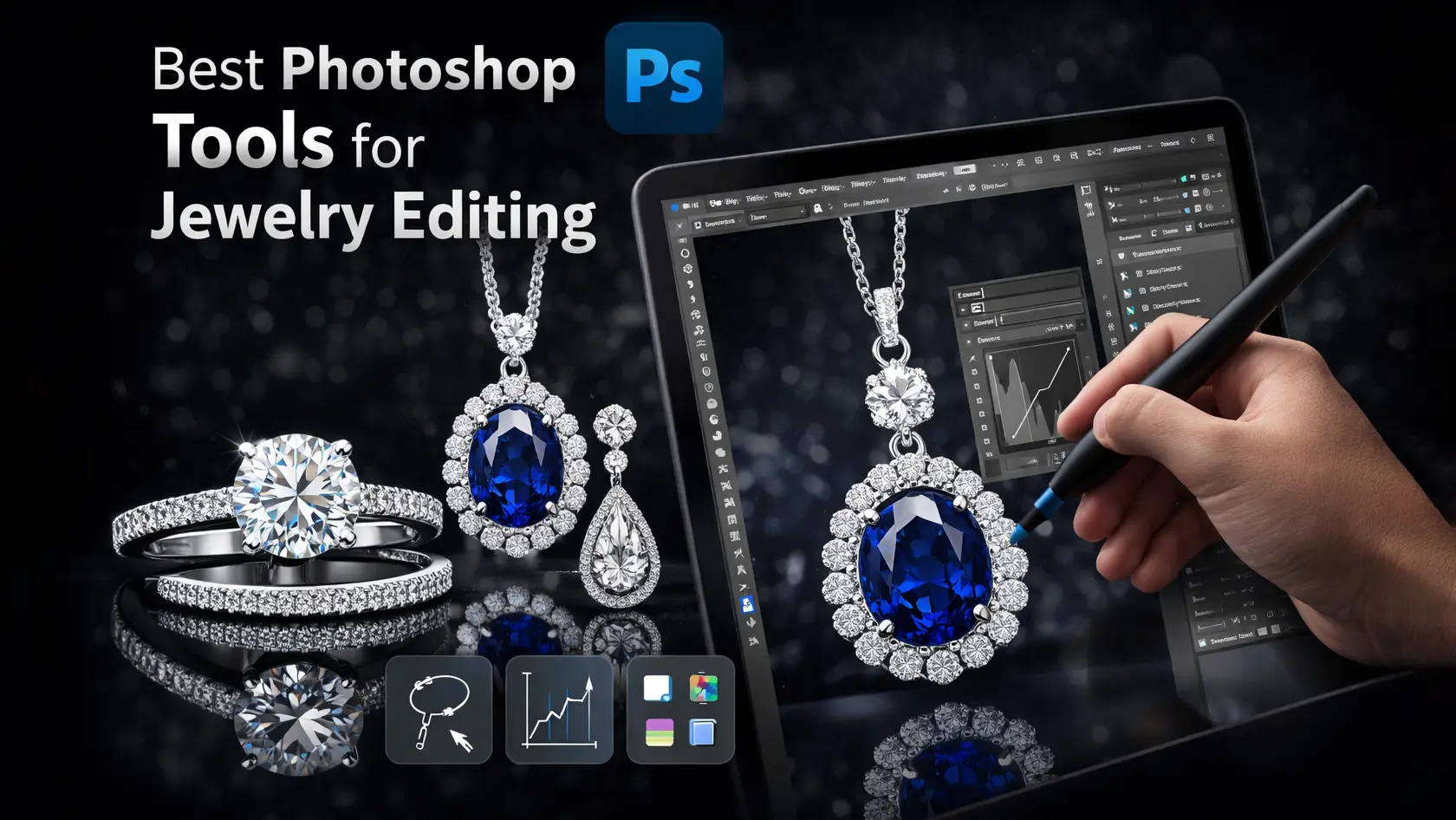
When you start working on jewelry images, you’ll quickly realize that not every tool does the same job. Some are better for cleaning, while others help with color or detail. So instead of trying to use everything at once, it’s better to understand a few key tools first.
Healing Brush Tool
This tool is very useful when you need to fix small imperfections like dust or scratches. It blends the edited area with the surrounding texture, so the result looks natural. Once you get used to it, you’ll probably use it in almost every edit.
Clone Stamp Tool
The Clone Stamp gives you more control compared to the Healing Brush. You can copy a clean part of the image and place it exactly where you need it. This works well for fixing larger areas or reflections, but it takes a bit of practice to use smoothly.
Adjustment Layers
Adjustment Layers are important when you want to change brightness, contrast, or colors without damaging the original image. This means you can always go back and tweak things later, which makes your workflow safer and more flexible.
Dodge and Burn Tools
These tools help you control light and shadow in your image. You can brighten certain areas or darken others to add depth and shape. When used carefully, they can make the jewelry look more three-dimensional and realistic.
Sharpening Tools
Sharpening helps bring out fine details, especially in gemstones and edges. However, it’s something you should use carefully. A small amount can improve the image, but too much can make it look rough or unnatural.
Export Settings for Web and Print
Once you’re done editing, you still have one last thing to handle — exporting the image. A lot of people don’t pay much attention to this part, but it actually matters more than it seems. If the settings are off, the image can lose quality even after all that careful editing.
Saving for Web
If the image is going online, you’ll want to keep the file size under control. Big files can slow things down, especially on websites. That’s why most people go with JPEG here. It keeps things lighter, and in most cases, the quality still looks fine. Just don’t drag the quality slider too low. If you do, the image can start to look a bit soft or compressed, which kind of defeats the whole point of retouching.
Saving for Print
Printing is a bit different. Here, quality matters more than file size, so it’s better to use formats like PNG or TIFF. They hold more detail, which helps the image stay sharp when printed. Also, try to keep the resolution high — around 300 DPI is usually safe. Otherwise, the final print can look slightly dull or less detailed than you expected.
Conclusion
Jewelry retouching in Photoshop may feel a bit challenging at the beginning, but it becomes much easier once you get used to the process. The key is to keep your edits simple, focus on small details, and avoid over-editing. With regular practice, you’ll start to understand what works best, and your images will naturally look cleaner, sharper, and more professional over time.
FAQs
What is the best way to remove reflections from jewelry in Photoshop?
The Clone Stamp Tool is your best friend for removing unwanted reflections. Carefully sample an area close to the reflection and paint over it to create a seamless look.
How can I make gemstones look more vibrant?
Use the Hue/Saturation adjustment layer to increase the saturation of the gemstones. Additionally, adjusting the vibrance can enhance colors subtly without making them look too artificial.
What are some tips for retouching metal surfaces?
For metal surfaces, use the Smudge Tool and Blur Tool to smooth out imperfections. Adding highlights and shadows with the Dodge and Burn tools can also enhance the metal’s appearance.
How do I ensure my final image is sharp and detailed?
Apply the Smart Sharpen filter or use the High Pass Filter method to sharpen your image. Both techniques will help enhance details without introducing excessive noise.
What are the best export settings for high-quality jewelry images?
For web use, save your image as a JPEG with optimized settings to reduce file size. For print, use TIFF or PNG formats to maintain the highest quality and detail.