Jewelry photos matter a lot when customers decide to buy your product. A clean and attractive image can grab attention and build trust right away. You do not need high-end skills to improve your photos. With a few simple edits in Photoshop, you can make your jewelry look brighter, sharper, and more appealing. Jewelry retouching helps show real colors and fine details, which makes your product look more premium. When your images look better, people feel more confident and are more likely to buy.
Tools You Need in Photoshop
Before you start retouch jewelry, you need to know the basic tools. These tools help you clean, adjust, and improve your jewelry images step by step.
- The Magic Wand Tool is a selection tool in Adobe Photoshop that selects pixels based on similar color and tone with a single click. It is especially useful for quickly isolating simple backgrounds like white or solid colors. This tool makes the editing process faster and more efficient.
- The Pen Tool helps you create a clean selection around the jewelry so you can separate it from the background.
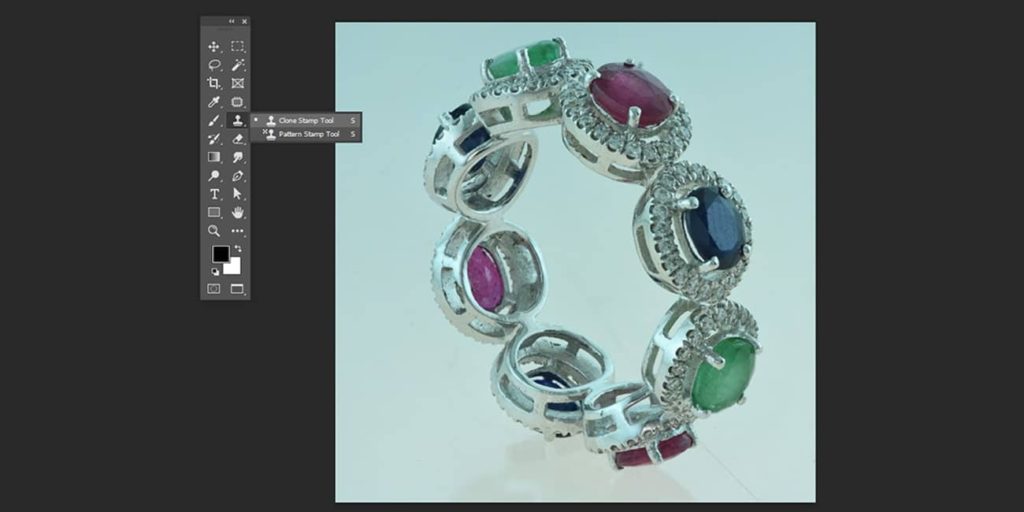
- Clone Stamp Tool lets you copy parts of the image to remove dust or scratches.
- The Healing Brush Tool blends areas smoothly and fixes small imperfections.
- Adjustment Layers help you control brightness, contrast, and color without damaging the original image.
- The Sharpen Tool adds crisp detail and makes the jewelry look more defined.
Step-by-Step Jewelry Photo Editing Process
1.Import and Prepare the Jewelry Image
Start by opening your jewelry photo in Photoshop so you can begin editing. Then duplicate the layer by pressing Ctrl + J, which creates a copy and keeps your original image safe in case you need to go back. Once these steps are complete, you’ll be ready to start the jewelry photo editing process.
2. Remove Background
Remove the background so the jewelry stands out clearly in the image. Add a white or clean background to give it a professional product look. You can use a solid color, soft gradient, or light texture, but keep it simple. Use the Selection and Mask tool or a clipping path to remove the old background cleanly. Then add a new background layer under the jewelry to complete the final look.
3. Clean Dust and Imperfections Image
It’s important to make sure it’s cleaned. This involves removing any dust or blemishes, adjusting the white balance, and sharpening the image. Zoom in and check the image closely. Use the Clone Stamp Tool or Healing Brush to remove dust, scratches, and fingerprints so the jewelry looks clean and polished.
4. Color Corrections
Adjust the colors using Hue/Saturation or Color Balance so the jewelry looks clean and natural. Make sure gold looks warm and rich instead of green or dull. Keep gemstone colors true so they match the real product. Check the image under normal lighting so colors do not look too bright or too dark. Always keep the color natural so the jewelry looks real and trustworthy.
5. Add Shadow for Real Look
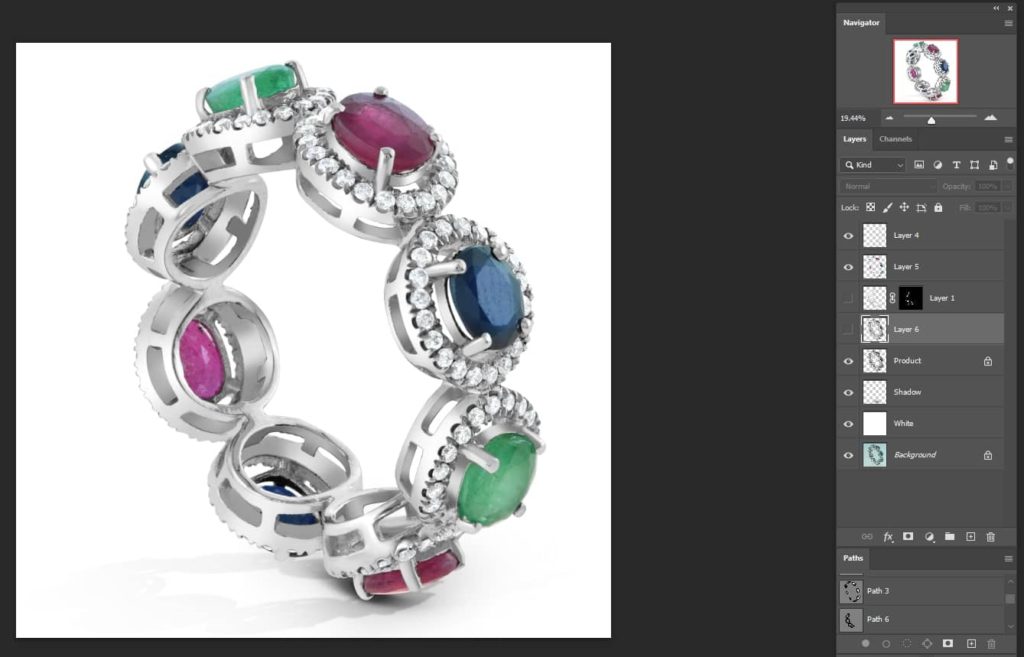
Add a soft shadow under the jewelry to give it depth and make it stand out. You can use a drop shadow or create one manually to control the shape and softness. Keep the shadow light and natural so it does not look too dark or fake. A good shadow helps the product feel grounded and more realistic.
6. Enhance Shine and Details
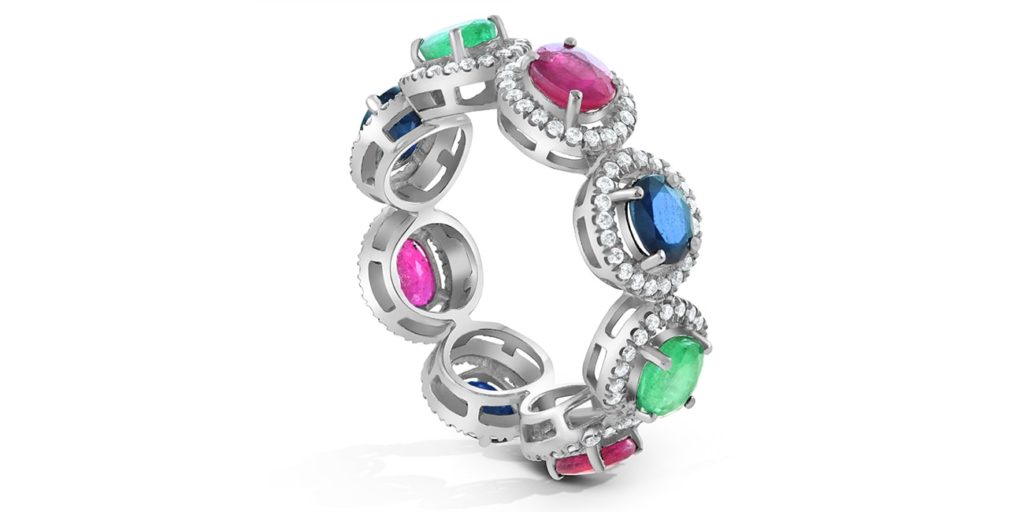
Once you’ve got a good foundation in place, it’s time to enhance the sparkle and shine of your project. By adding a few bold colors, or adjusting the brightness and contrast of your design. Use the Dodge Tool to brighten highlights and bring out the natural shine of the jewelry. Add light sharpening to improve small details and make the image look crisp. Focus on stones and edges so they stand out clearly. Keep the effect subtle so the jewelry looks clean and realistic, not over edited.
7. Adjust Brightness and Contrast
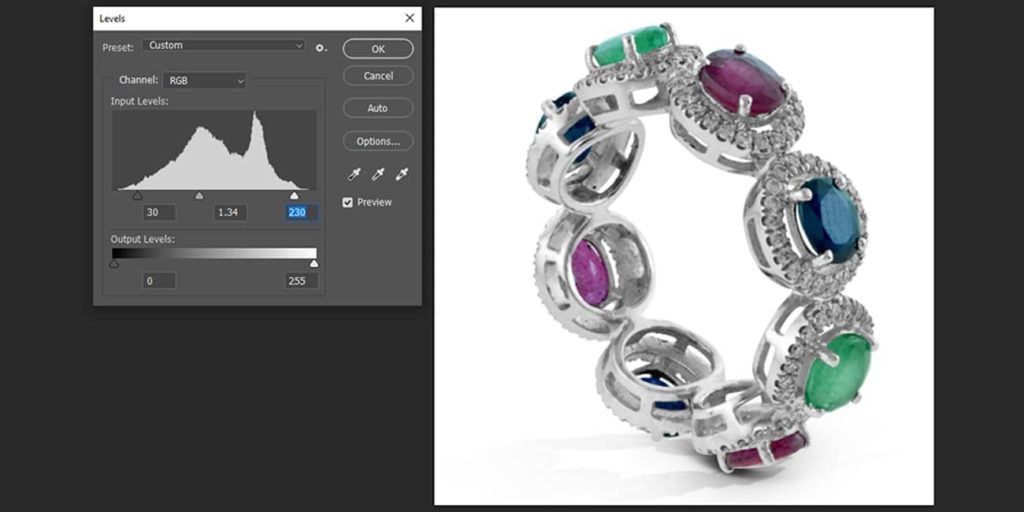
Adjust the brightness and contrast to improve lighting and make the jewelry look clear. Increase brightness to fix dark areas and adjust contrast to bring out details without losing highlights. Keep an eye on shiny areas so they do not become too bright or blown out. Always check the full image so it looks balanced and natural, not too dark or too flat.
8: Final Touch and Export
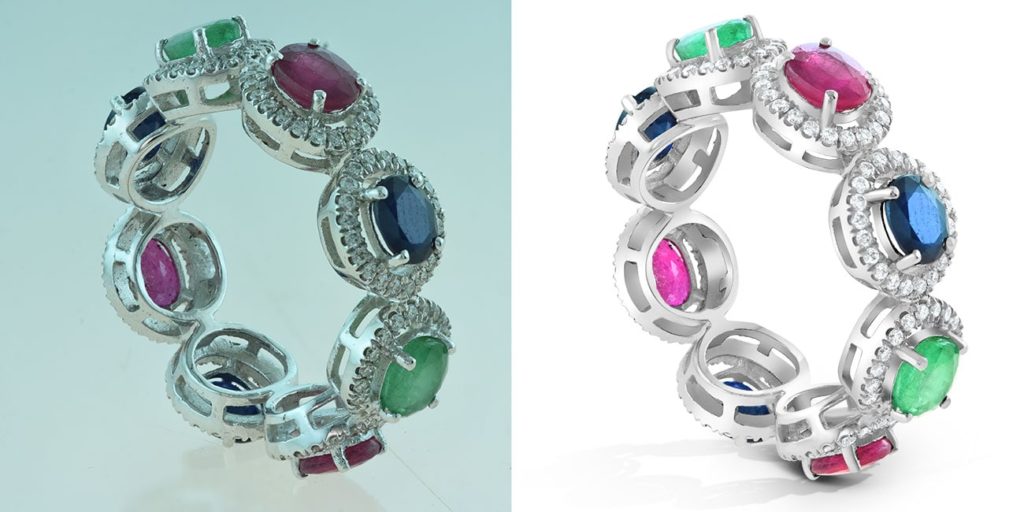
Check the image carefully and fix any small issues you may have missed. Make sure colors look natural, edges look clean, and the overall image looks balanced. Avoid over editing so the jewelry still looks real and attractive. Export the image in high quality using JPEG or PNG so it looks sharp on websites and online stores.
Conclusion
After learning the basics of how to use Photoshop to enhance your jewelry photos, you can now confidently create professional-looking images of your jewelry. With a few simple steps, you can easily adjust lighting, color, and composition to make your jewelry look its best. With some practice, you’ll be able to create beautifully, captivating jewelry images that will help you stand out from the competition and attract more customers.