If you’re new to Photoshop, the Magic Wand Tool can feel like a shortcut for selecting areas fast. It works best when your photo has clear, simple colors—like a product on a plain background. In this guide, you’ll learn where to find the tool, what the main settings mean, and how to use it step by step. By the end, you’ll know when it’s a great choice and when you should use a different tool.

Where Is the Magic Wand Tool in Photoshop?
The Magic Wand Tool is a selection tool that picks pixels based on similar color and tone. Instead of drawing a shape around something, you click an area and Photoshop selects nearby pixels that look similar. This makes it very quick for simple backgrounds, like white, solid gray, or one-color walls. Adobe describes it as a fast way to select an object you want to isolate.
You’ll also learn what to do if you can’t see it right away. Many beginners think the tool is gone, but it’s usually just hidden inside a tool group. After this section, you’ll be able to find it in seconds.
Find It in the Toolbar
In most Photoshop layouts, the Magic Wand Tool is grouped with other selection tools like Quick Selection or Object Selection. That means you may not see it as its own icon at first. Click and hold (or long-press) the selection tool in your toolbar to open the small tool menu. Then choose the Magic Wand Tool from that list.
If It’s Hidden — Show It
Sometimes the Magic Wand Tool is not visible because the toolbar was customized. You can bring it back by going to Edit → Toolbar… and then restoring the default toolbar or adding the tool back. Adobe’s toolbar guide explains that you can add, remove, and restore tools from this menu. After you fix it, click Done to save your toolbar changes.

Key Features and Settings
You will learn the most important Magic Wand settings and what each one does. These settings control how “picky” the tool is when it selects pixels. You’ll also learn which options help create smoother edges. Once you understand these, your selections will feel much more predictable.
Sample Size
Sample Size controls how Photoshop reads the area you click. A small sample reads fewer pixels, which can work well on clean images with smooth color. A larger sample can help when your image has noise, grain, or tiny color changes. If your selection looks spotty, try increasing the sample size and clicking again.
Tolerance
Tolerance decides how close other pixels must be to the color you clicked. A low tolerance selects a smaller range of colors, so it can be more precise on clean backgrounds. A higher tolerance selects more shades, which can help on backgrounds that are not perfectly flat. Adobe lists Tolerance as one of the key options in the Magic Wand settings bar.
Contiguous (On vs Off)
Contiguous decides whether Photoshop selects only pixels that touch each other. When Contiguous is ON, it selects only connected areas, which is helpful when your subject and background share similar colors in different places. When it’s OFF, Photoshop can select matching colors across the whole image, even if they are far apart. This can be great for selecting a solid background, but it can also grab extra areas you didn’t want.
Anti-alias (Keep ON)
Anti-aliasing smooths the edge of your selection so it doesn’t look jagged. If it’s OFF, the selection edge can look rough and “stair-stepped,” especially when you zoom in. Keeping it ON usually gives a cleaner result for cutouts. Adobe includes “Anti-aliased” as a standard Magic Wand option because it helps edge quality.
Sample All Layers
Sample All Layers is useful when your image has multiple layers. With this option, Photoshop looks at what you can see on the screen, not just the layer you have selected. This helps when your top layer is empty or when the colors you want are coming from a blend of layers. Adobe lists Sample All Layers as a main option for how the Magic Wand reads your image.
Selection Options (Add / Subtract / Intersect)
Selection options control how your next click changes the current selection. You can start fresh, add more, remove parts, or keep only the overlapping area. This makes it easy to build a selection in small pieces instead of trying to get it perfect in one click. Adobe notes these selection modes directly in the tool options bar for the Magic Wand.

How to Use the Magic Wand Tool (Step-by-Step Workflow)
You will learn a beginner-friendly workflow you can follow every time you use the Magic Wand Tool. You’ll see how to set up your file so you don’t accidentally ruin your original image. You’ll also learn how to fix common selection mistakes as you go. By the end, you’ll be able to create a clean selection and export a transparent PNG.
Step 1: Open Your Image and Duplicate the Layer
Open your photo in Photoshop like you normally would. In the Layers panel, duplicate your image layer so you have a safe backup. This way, if you make a mistake, your original stays untouched. Duplicating the layer also makes it easier to compare before and after.
Step 2: Select the Magic Wand Tool
Choose the Magic Wand Tool from the toolbar. If you don’t see it, click and hold the selection tool group (often Quick Selection or Object Selection) and pick Magic Wand from the list. You can also use the shortcut W to access the tool group quickly. Adobe lists (W) as the Magic Wand shortcut.
Step 3: Set Your Key Options Before You Click
Look at the options bar near the top and set the basics first. Start with a medium tolerance so you can see what happens, then adjust as needed. Keep Anti-alias turned on for smoother edges. If you only want connected areas, keep Contiguous on; if you want the same color everywhere, turn it off.
Step 4: Click to Select the Background (Or the Subject)
Click once on the area you want to select, like a white background behind a product. Photoshop will create “marching ants” around the selected area. If it selects too little, you can raise the tolerance and click again. If it selects too much, lower the tolerance and try again.
Step 5: Add to the Selection (When It Misses Areas)
It’s normal for the first click to miss small spots. Switch to Add to Selection in the options bar, or hold Shift while you click. Then click on other background areas to include them. Adobe explains that you can use “Add to Selection” mode to keep building the selection.
Step 6: Subtract from the Selection (When It Grabs the Wrong Parts)
Sometimes the Magic Wand grabs part of your subject by accident. Switch to Subtract from Selection in the options bar, or hold Alt (Windows) / Option (Mac) while you click. Click the unwanted areas to remove them from the selection. This is one of the fastest ways to clean up without restarting.
Step 7: Refine the Selection Edges
Zoom in and look closely at the border where the subject meets the background. If you see rough edges, small gaps, or a thin outline, don’t worry—this is very common. You can lightly adjust tolerance and make a few add/subtract clicks to tighten things up. Take your time here because clean edges make your final result look professional.
Step 8: Use “Select and Mask” for a Cleaner Cutout
When your selection is close, open Select and Mask to improve the edge. This tool helps smooth the border and can reduce small, messy areas. It’s especially helpful if your subject has soft edges or tiny details. Even for beginners, a quick pass in Select and Mask often makes the cutout look much better.
Step 9: Invert the Selection (Optional)
Sometimes it’s easier to select the background first, especially if it’s one solid color. If you selected the background, but you actually need the subject selected, invert it. Go to Select → Inverse so the subject becomes the active selection. This step is simple, but it saves a lot of time.
Step 10: Apply a Layer Mask (Instead of Deleting)
Instead of pressing Delete right away, add a layer mask. A mask hides the background without permanently removing pixels, so you can fix mistakes later. If you notice a problem, you can paint on the mask to clean it up. This is one of the easiest ways to keep your edits safe and flexible.
Step 11: Export a PNG with a Transparent Background
When your background is hidden, and your subject looks clean, export your image as a PNG. PNG supports transparency, so your background stays clear. Make sure the export settings keep transparency turned on. Now your image is ready for websites, product listings, or design work.
When to Use (and Avoid) the Magic Wand Tool
You will learn the types of photos where the Magic Wand Tool works best. You’ll also learn the situations where it usually struggles and wastes your time. This helps you pick the right tool faster and avoid frustration. When you choose the right use case, Magic Wand can feel like a one-click win.
Best for the Magic Wand Tool in Photoshop
- Solid Backgrounds (white, black, one-color walls): The Magic Wand Tool shines when the background color is simple and even. In these cases, one or two clicks can select most of the background. You’ll often get a clean result with very little cleanup.
- Simple Product Photos with Clear Edges: Items like bottles, boxes, tools, and phones often have strong edges. The Magic Wand can grab the background quickly so you can make a transparent PNG for an online store. If the lighting is even, the selection becomes much easier.
- Logos and Flat Graphics: Logos usually have bold colors and clean shapes. The Magic Wand can select a background color fast, especially if it’s a single shade. This is great for quick edits and simple exports.
Avoid on Magic Wand Tool in Photoshop
- Hair, Fur, and Fuzzy Edges: Hair and fur have tiny details and soft edges, so Magic Wand often creates choppy borders. You may spend more time fixing the edge than you saved. In these cases, Select and Mask or other tools are usually better.
- Busy or Colorful Backgrounds: If the background has many colors, the tool may grab random patches you don’t want. You’ll end up doing a lot of add/subtract clicks. A different selection tool can be faster and cleaner.
- Strong Gradients and Shadows: Gradients change color smoothly, so the Magic Wand can’t decide where to stop. It may select too little in one area and too much in another. For these photos, try Quick Selection, Select Subject, or manual masking instead.
Pro Tips for Cleaner Selections (Real-world)
These simple tips and tricks help you fix common problems like rough edges and small missing spots. You’ll also learn how to combine tools for better control. Even small changes can make your final PNG look much more professional.
Fix Jagged Edges Fast
If your selection edge looks rough, start by checking that Anti-alias is turned on. Then use Select and Mask to smooth the edge and reduce harsh lines. If the edge still looks sharp, a tiny bit of feathering can help, but keep it subtle. Always zoom in and check the edge before exporting.
Combine the Magic Wand with the Lasso or a Brush on the Mask
Magic Wand is great for speed, but it’s not always perfect. When you need more control, use the Lasso tool to fix small areas, or paint on your layer mask with a brush. This “mix and match” approach is often faster than trying to force Magic Wand to do everything. It also gives you cleaner results on tough corners.
Use “Select Similar” for Speed
After you select one area, you can expand that selection based on similar colors. This can help when your background has several patches that match, but they are not touching each other. It’s a quick way to grow your selection without clicking a hundred times. Just make sure you review the result so it didn’t grab parts of your subject.
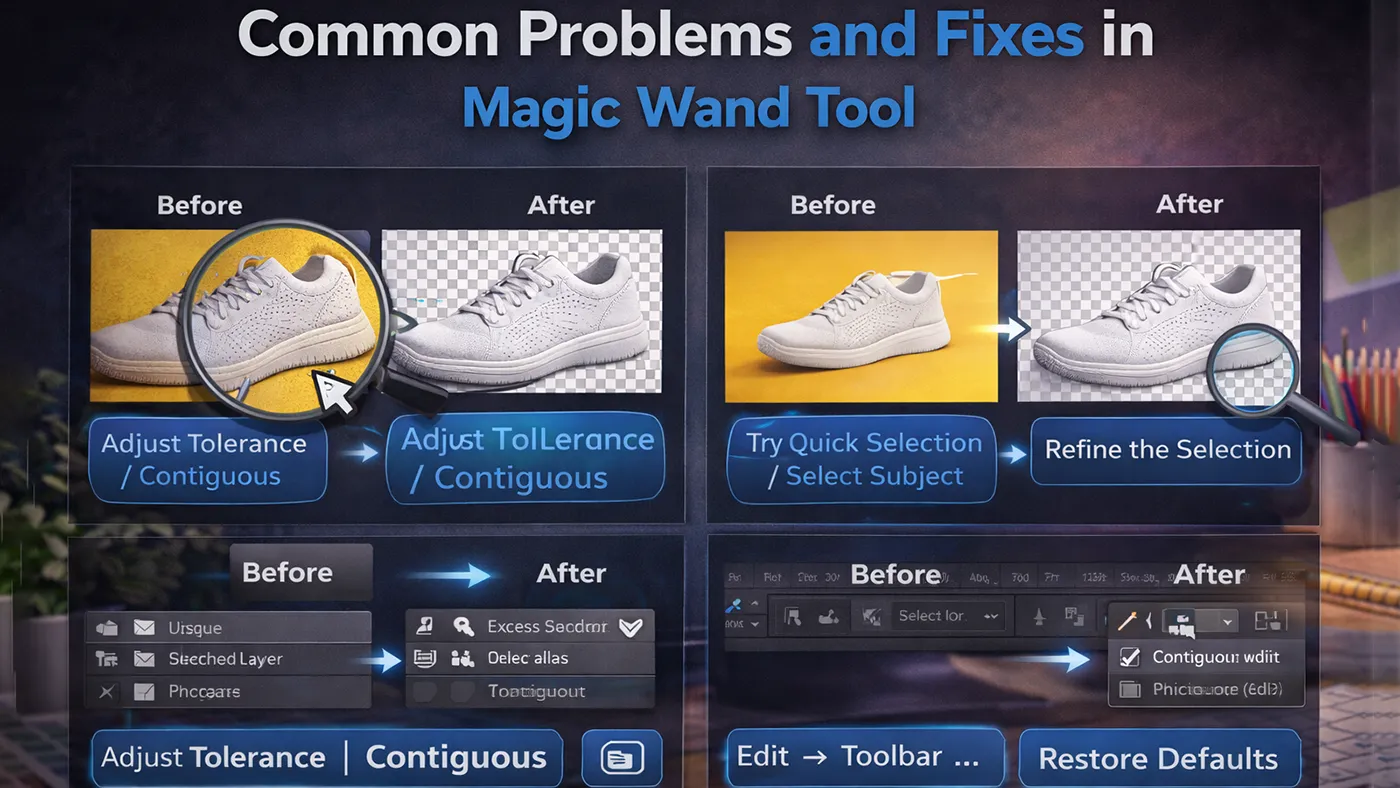
Common Problems and Fixes of the Magic Wand Tool
You will learn how to fix the most common Magic Wand problems beginners run into. This includes the tool “missing,” weird selections, and backgrounds that won’t select cleanly. Most issues come from just one or two settings. Once you know what to check, you can solve problems fast and keep moving.
Magic Wand Tool Missing in Photoshop
If you can’t find Magic Wand, it’s usually hidden inside a tool group or removed from the toolbar. Click and hold the selection tool group to see if it’s in the list. If it’s not there, go to Edit → Toolbar… and restore defaults or add the tool back. Adobe confirms that tools can disappear due to preferences or workspace changes, and you can restore them through toolbar settings.
Magic Wand Selecting Too Much or Too Little
This is almost always a tolerance or contiguous issue. If it selects too much, lower the tolerance and turn Contiguous on so it stays in connected areas. If it selects too little, raise tolerance or turn Contiguous off so it can grab similar colors across the image. Also, try adjusting the sample size if the photo is noisy or has lots of tiny color changes.
Background Has Gradients, and the Magic Wand Fails
Gradients are hard for the Magic Wand because the color changes smoothly across the background. You may click one spot, and only a small area is selected, or the selection looks uneven. In this case, try Quick Selection, Select Subject, or a manual mask instead of forcing Magic Wand. You’ll usually get a cleaner result with less effort.
Common Tips for Success
You will learn a few simple habits that improve your results almost every time. These tips help you work faster and avoid common mistakes. They also make it easier to fix problems without starting over. Think of this as your short checklist before you export.
Invert Selection When Needed
If you selected the background first, you often need the opposite selection. Use Select → Inverse so the subject becomes selected instead. This is faster than trying to select the subject from scratch. It also helps when the background is simpler than the subject.
Fixing Hard Edges
Hard edges can make a cutout look fake, especially on product photos. Use Select and Mask to smooth the border and remove rough spots. If needed, make small changes to the mask with a soft brush for a natural edge. Always zoom in to check corners and thin areas.
Pick a Sample Size That Matches Your Photo
If your photo is clean and sharp, a smaller sample size may be enough. If the photo has grain, texture, or uneven lighting, a larger sample size can help the tool “read” the area better. This can reduce spotty selections and missed patches. It’s a small setting, but it can make a big difference.

How Image Expert Can Help You Get Cleaner Cutouts Faster
If you’re trying to cut out products in Photoshop, you already know the hard part: getting clean edges. The Magic Wand Tool can work on simple, solid backgrounds, but it often struggles with shadows, soft edges, and uneven lighting. That’s where ImageExpertIndia.com helps. Instead of spending hours fixing rough selections, you can send your images to a trained editing team and get consistent, store-ready results.
You may need Image Expert when you have lots of images, tight deadlines, or strict quality needs (Amazon, Shopify, product catalogs). A small mistake—jagged edges, leftover background, or colors that look “off”—can make a product look less professional. Clean, well-edited photos build trust and help your listings look more polished.
Image Expert offers popular eCommerce services like background removal (transparent PNG or clean white background), clipping path for sharp cutouts, photo retouching to remove dust or small flaws, shadow creation to make products look natural, and color correction to keep colors balanced and true. If your items have tricky details, they can also do careful masking and edge cleanup for a smoother finish.
The best part is how easy it is. You upload your photos, write a short note about what you want (for example: “remove background” or “add natural shadow”), and their team handles the editing. Then you receive finished files that are ready to use on your website or marketplace listings. This saves time, keeps your brand images consistent, and lets you focus on sales—not editing.
Conclusion
You will get a quick recap of when the Magic Wand is the right tool. You’ll also learn the best next step to take after you make your first selection. Many beginners stop too early and export a rough cutout. A short final check can turn a “good” result into a clean one.
The Magic Wand Tool is best when your image has simple colors and clear separation between subject and background. Start with smart settings, build your selection using add and subtract, and finish with a mask for the cleanest result. If your background is messy, don’t fight it—switch to a different tool and save time. With a little practice, you’ll know right away when Magic Wand is the fastest choice.
Frequently Asked Questions (FAQ)
Where is the Magic Wand Tool in Photoshop?
It’s usually inside the selection tools group. Click and hold the Quick Selection/Object Selection tool to see the Magic Wand.
Why can’t I find the Magic Wand Tool in Photoshop?
It may be hidden because your toolbar was customized. Go to Edit → Toolbar… and restore or add it back.
Why isn’t my Magic Wand Tool working in Photoshop?
Most of the time, the tolerance is too high or too low. Adjust Tolerance and try again, and check if Contiguous is on.
Why is the Magic Wand Tool selecting everything?
Your tolerance may be too high, or Contiguous may be turned off. Lower tolerance and turn Contiguous on.
Why does the Magic Wand select the whole image?
This can happen if you click a large area with similar color or use a high tolerance. Try a lower tolerance and click a smaller area.
What is the Magic Wand Tool used for in Photoshop?
It selects pixels with similar color. It’s great for simple backgrounds and quick cutouts.
What does tolerance mean in the Magic Wand Tool?
Tolerance controls how similar colors must be to get selected. Higher tolerance selects more shades; lower selects fewer.
Why is tolerance needed for the Magic Wand Tool?
Because not all backgrounds are one perfect color. Tolerance helps you control how much Photoshop should include.
What is the best tolerance setting for the Magic Wand Tool?
Start around 20–40 for many photos, then adjust. Use lower for clean backgrounds and higher for uneven ones.
What does Contiguous mean in the Magic Wand Tool?
If Contiguous is ON, it selects only pixels that touch each other. If OFF, it selects similar colors across the whole image.
Should anti-aliasing be on for the Magic Wand Tool?
Yes, keep it on. It makes selection edges smoother and less jagged.
What does “Sample All Layers” do?
It lets the Magic Wand read the visible image from all layers, not just the layer you selected.
How do I add the Magic Wand Tool back to Photoshop?
Go to Edit → Toolbar… and choose Restore Defaults or drag Magic Wand into the toolbar.
How do I reset the Magic Wand Tool settings?
Right-click the tool icon in the top options bar and choose Reset Tool (or reset all tools).
How do I use the Magic Wand Tool to remove a background?
Select the background with Magic Wand, refine the edges, then add a layer mask. Export as PNG for transparency.
How do I deselect after using the Magic Wand Tool?
Press Ctrl + D (Windows) or Cmd + D (Mac) to deselect.
How do I add to a Magic Wand selection?
Hold Shift while clicking, or use Add to Selection mode in the options bar.
How do I subtract from a Magic Wand selection?
Hold Alt (Windows) or Option (Mac) while clicking, or use Subtract from Selection mode.
Why does the Magic Wand leave rough or jagged edges?
This happens with low-quality images, noise, or hard color changes. Keep Anti-alias on and use Select and Mask to smooth edges.
When should I avoid using the Magic Wand Tool?
Avoid it on hair, fur, busy backgrounds, and strong gradients. In those cases, Quick Selection, Select Subject, or masking works better.