Learning how to edit headshots on iPhone has become an important skill for students, job seekers, and professionals alike. Because iPhones now capture sharp and detailed portraits, many people rely on them instead of professional cameras. However, even a good photo often needs small adjustments to look polished and presentable.
Editing helps correct lighting issues, improve skin tones, and guide attention toward the face. When done carefully, these changes make a headshot look clean and confident rather than artificial. As a result, understanding the editing process can greatly improve how others perceive your photo.
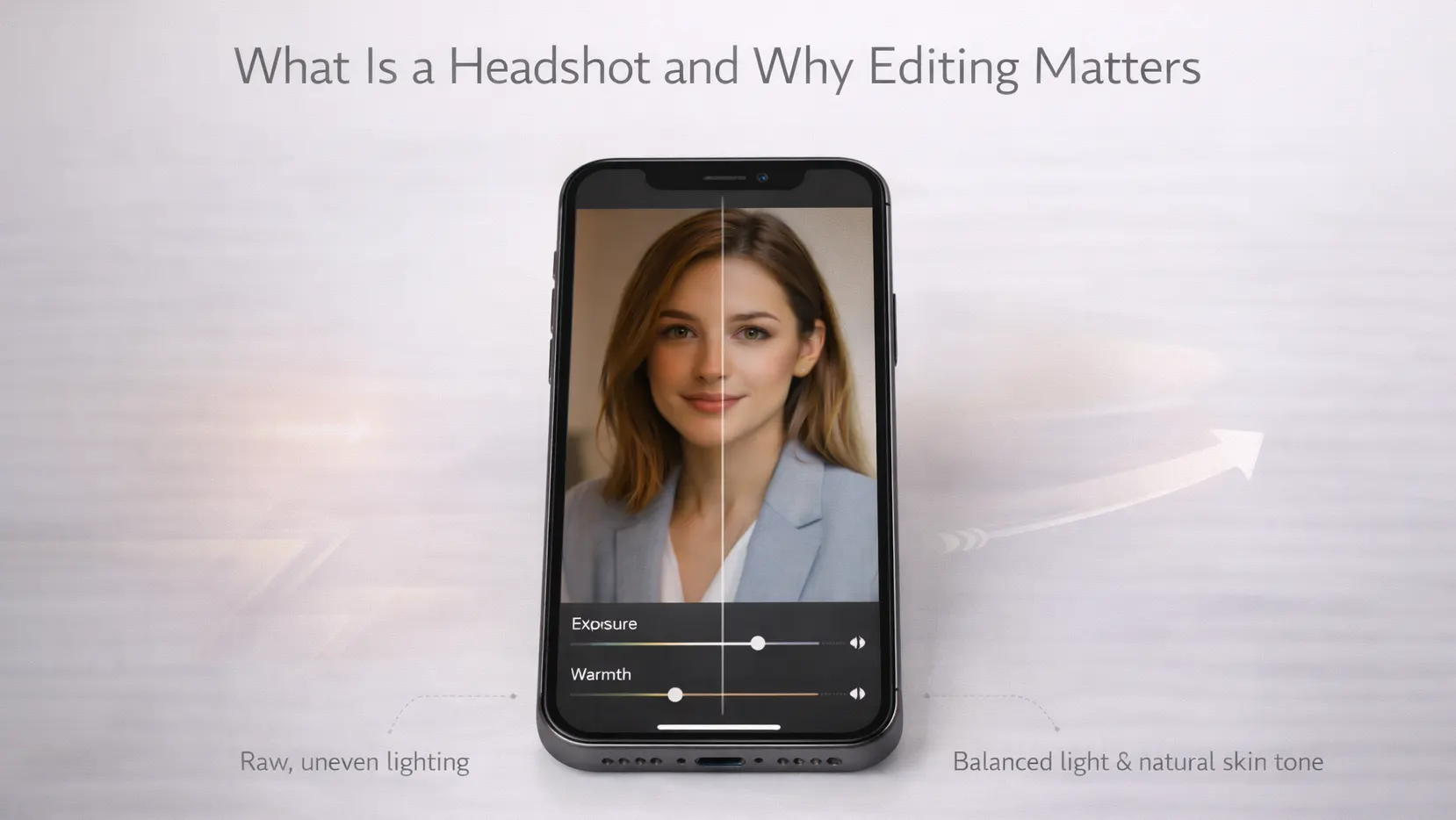
What Is a Headshot and Why Editing Matters
A headshot is designed to represent a person clearly and professionally. Because it is often used for online profiles or formal documents, even small details can affect how trustworthy or approachable the image feels.
What makes a good headshot
A good headshot shows the face clearly, with balanced lighting and a natural expression. The eyes should be sharp, and the face should be easy to recognize at first glance. In addition, the background must stay simple so it does not compete with the subject.
Another important factor is realism. A strong headshot looks like the person on their best day, not a heavily altered version of them. Editing supports this by improving clarity and balance while keeping natural features intact.
Common problems in raw iPhone headshots
Raw iPhone headshots often suffer from uneven lighting, especially indoors. For instance, overhead lights can create shadows under the eyes, while window light may brighten one side of the face more than the other. These problems are common and do not mean the photo is unusable.
Color issues are also frequent. Skin tones may look too warm or too cool depending on the environment. Because of this, iphone headshot editing is necessary to correct these flaws and create a more professional result.
Best iPhone Apps for Editing Headshots
Choosing the right editing app plays a major role in the final outcome. While many apps promise dramatic results, only a few are suitable for clean and natural headshot edits.
Apple Photos app for basic headshot editing
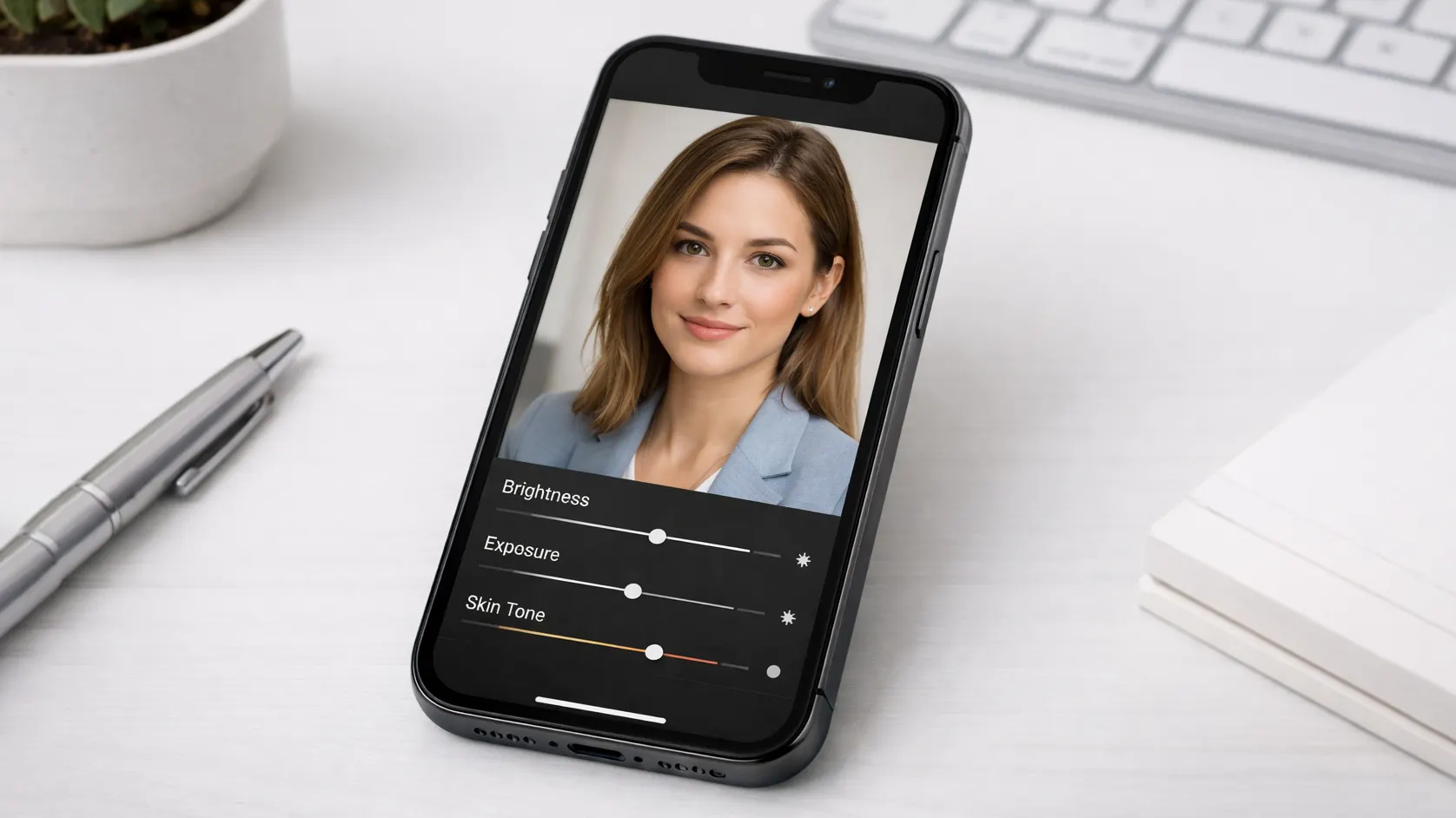
The Apple Photos app is a reliable starting point for beginners. It allows users to adjust brightness, exposure, contrast, and warmth using simple sliders. Because the tools are limited, it reduces the risk of over-editing.
This app is especially useful for quick fixes. For example, you can brighten a dark face, straighten the image, or slightly improve color balance without changing the photo’s natural look.
Snapseed for clean and natural edits
Snapseed offers more control while remaining easy to use. Its selective editing tools allow adjustments to specific areas, such as brightening the face without affecting the background. This helps keep edits focused and realistic.
In addition, Snapseed’s healing tool works well for removing small blemishes. When used gently, it produces results that look natural, making it a popular choice among headshot editing apps for iPhone.
Lightroom Mobile for professional headshots
Lightroom Mobile is ideal for users who want advanced control. It provides detailed adjustments for light, color, and sharpness, which helps create consistent results across multiple photos.
Because it handles skin tones accurately, Lightroom is often used for professional headshots on iPhone. Although it requires more practice, it offers the most flexibility for serious editing.
When to use FaceTune carefully
FaceTune focuses heavily on facial features, which makes it risky for headshot editing. While it can help remove temporary blemishes, overuse often leads to unrealistic results.
If you choose to use FaceTune, limit it strictly to small corrections. Avoid reshaping facial features or excessive smoothing, as these changes reduce trust and authenticity.
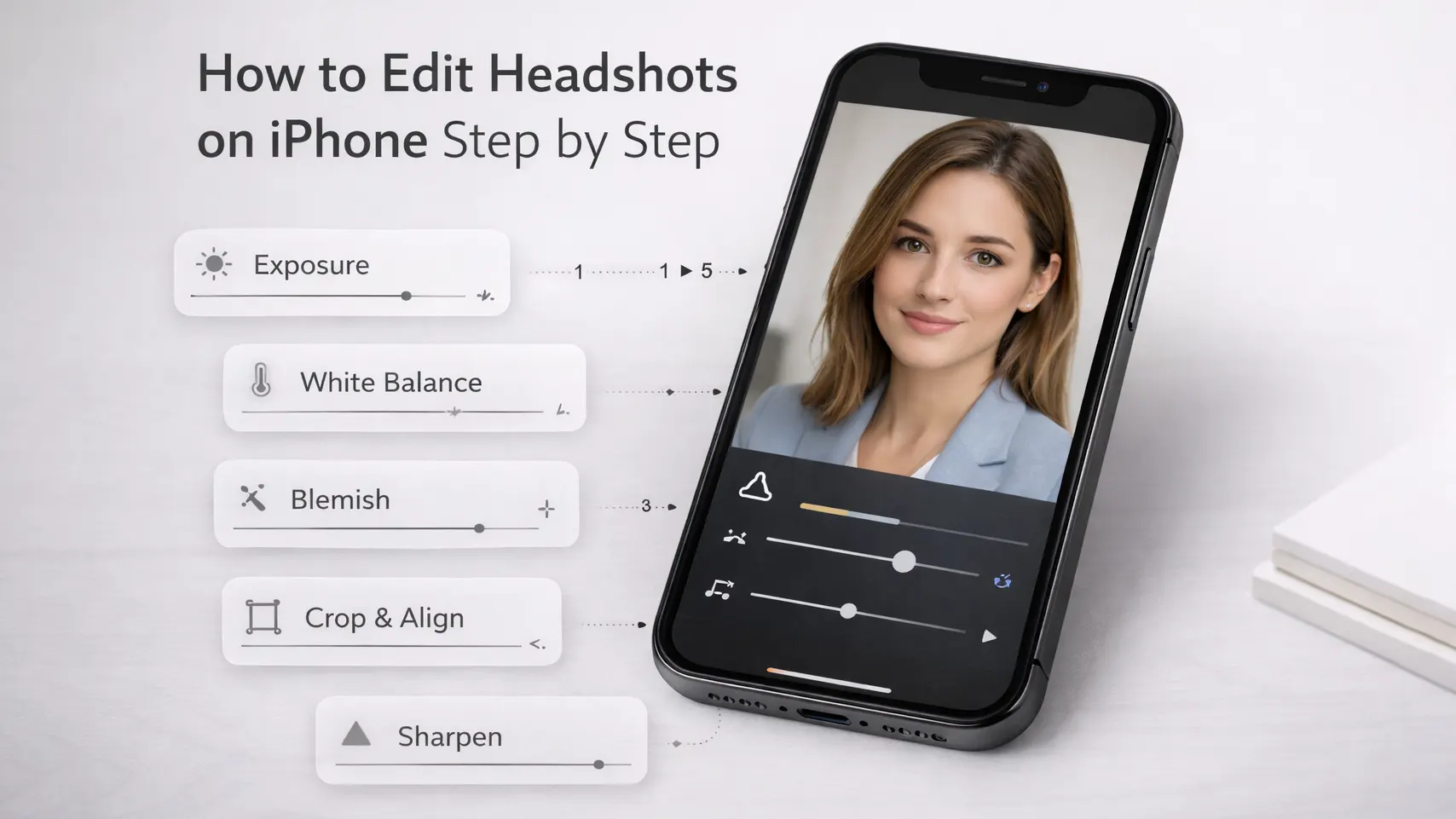
How to Edit Headshots on iPhone Step by Step
Understanding how to edit headshots on iPhone becomes easier when the process is broken into clear steps. Each step improves a specific problem without damaging the overall image.
Adjust exposure and brightness
Start by correcting exposure so the face is clearly visible. If the image is too dark, gently increase brightness or exposure until facial features become clear. However, avoid pushing the sliders too far.
Balanced lighting ensures the photo looks natural. When exposure is correct, skin tones appear more accurate, and other edits become easier to manage.
Fix white balance and skin tone
White balance controls how warm or cool the photo looks. Indoor lighting often adds yellow tones, while shade can make skin look bluish. Adjusting warmth and tint helps restore natural skin color.
This step is important because incorrect skin tone can make a headshot look unhealthy or artificial. Small adjustments usually work better than extreme corrections.
Remove small blemishes naturally
Blemish removal should focus only on temporary imperfections. Pimples, dust spots, or small marks can be removed without affecting skin texture.
Avoid removing freckles, lines, or pores. These features give the face character and realism, which is essential in iphone portrait headshot editing.
Crop and align the headshot properly
Cropping improves composition and focus. The head and shoulders should fill most of the frame, while the eyes should sit near the upper third of the image.
Proper alignment also matters. A slightly tilted headshot can look unprofessional, so straighten the image before finalizing the crop.
Sharpen eyes and facial details
Light sharpening helps eyes and facial features stand out. This creates a sense of clarity and confidence in the image.
However, sharpening should be subtle. Too much sharpness can exaggerate pores and fine lines, making the photo look harsh.
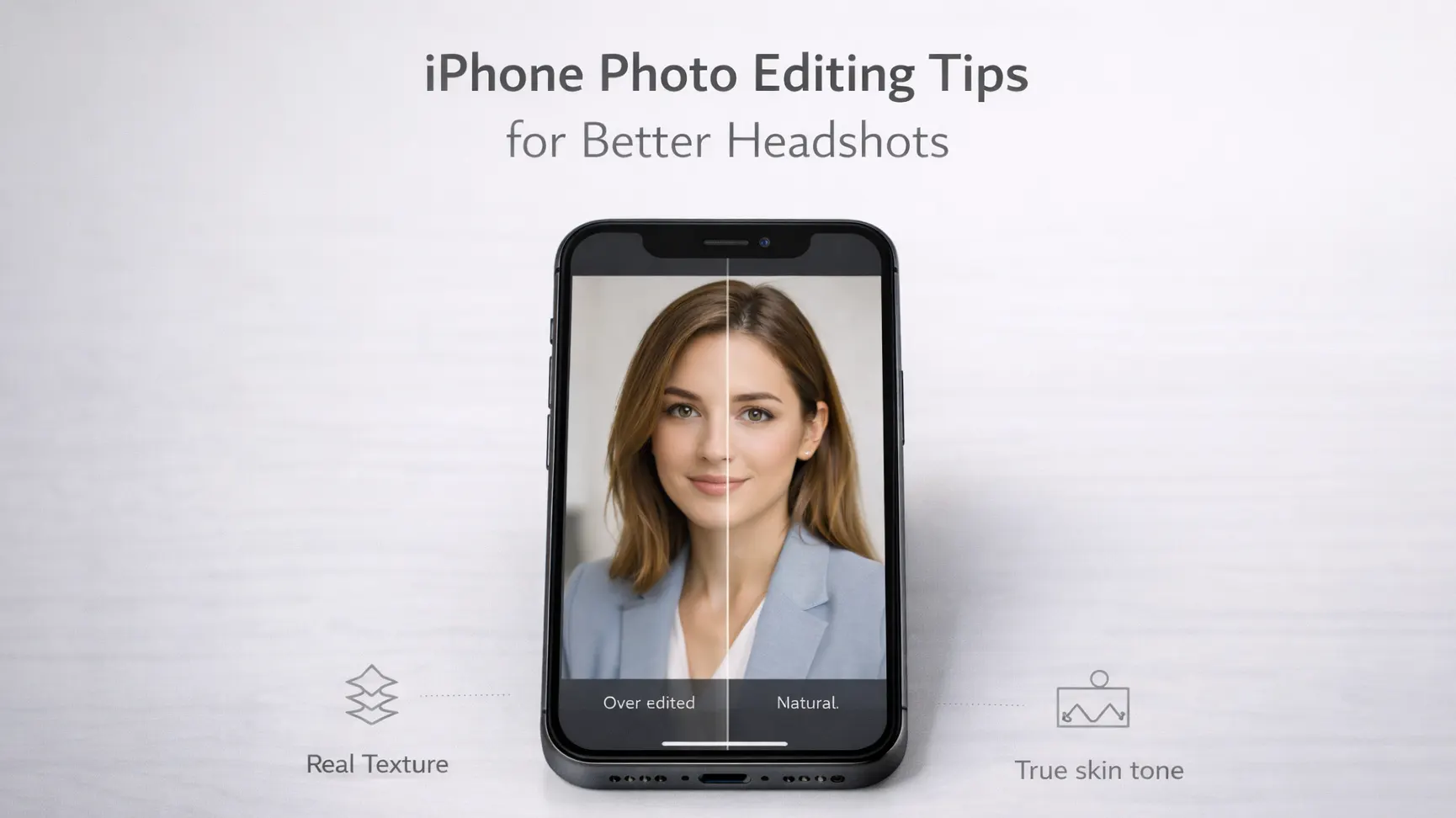
iPhone Photo Editing Tips for Better Headshots
Even with the right apps and steps, results depend heavily on editing habits. These iphone photo editing tips focus specifically on headshots, where realism and clarity matter more than dramatic effects.
Keep headshot edits natural
Natural editing ensures that the person in the photo still looks like themselves. When headshots look overly polished, viewers often feel something is off, even if they cannot explain why. Therefore, subtle adjustments create more trust than heavy edits.
A good test is recognition. If friends or colleagues can immediately recognize the person, the editing is likely appropriate. Natural edits enhance confidence without changing identity.
Avoid heavy filters and effects
Filters change color tones, contrast, and texture all at once. While they may look appealing on casual photos, they usually harm headshots. Skin tones can shift unnaturally, and lighting may appear inconsistent.
Instead of filters, manual adjustments provide more control. Small changes to brightness, contrast, and warmth maintain realism while improving image quality.
Maintain natural skin texture
Skin texture gives depth to a face. When smoothing tools remove all texture, the skin looks flat and artificial. This is a common mistake in mobile editing.
Keeping pores, fine lines, and natural variation makes headshots feel honest. Light correction is helpful, but complete smoothing should always be avoided.
Use simple backgrounds
Simple backgrounds make editing easier and improve focus. Busy backgrounds distract viewers and reduce the professional feel of the image.
Neutral walls or softly blurred backgrounds work best. When the background is clean, less editing is required, and the face naturally becomes the focal point.
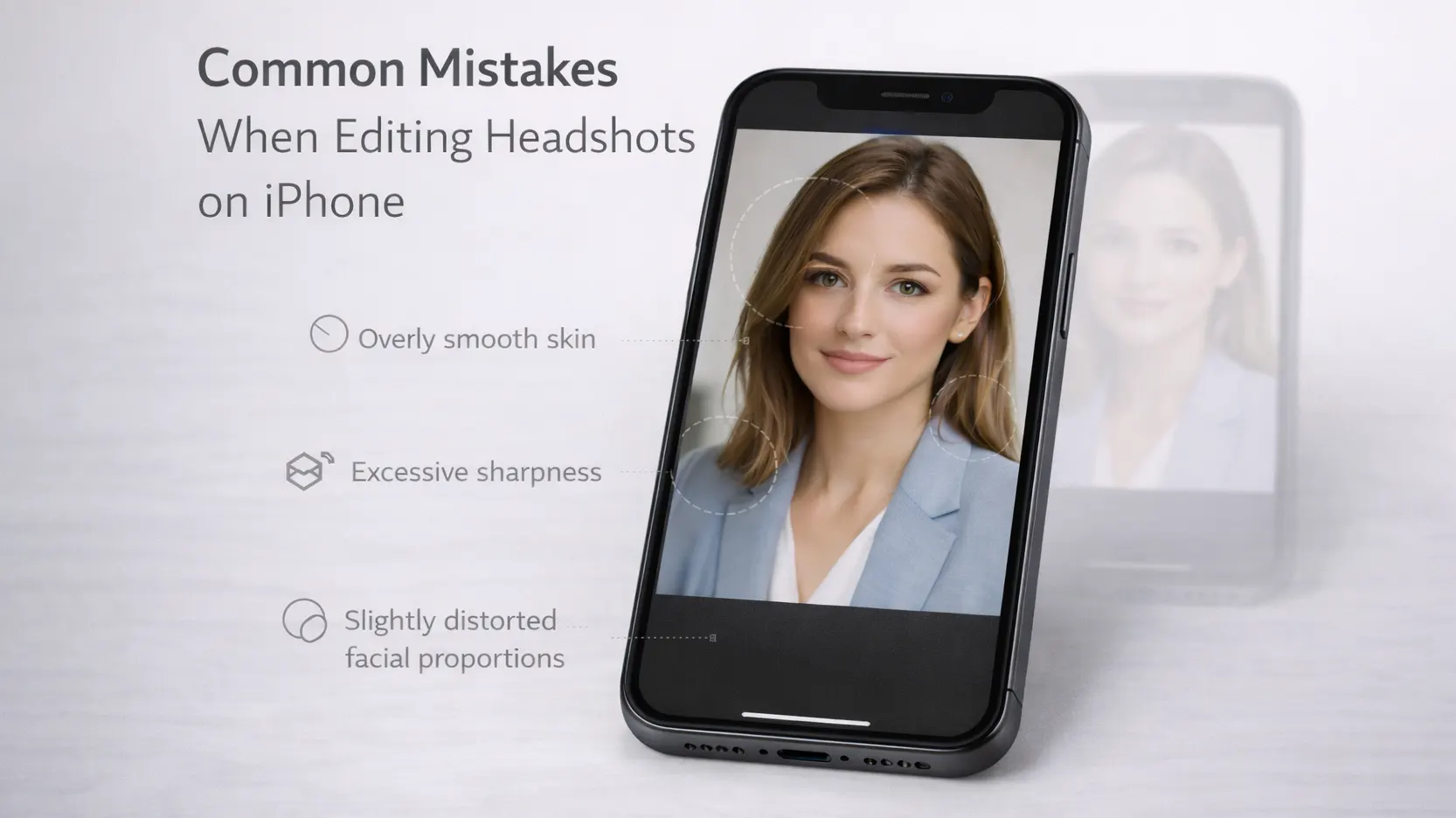
Common Mistakes When Editing Headshots on iPhone
Mistakes often happen when editors try to improve too many things at once. Knowing these common errors helps avoid damaging an otherwise good photo.
Overusing beauty tools
Beauty tools promise fast improvement, but they often change facial features in noticeable ways. Enlarged eyes or reshaped faces reduce authenticity and professionalism.
For headshots, accuracy matters more than perfection. Small corrections may help, but heavy beauty edits usually create distrust.
Too much smoothing or sharpness
Excess smoothing removes detail, while too much sharpness adds harsh edges. Both problems reduce image quality and realism.
Balanced editing keeps skin texture visible while maintaining clarity. Always zoom in while editing to evaluate texture and detail properly.
Changing face shape unnaturally
Changing jawlines, noses, or cheek structure alters identity. In professional contexts, this can feel misleading.
Headshots should represent the real person. Editing should support appearance, not redesign it.
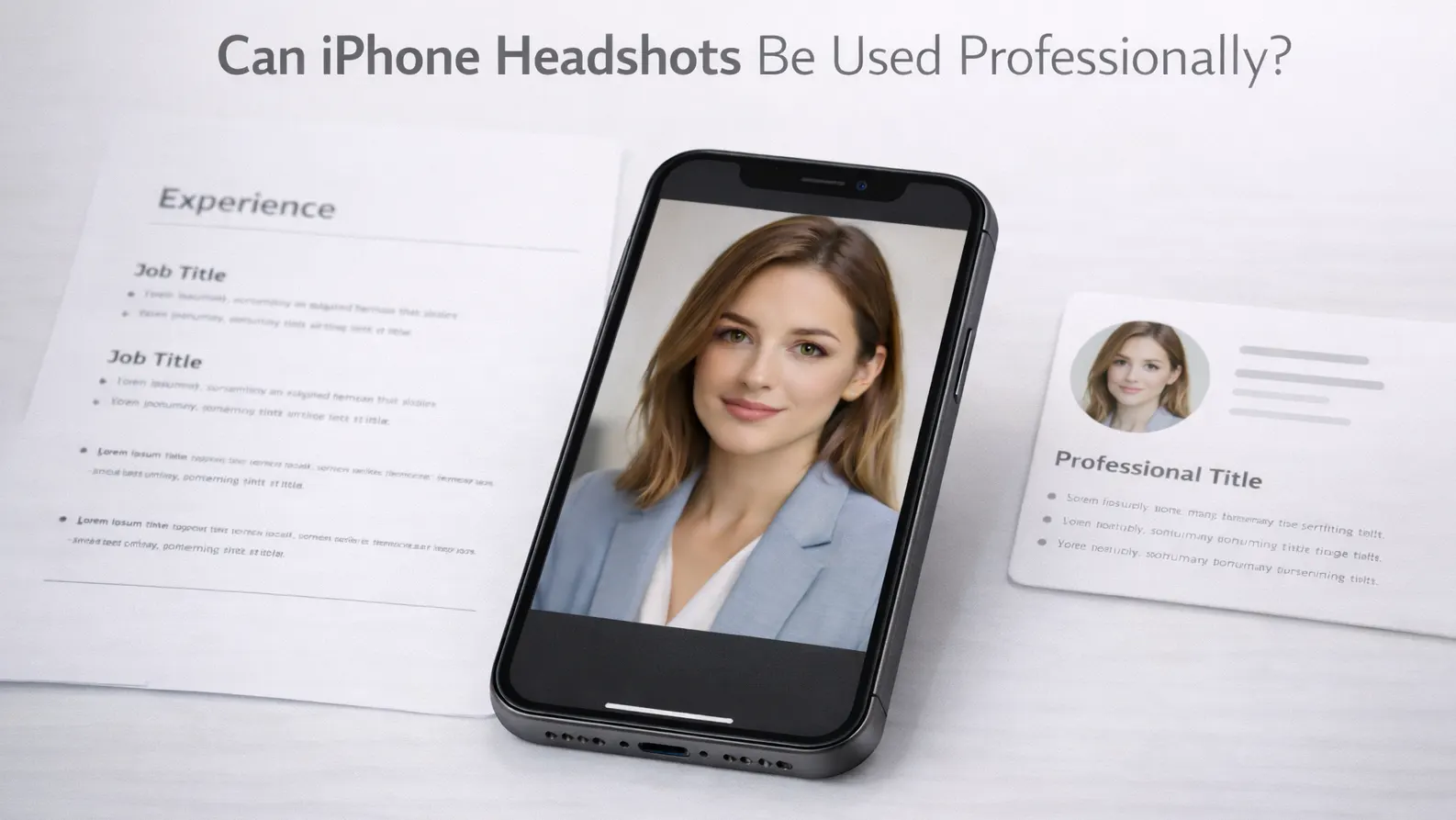
Can iPhone Headshots Be Used Professionally?
Many people wonder whether iPhone headshots meet professional standards. In most cases, the answer depends on execution rather than equipment.
LinkedIn and resume headshots
iPhone headshots work very well for LinkedIn and resumes when lighting and editing are handled correctly. Clear facial detail, neutral background, and natural colors matter more than camera type.
Recruiters focus on clarity and professionalism. A well-edited iPhone headshot often meets these expectations easily.
Business and portfolio use
For freelancers, creators, and small businesses, professional headshots on iPhone are commonly accepted. When photos look clean and consistent, they build trust with clients.
Consistency across images is more important than technical perfection. iPhones can deliver that when used carefully.
When professional retouching is better
High-end corporate branding or large marketing campaigns may require professional retouching. These situations involve precise lighting control and advanced editing.
However, for most everyday professional needs, iPhone headshots are more than sufficient.
FAQs About Editing Headshots on iPhone
How to edit headshots on iPhone without making them look fake?
Use subtle adjustments, avoid filters, and keep skin texture natural. Realistic edits always look more professional.
Which app is best for beginners?
Apple Photos and Snapseed are beginner-friendly and effective for basic headshot editing.
Can iPhone headshots be used for job applications?
Yes. As long as the photo is clear, well-lit, and naturally edited, it is acceptable.
How much editing is too much?
If facial features or skin texture look unnatural, the editing has gone too far.
Final Thoughts on Editing Headshots on iPhone
Learning how to edit headshots on iPhone is about making thoughtful, controlled improvements rather than dramatic changes. Good headshot editing highlights clarity, balance, and authenticity.
With practice, editing decisions become easier. Over time, combining simple composition knowledge with careful editing can produce results that feel professional without losing honesty.