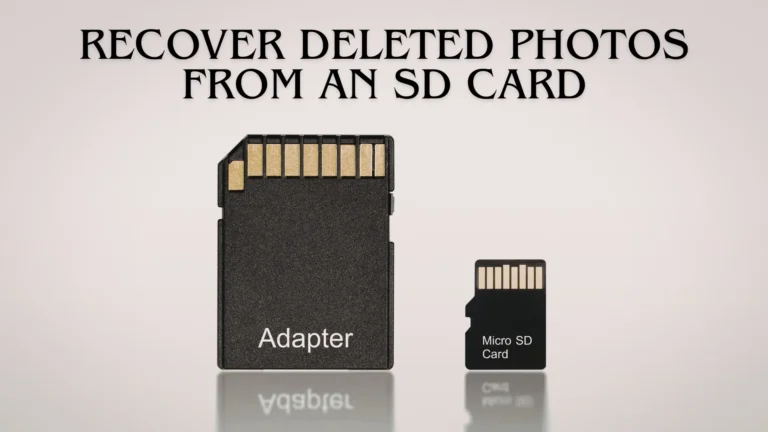
Losing photos from an SD card can be stressful, but with a few careful steps, you can often recover them. First, stop using the card right away so new files don’t replace the old ones. This small move increases the chance of successfully recovering deleted photos. Next, insert the card into your computer and check the Recycle Bin or Trash. With a bit of luck, you may recover deleted photos instantly.
If the photos aren’t there, try a trusted SD card data recovery tool. These programs scan your card and show images that can still be restored. Once the scan finishes, pick the photos you want and save them somewhere different. This helps protect the card during memory card recovery. There are effective methods you can use when learning how to recover deleted photos from an SD card.

Ways to Recover Deleted Photos from an SD Card
When photos disappear from an SD card, it can feel frustrating. Fortunately, you usually have several ways to bring them back. Below are the three most reliable methods, explained in a clear and simple way so you can follow them without stress. Here are the three most reliable ways for anyone looking for how to recover deleted photos from an SD card.
1. Using SD Card Recovery Software (Most Effective)
The most powerful method is using trusted SD card recovery software. These tools scan the card deeply and locate deleted or hidden files that your device can’t see anymore. After scanning, you can preview the photos and restore the ones you want. This option works well even when the card seems empty, corrupted, or unreadable. Because it recovers more files than any other method, it is considered the most effective. Just make sure you install the software on your computer, not on the SD card, to avoid overwriting your images.
2. Backup Sources for Recover Photo
If you regularly save your photos, your backups can become a lifesaver. First, check cloud storage like Google Photos, iCloud, or OneDrive. These services often auto-sync your images, so your deleted files may already be safe online. Next, look through your computer, external drives, or older memory cards. A simple backup search can help you recover deleted photos without using any tools. This method works quickly and avoids the risk of further data loss.
3. Built-In Computer Commands Photos Recovery
Your computer also offers basic recovery options. Windows users can open the command prompt and run simple commands to recover deleted photos from a memory card. MacOS users can try Disk Utility to repair minor card issues. This built-in command can still bring back photos when the problem is small or related to minor file system errors.
You improve your chances of restoring your precious images safely by trying these three methods.

How to Prevent Losing Photos Again
Losing important photos can be frustrating, so it’s smart to follow a few simple habits that protect your images in the future. These best practices are easy to follow and can save you from major data loss later. You can retouch your photo, enhance colours, remove imperfections, and make it look its best
Always Keep on Backup
The safest way to protect your photos is to keep them in more than one place. Even if your SD card gets corrupted, your images will stay safe in your backup storage.
Google Photos: Google Photos automatically uploads your pictures from your phone or computer. Once synced, your images stay stored in the cloud, even if they get deleted from the SD card.
iCloud: If you use an Apple device, iCloud is a great option. It quietly backs up photos in the background, making sure your memories stay safe and accessible across devices.
OneDrive: Microsoft OneDrive is another reliable cloud platform. It syncs your images and lets you access them on Windows, web, or mobile devices without any extra steps.
External hard drives: For extra safety, store your photos on an external hard drive. It’s simple, offline, and offers large storage without needing the internet.
Avoid Using One SD Card on Multiple Devices
Using the same SD card in multiple devices, such as cameras, phones, and computers, can easily create file system conflicts. Each device writes data in its own way, and frequent switching increases the risk of corruption. As a result, photos may disappear, fail to open, or become unreadable. To stay safe, choose separate SD cards for different devices. This small habit keeps your files stable and reduces unexpected errors in the long run.
Format the SD Card Only from the Camera
Formatting your SD card directly inside the camera helps maintain a clean and compatible file system. Cameras prepare the card in a way that matches their exact writing structure, which reduces glitches and file errors. Formatting from a computer can sometimes create mismatches that affect photo storage; unless it’s absolutely necessary, always format using the camera menu. This simple practice improves card performance and helps keep your images secure and organised.
Avoid Removing the SD Card Improperly
Removing an SD card while your camera, phone, or computer is still on can interrupt the writing process. When the device is saving photos and the card is suddenly removed, data becomes incomplete or corrupted. This may lead to missing, broken, or unreadable images. Always turn off the device or safely eject the card before removing it. Taking a few seconds to do this can protect your photos from accidental damage.
Replace Old or Cheap SD Cards
SD cards have a limited lifespan, and cheaper ones wear out faster due to weaker build quality. As cards age, they develop bad sectors that cause slow performance, random errors, or lost files. To avoid unexpected failures, invest in a reliable brand and replace older cards before they start showing issues. A good-quality card offers better durability, faster speeds, and stronger protection for your important photos and videos.
Stop Using the Card on Errors
If your camera or computer shows warnings like “card not readable” or “format required,” stop using the SD card immediately. Continuing to save or delete files can worsen the corruption and reduce your chances of successfully recovering deleted photos. Instead, remove the card safely and attempt recovery as soon as possible. Acting quickly prevents further damage and gives you a much better chance of restoring your lost images without permanent loss.
How to Fix an SD Card for Showing Up on Any Device
When your SD card suddenly stops showing up on your camera, phone, or computer, it can feel alarming. But in most cases, the issue is small and easy to fix. Before assuming the card is damaged, try these simple steps to bring it back.
Clean the SD Card Metal Contacts
Dust, fingerprints, or oxidation on the metal contacts can prevent your device from reading the card properly. Remove the SD card and gently clean the gold contacts using a soft, dry cloth. Don’t use water or cleaning liquids. Wipe carefully in one direction to avoid scratching the surface. After cleaning, insert the card again and check if your device now detects it. This quick step often solves the problem, especially with older cards.
Try Another Card Reader
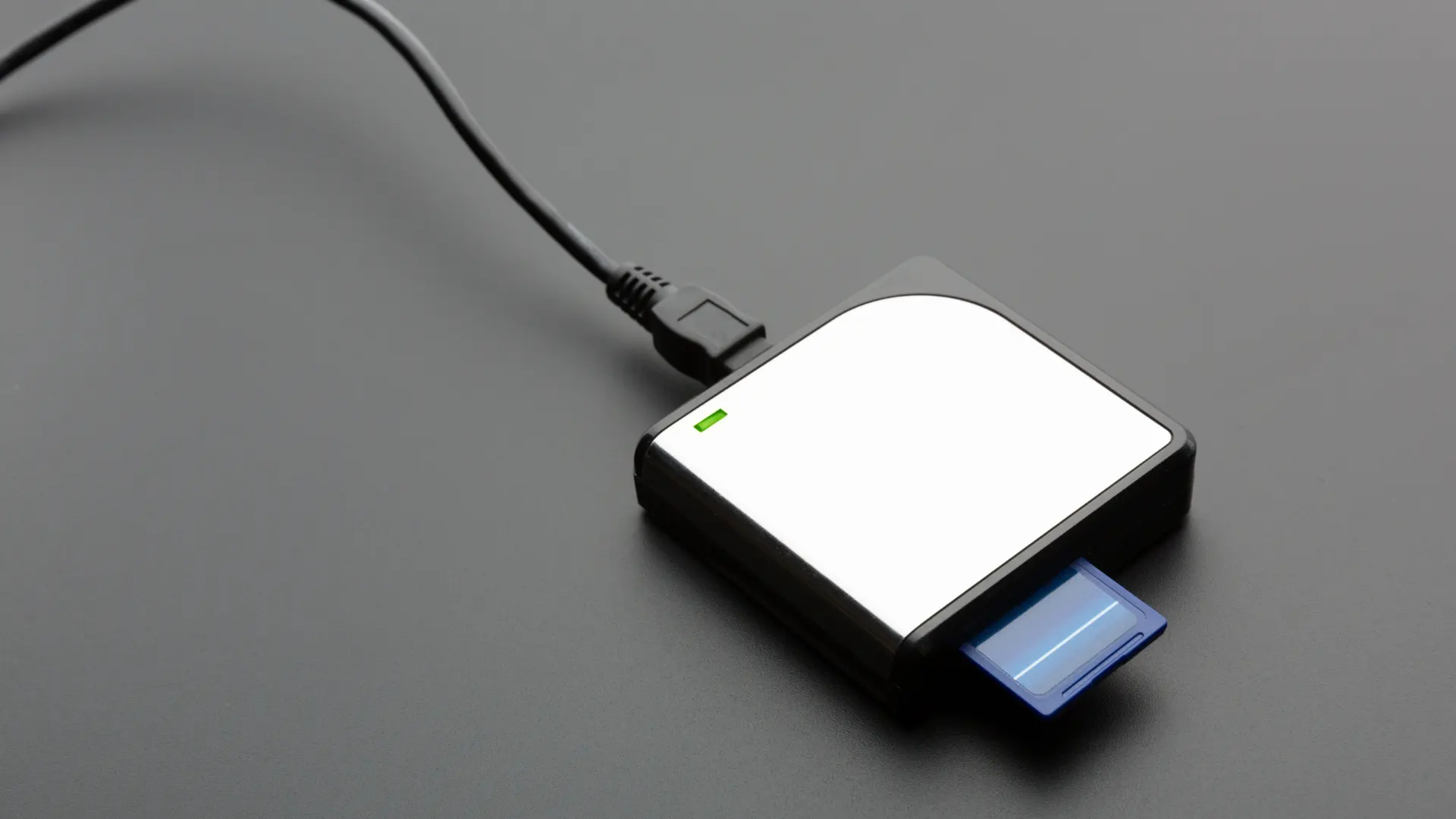
Sometimes the card reader, not the SD card, is the real issue. Card readers can malfunction, have loose ports, or fail due to outdated drivers. If your SD card isn’t showing up, switch to a different card reader or USB port. For laptops with built-in card slots, try using an external reader. When the SD card works in another reader, you know the hardware was the problem, not the card itself.
Check on Another Device
To rule out device compatibility issues, test the SD card in another camera, phone, or computer. If it shows up on a different device, your original device might have software problems, corrupted settings, or outdated drivers. Restarting the device or updating the system may fix the detection issue. However, if the SD card doesn’t appear anywhere, it may be corrupted and may require recovery software.
Trying these simple fixes increases the chances of getting your SD card working again without losing your files.
Final Thoughts
Losing photos from an SD card can be scary, but most problems can be fixed with the right steps. You should know how to recover deleted photos from an SD card so that you can reduce the risk of permanent data loss. One can use SD card recovery software, the computer’s built-in commands, and check backups. Acting quickly when errors appear, avoiding improper removal of the card, and regularly backing up files can help in photo recovery.