
Installing plugins in Adobe After Effects gives you access to more creative tools. The installation process can feel confusing, especially for beginners. Plugins come in different formats, and each format uses a different installation method. Some plugins use an installer, while others need manual setup or a plugin manager. In this guide, you’ll learn how to install an After Effects plugin using three simple and reliable methods. Follow these steps to install plugins correctly and avoid common errors.

1. How to Install After Effects Plugins Using an Installer
Most modern After Effects plugins come with an installer file. This installer automatically places the plugin in the correct location, so you don’t need to manually copy any files. Now, we can explain how to install an After Effects plugin step by step so you can get started without any confusion.
- Before starting the installation, close After Effects completely to prevent any conflicts during setup.
- Download the plugin only from the developer’s official website to ensure it is safe and compatible.
- Locate the installer file you downloaded on your computer.
- On Windows, double-click the .exe file to run the installer.
- On Mac, open the .dmg file and follow the installation instructions shown on the screen.
- Follow the on-screen steps, and the installer will place the plugin files in the correct folder.
- Restart After Effects after installation to load the new plugin.
- After opening After Effects, check the Effects & Presets panel or go to Window > Extensions, depending on the plugin type.
- If required, log in with your account or enter the license key to activate the plugin and unlock all features.
2. How to Install an After Effects Plugin with Manual Installation
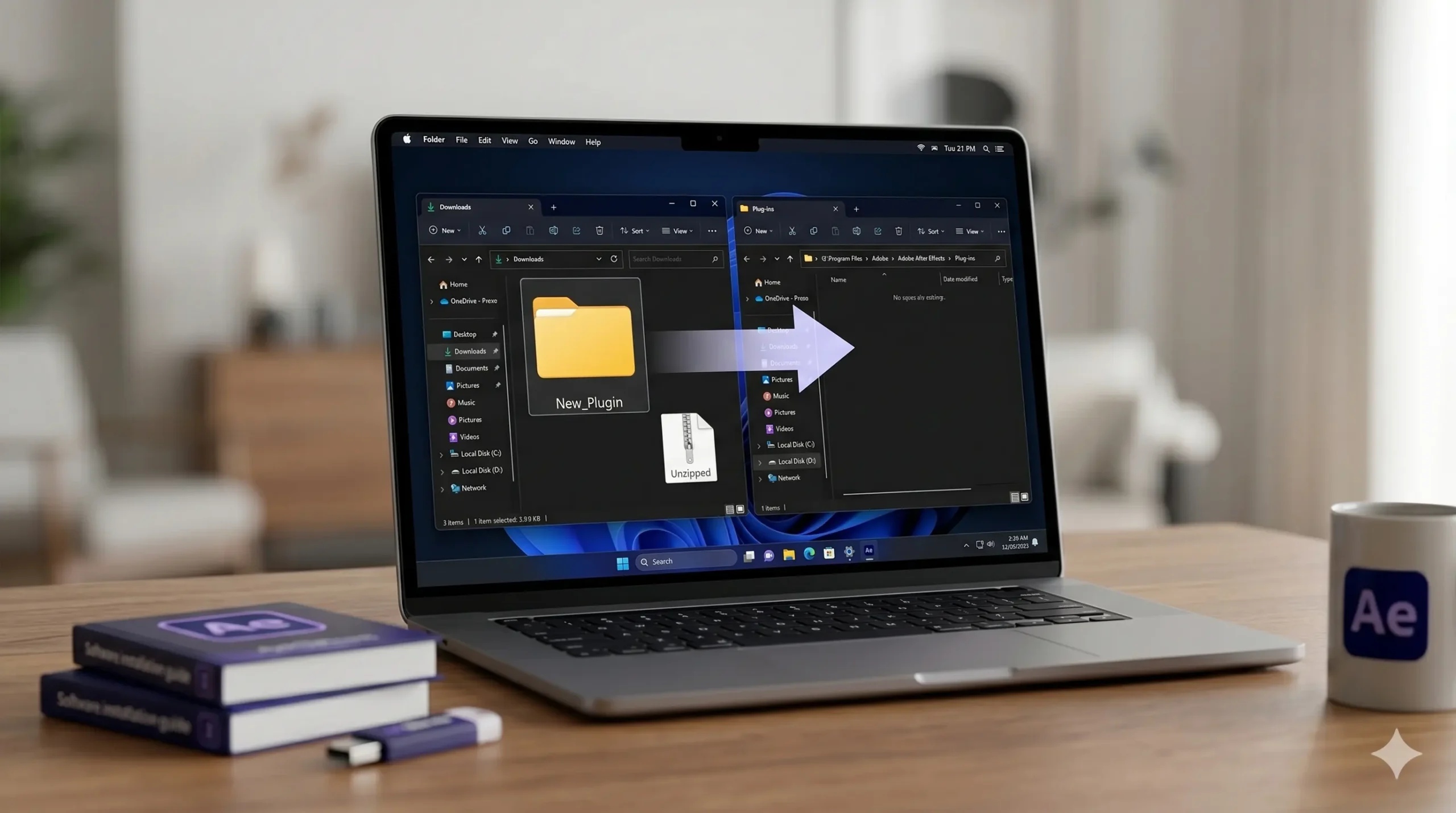
Use this method when a plugin does not include an installer and comes as a single file or ZIP folder.
- Close After Effects before installing so it can detect the plugin when reopened.
- Locate the plugin file inside your download folder (.aex for Windows or .plugin for Mac).
- Open the After Effects Plug-ins folder where plugins are loaded.
- Windows: C:\Program Files\Adobe\Adobe After Effects \Support Files\Plug-ins
- Mac: /Applications/Adobe After Effects [version]/Plug-ins
- Copy the plugin file or folder and paste it into the Plug-ins directory.
- Restart After Effects and check Effects & Presets or the Window menu.
- Optional (Windows only): Some plugins can be placed in the Common Plug-ins folder if supported.
3. How to Install Plugins in After Effects Using Manager App or Adobe Exchange
- After downloading your plugin/extension, check the file type and confirm whether it is a .zxp extension, a script, or an item purchased from aescripts/Adobe Exchange.
- Download and install the correct manager app, such as the Aescripts Manager App (for aescripts tools) or a ZXP/UXP Installer (for .zxp extensions).
- Open the manager app and log in if required so the app can access your purchased or downloaded tools.
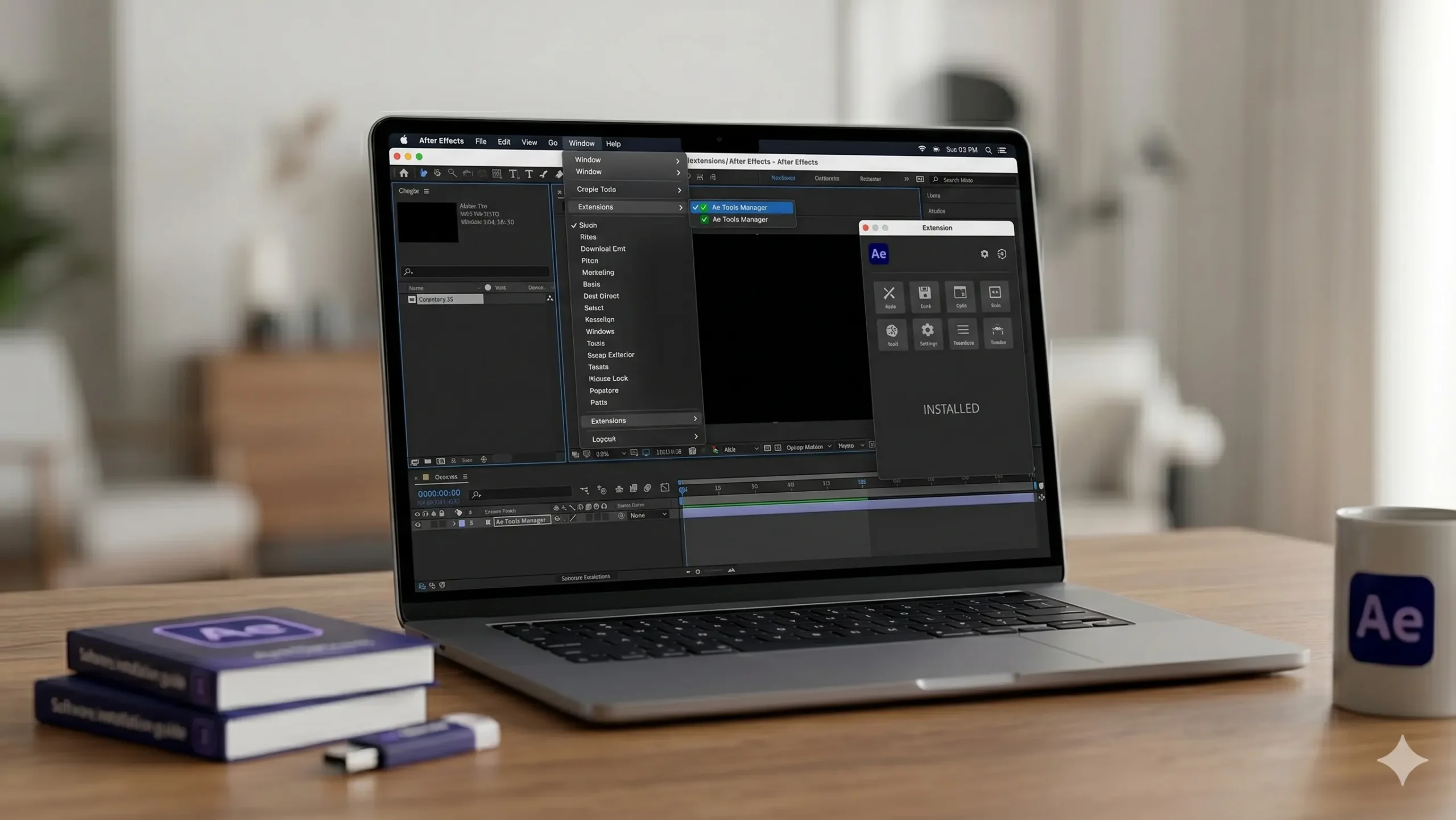
- In the manager app, click the install option and select your downloaded file, or drag and drop the .zxp file into the app window to install it.
- After the installation finishes, close After Effects completely so it can reload the new extension properly.
- After opening After Effects again, click Window in the top menu, go to Extensions, and select your installed extension to open its panel.
After Installation (If the Plugin/Extension Does Not Appear)
- If you don’t see the extension, first confirm the plugin is compatible with your After Effects version and your Windows/Mac system.
- If the extension uses scripts, open Preferences and enable permissions so it can work properly.
- On Windows, go to Edit > Preferences > Scripting & Expressions and turn on Allow Scripts to Write Files and Access Network if the plugin requires it.
- On Mac, go to After Effects > Preferences > Scripting & Expressions and turn on Allow Scripts to Write Files and Access Network if the plugin requires it.
- After changing the setting, restart After Effects again and check Window > Extensions one more time.
Conclusion
Installing plugins in After Effects becomes easy when you follow the correct method for each plugin type. You can use an installer, install files manually, or rely on tools like the Aescripts Manager App or Adobe Exchange. Restarting After Effects after installation is an important step and should not be skipped. If a plugin does not appear, check compatibility and enable script permissions. These steps help you install plugins safely and improve your workflow. By following these steps, you’ll know exactly how to install an After Effects plugin safely. These methods help you work faster and create better projects in After Effects.