
AI background generation in Photoshop helps you change or create new backgrounds in seconds. You can use tools like Generative Fill to do this easily. You don’t need advanced editing skills. Just type a simple prompt, and Photoshop will create a new background for you.
This feature is great for both beginners and professionals. AI photography saves time and gives high-quality results with less effort. If you’re wondering how to generate background Photoshop, this blog helps you.
Benefits of AI Background Generation
- Saves time compared to manual background editing
- Creates realistic and high-quality backgrounds
- Easy to use, even for beginners
- Allows creative freedom with simple text prompts
- Helps improve photos for social media, marketing, and design
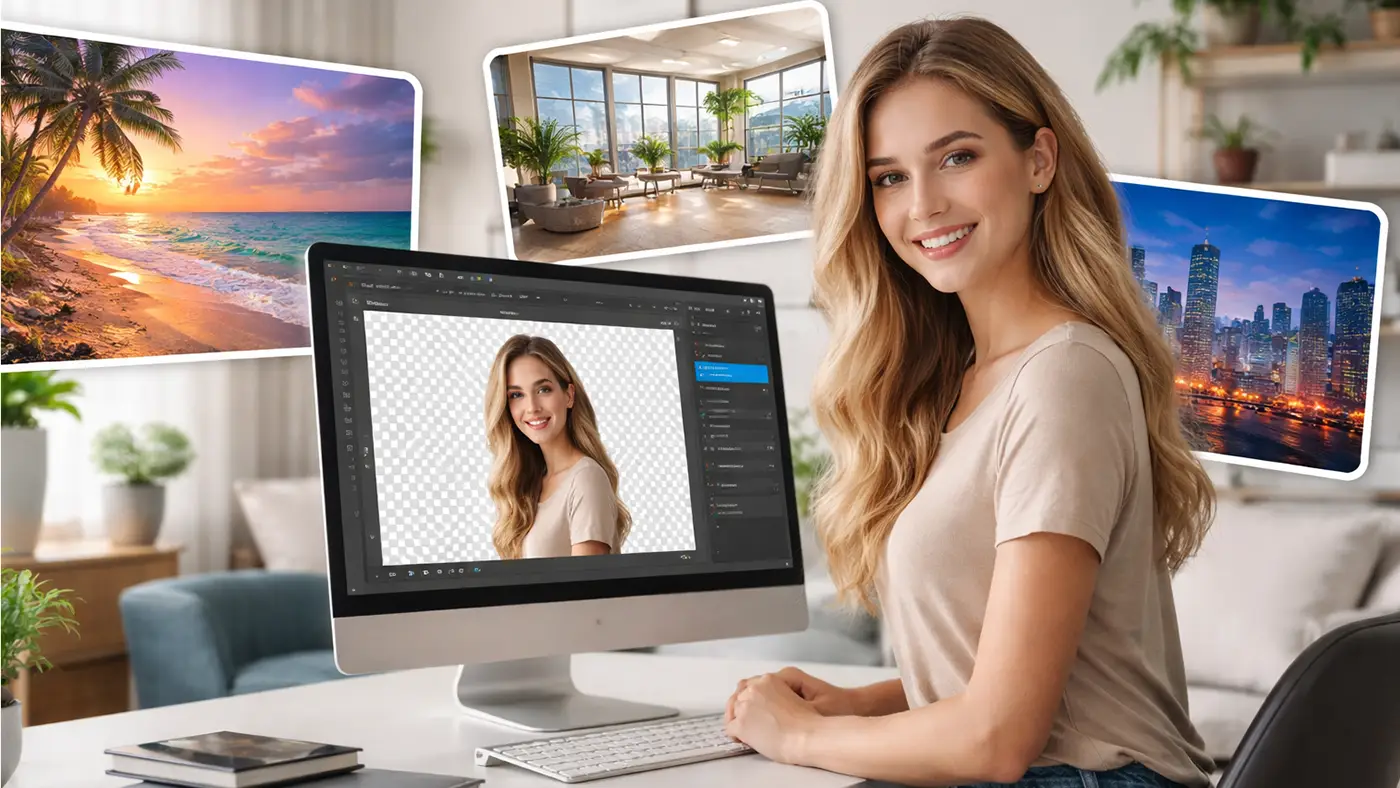
Step-by-Step Guide to AI Generate Background
Creating a new background in Photoshop is now much easier with AI tools. If you want to learn how to generate background Photoshop, you can use Select Subject, Remove Background, and Generative Fill
Step 1: Open Your Image
First, open Photoshop on your computer. Then go to File > Open and choose the photo you want to edit. Make sure the image is clear and high quality. A better photo usually gives better AI results.
Step 2: Select the Subject
Now you need to select the main person or object in the photo. Click Select > Subject.
Photoshop will use AI to find the subject for you. If the edges do not look clean, you can refine them before moving to the next step.
Step 3: Remove the Background
After selecting the subject, click remove background. This will delete the old background and leave the subject on a transparent layer.
This step gives you a clean space for the new AI background.
Step 4: Select the Empty Area
Next, click on the transparent area around your subject. This is the space where Photoshop will create a new background. Make sure the full background area is selected properly.
Step 5: Click Generative Fill
Now click Generative Fill from the toolbar or taskbar. A prompt box will appear. This is where you tell Photoshop what kind of background you want.
Step 6: Enter Your Prompt
Type a short and clear prompt. Try to describe the background in simple words.
For example:
- sunset beach background
- modern office interior
- city skyline at night
Clear prompts usually give better results.
Step 7: Click Generate
After typing the prompt, click Generate. Photoshop will create three different background options for you. Wait a few seconds while the AI builds the new scene.
Step 8: Choose the Best Version
Look at the three generated backgrounds and choose the one that fits your photo best.
Pick the version that matches the subject’s lighting, angle, and mood. This will make the final image look more natural.
Step 9: Make Small Adjustments
If needed, you can edit the result again. Try a new prompt, adjust the edges, or add shadows to make the image look more realistic. Small changes can make a big difference in the final photo.
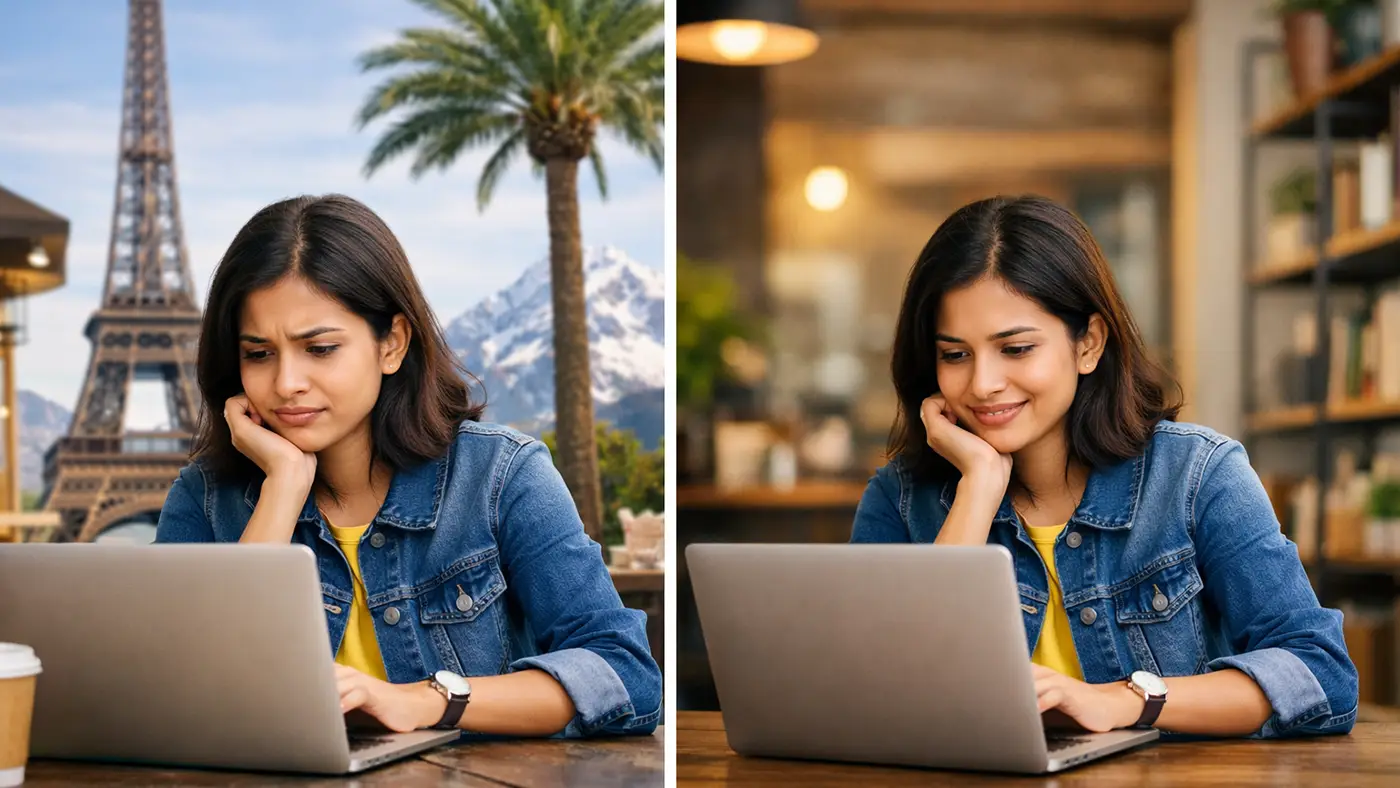
Common Mistakes to Avoid
When using AI to generate backgrounds in Photoshop, small mistakes can make your image look fake. Avoid these common issues to get better results.
Using Low-Quality Images: Low-resolution or blurry images can confuse the AI. This leads to poor background results. Always use clear and high-quality photos.
Ignoring Lighting Direction: If the light on your subject and background does not match, the image looks unnatural. Make sure both have the same light source (left, right, or front).
Choosing the Wrong Prompt: A vague or confusing prompt can give bad results. Use simple and clear prompts like “bright office room” or “sunset beach”.
Over-Editing the Image: Adding too many effects can ruin the natural look. Keep edits simple and realistic.
Ignoring Shadows: Without shadows, your subject may look like it is floating. Add soft shadows to match the background.
Not Matching Perspective: If the angle of the background does not match the subject, it looks off. Choose backgrounds with a similar camera angle.
Conclusion
AI background generation in Photoshop makes photo editing fast and simple. With tools like Generative Fill, you can change or create backgrounds in just a few clicks. You don’t need advanced skills to get great results.
This feature is useful for social media, marketing, and personal projects. It gives you more creative freedom with less effort. Just use clear prompts and follow the right steps.
Always check lighting, shadows, and perspective to keep your image natural. Just use clear prompts and follow the right steps on how to generate background Photoshop for the best outcome.