Essential Photoshop effects help photographers and designers create clean, professional, and visually powerful images. This guide explains the most important Photoshop photo effects step by step. You will learn how to enhance colors, fix lighting, sharpen details, and create artistic depth. These techniques work for portraits, products, and social media images.
Why Photoshop Effects Matter Today
Modern audiences expect visually polished images everywhere. Therefore, Photoshop effects play a critical role in professional photo editing workflows. These effects improve clarity, mood, and storytelling. Moreover, they help photos stand out across websites, ads, and social platforms. When used correctly, effects enhance realism instead of hiding flaws.
Photoshop remains the industry standard for advanced image editing. Consequently, learning essential Photoshop effects gives creators a strong competitive advantage. Beginners gain confidence faster. Professionals save time while maintaining consistent quality. Additionally, subtle effects improve brand trust and visual credibility.
However, balance matters. Over-editing reduces authenticity and damages viewer trust. Therefore, photographers must understand when and how to apply each effect. This guide focuses on practical, high-impact Photoshop effects that deliver clean results consistently. Most importantly, these techniques suit both beginners and working professionals.
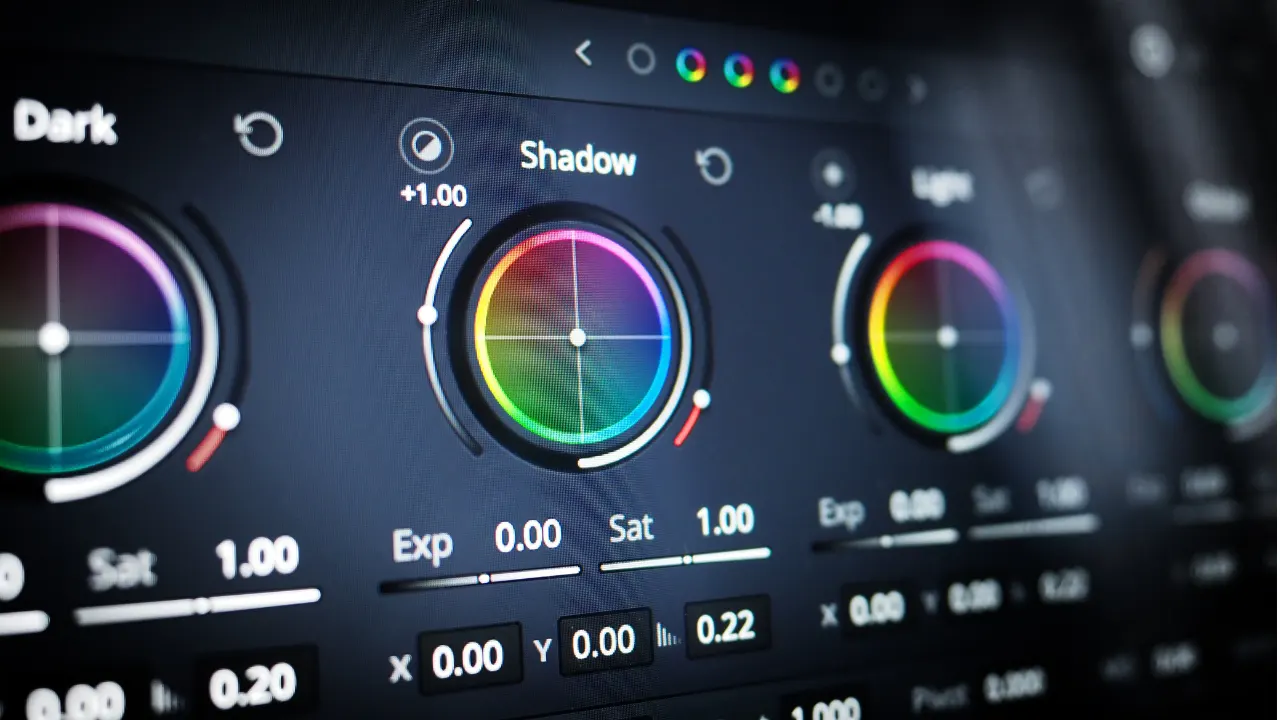
Color Correction and Color Grading Essentials
Color correction ensures photos look natural and balanced. Meanwhile, color grading adds emotion and style intentionally.
Basic Color Correction
Color correction fixes exposure, white balance, and color casts first. Start with Levels or Curves adjustments. These tools correct brightness and contrast precisely. Then adjust White Balance using the Camera Raw Filter. Neutral whites create realistic skin tones instantly.
Next, use the Color Balance adjustment layer. This step refines shadows, midtones, and highlights carefully. Always compare before-and-after views frequently. Small changes often produce better results. Additionally, work on adjustment layers for non-destructive editing.
Tip: Use histograms to avoid clipped highlights and crushed shadows during correction.
Creative Color Grading
Color grading shapes mood and brand identity effectively. Use Gradient Maps or Selective Color tools for consistency. For example, warm highlights create lifestyle warmth. Cool shadows add cinematic depth.
Split toning works well for portraits and editorial images. Add complementary colors subtly. Maintain natural skin tones at all times. Professional photo enhancement relies on restraint and precision.
Example: Travel bloggers often use teal shadows and warm highlights for cinematic appeal.

Exposure and Lighting Enhancement Techniques
Lighting defines photo quality more than any other element. Photoshop allows precise lighting control after shooting.
Dodge and Burn Control
Dodge and burn techniques adjust light selectively. They enhance facial features and product details naturally. Create a 50% gray layer in Soft Light mode. Then paint with low-opacity brushes. Light areas pop. Shadows gain depth.
This technique improves dimensionality significantly. Fashion and beauty photographers rely on it heavily. Moreover, dodge and burn preserves texture better than global adjustments.
Tip: Zoom out frequently to maintain natural lighting balance.
Shadow and Highlight Recovery
The Shadow/Highlight adjustment recovers hidden details efficiently. Use it sparingly to avoid flat images. Increase shadows slightly. Reduce highlights gently. Always check midtone contrast afterward.
For better control, use Camera Raw Filter sliders instead. This method offers smoother tonal transitions. Additionally, it works well for landscape photography with high dynamic range.
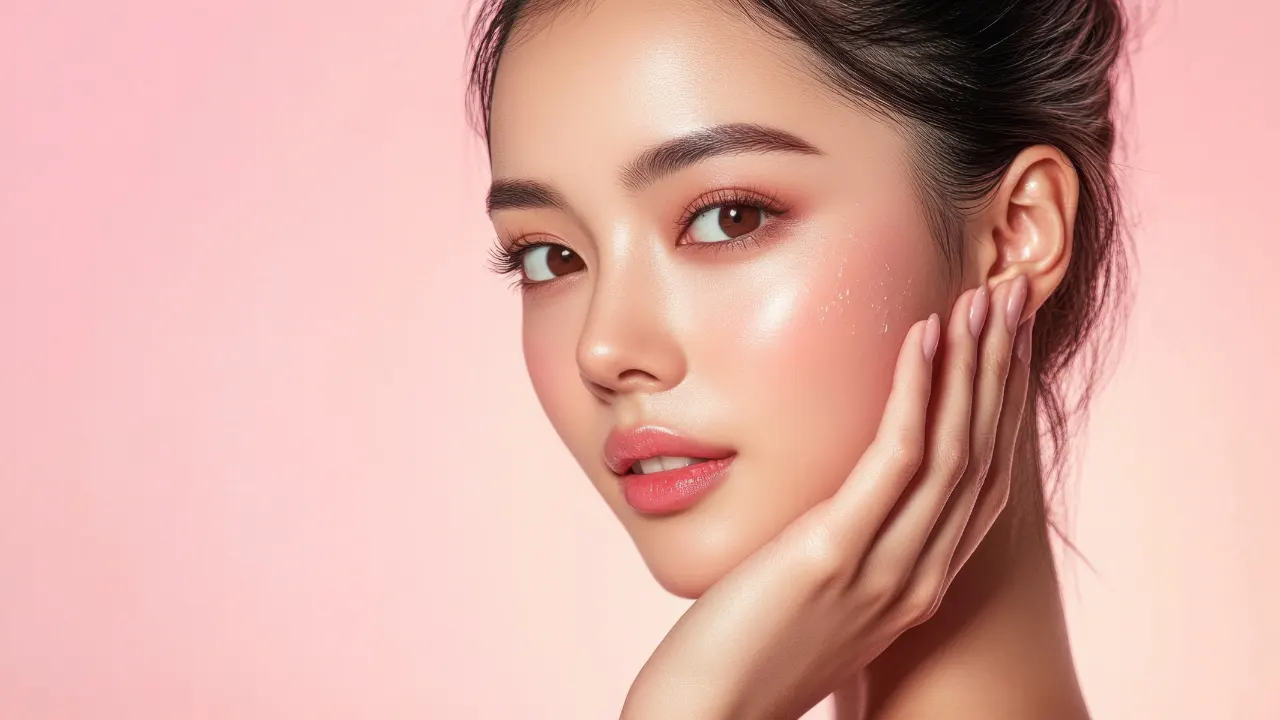
Skin Retouching and Portrait Effects
Professional portraits require clean yet natural skin. Photoshop offers precise tools for this purpose.
Frequency Separation Basics
Frequency separation separates texture and color layers. This method removes blemishes without damaging skin texture. Retouchers use it for beauty, fashion, and corporate portraits. However, moderation remains essential.
Create low and high-frequency layers carefully. Fix color blotches on the low layer. Remove texture imperfections on the high layer. Always zoom out to check realism.
Tip: Avoid over-smoothing. Natural pores improve authenticity.
Subtle Skin Smoothing
For quick edits, use Camera Raw texture and clarity sliders. Reduce texture slightly. Avoid negative clarity on faces. This keeps skin soft while retaining detail.
Use layer masks to apply smoothing selectively. Focus on cheeks and forehead areas. Avoid eyes, lips, and hair edges entirely.
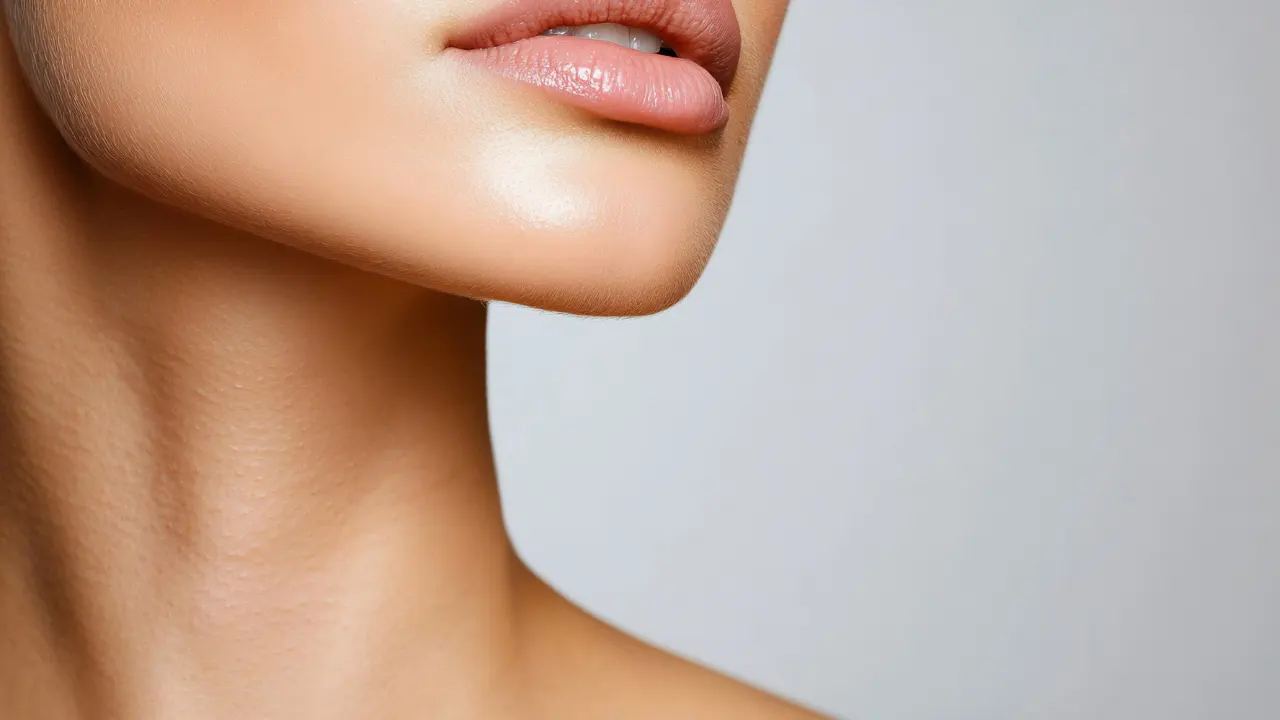
Sharpening and Detail Enhancement
Sharp images look professional and trustworthy. However, oversharpening creates halos and noise.
Smart Sharpen Techniques
Smart Sharpen offers advanced control over edges. Choose Remove: Lens Blur for better results. Adjust Amount and Radius carefully. Smaller radius values suit portraits. Larger values fit landscapes.
Apply sharpening at the final stage only. Resize images before sharpening. This ensures consistent output quality.
Example: Product photos benefit from edge sharpening for crisp details.
High Pass Sharpening
High Pass sharpening works well for selective detail enhancement. Duplicate the layer. Apply High Pass filter. Set blend mode to Overlay or Soft Light. Mask unwanted areas.
This method adds clarity without damaging smooth surfaces. Use it for eyes, jewelry, and textures.

Background Enhancement and Subject Isolation
Clean backgrounds improve focus and storytelling. Photoshop excels at background control.
Background Blur Effects
Background blur simulates shallow depth of field. Use Lens Blur or Gaussian Blur carefully. First, select the subject accurately. Then apply blur to the background layer.
This effect works well for portraits and product photography. It removes distractions effectively. Always match blur strength to focal length realism.
Tip: Add slight noise to blurred backgrounds for realism.
Object Selection and Masking
Photoshop’s Object Selection tool saves time significantly. It detects subjects accurately using AI. Refine edges using Select and Mask workspace. Feather edges subtly.
Precise masking enables background replacement and color changes. E-commerce photographers rely on this technique daily.

Creative Effects and Final Touches
Creative effects add personality without overpowering the image.
Vignette and Grain Effects
Vignettes draw attention toward the subject naturally. Use subtle darkening around edges. Avoid heavy vignettes that feel artificial.
Add light grain for film-like texture. Grain reduces banding and adds realism. Use Camera Raw grain controls for consistency.
Final Color Consistency
Consistency matters for branding and portfolios. Use Lookup Tables (LUTs) for uniform color styles. Adjust opacity to maintain realism.
Save custom presets for future projects. This speeds up workflow and ensures consistency across images.
Conclusion
Essential Photoshop effects transform ordinary images into professional visuals consistently. When applied thoughtfully, they enhance realism, clarity, and emotional impact. Color correction builds a strong foundation. Lighting adjustments add depth and focus. Retouching improves quality without removing authenticity.
Moreover, sharpening and background control increase visual authority. Creative effects complete the image subtly. The key lies in balance and intention. Always prioritize natural results over dramatic changes.
Practice these Photoshop photo editing techniques regularly. Save presets and refine workflows continuously. Over time, your editing speed and confidence will grow. Ultimately, mastering essential Photoshop effects elevates your creative and professional success.