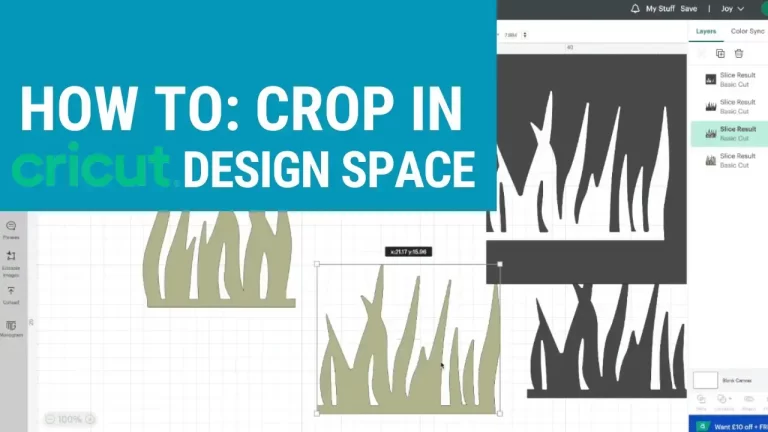
Why Crop Images in Cricut Design Space?
Cropping images in Cricut Design Space is useful for many reasons. It allows you to zero in on specific parts of an image, removing elements that might detract from the main focus. For instance, if you’re using a family photo but only want to feature one person or object, cropping can help you highlight that area and exclude the rest. This can make your project look cleaner and more professional. Additionally, cropping can be crucial in ensuring that your image fits perfectly within the dimensions of a project template. Knowing how to crop an image in cricut design space will help you achieve your creative vision.

Tools to Crop Images in Cricut Design Space
While Cricut Design Space lacks a dedicated cropping tool, it does offer versatile tools such as Slice, Shapes, and Contour, each providing unique ways to modify your images. The Slice tool is perfect for cutting out a particular area of an image, essentially creating a cropped effect. Meanwhile, Shapes allows you to create predefined areas for cropping, and Contour offers a way to hide certain parts of an image rather than cropping them out. Together, these tools allow you to effectively crop an image in Cricut Design Space in a non-traditional way, providing plenty of flexibility in your designs.
Step 1: Getting Started in Cricut Design Space
To start, open Cricut Design Space on your computer, tablet, or mobile device. Log in, and select “New Project” to create a blank canvas. From this canvas, you’ll be ready to upload your image and make any necessary adjustments for cropping.
Step 2: Upload and Adjust Your Image
In the left-hand menu, select “Upload” to add your image. Once uploaded, insert the image onto your canvas. At this point, you can resize or adjust the image to ensure it fits your design requirements. Adjusting the size before cropping provides a clearer view of the areas you may want to keep or remove. Having your image properly sized will make it easier to crop the image in Cricut Design Space.
Step 3: Using the Slice Tool to Crop an Image in Cricut Design Space
The Slice tool is one of the most straightforward methods to crop an image in Cricut Design Space. Start by adding a shape, such as a square or rectangle, from the “Shapes” option on the left menu. Position this shape over the part of the image you want to keep, acting as the cropping frame. Next, select both the image and the shape by holding the Shift key and clicking on each. When both items are selected, the Slice option in the bottom right will become available. After slicing, delete the parts of the image you don’t need, leaving only the cropped area on your canvas.

Step 4: Using Contour to Crop Images in Cricut Design Space
Contour is another method for cropping, especially useful for images with multiple layers. To use it, ungroup your layers if needed and select the part you want to keep. With that section chosen, click on the “Contour” button at the bottom right. In the Contour menu, select and hide parts of the image by clicking on them. Unlike the Slice tool, Contour won’t cut out sections but will make them invisible, which can be helpful when working with layered or intricate images. This method is an effective way to crop an image in Cricut Design Space without losing any detail you might need later.
Step 5: Refining Your Crop with Weld and Slice
For more complex shapes, you can use the Weld and Slice tools together to crop images in Cricut Design Space. First, create multiple shapes to design a custom crop boundary, then use Weld to merge these shapes into one. Once welded, position this shape over the area you want to keep in your image. Select both the welded shape and the image, then use the Slice tool. This method allows you to create unique cropping boundaries beyond basic rectangles, adding a creative element to your designs.
How to Crop an Image in Cricut Design Space Using Slice
If you are learning how to crop an image in Cricut Design Space, the Slice tool is one of the easiest methods to use. This method works best when you want to cut off part of an image or keep only a specific area of your design.
Step 1: Open Cricut Design Space
Sign in to Cricut Design Space and open a new project. You will work on the Canvas, where Cricut lets you add and edit images, text, and shapes.
Step 2: Add Your Image
Click Upload to add your own image, or choose an image from the Cricut image library. Place the image on your Canvas.
Step 3: Add a Shape
Click Shapes on the left side of the Canvas. On mobile, tap the Shapes tool at the bottom. Choose a basic shape, such as a square, rectangle, or circle.
Use the shape as your cropping guide. For example:
- Use a rectangle to crop a straight edge.
- Use a circle to crop an image into a round shape.
- Use a square to crop a clean box-shaped area.
Step 4: Place the Shape Over the Image
Move the shape over the part of the image you want to keep or remove. Resize the shape until it covers the exact area you want to crop.
Step 5: Select Both Layers
Select the image and the shape together. On desktop, you can hold Shift or Ctrl while clicking both layers. On Mac, use Shift or Command. Cricut also allows you to drag a selection box around multiple objects.
Make sure you have selected only two layers. Slice will not work if you select more than two layers.
Step 6: Click Slice
Click Slice. Cricut’s official guide explains that Slice is part of the tools used to create new shapes from images and objects.
After slicing, Design Space will create new cut pieces from the overlapping areas.
Step 7: Delete the Unwanted Pieces
Pull the sliced pieces apart. Delete the parts you do not need. Keep the cropped part of the image.
Step 8: Save or Continue Editing
Once your image is cropped, you can resize it, add text, attach layers, flatten it for Print Then Cut, or click Make when your project is ready.
How to Crop Images in Cricut Design Space with Contour
Use Contour when you do not want to permanently cut or slice the image. This method is useful when you only want to hide some cut lines or remove small parts from a design without changing the full image structure. If you want to learn how to crop an image in cricut design space, this simple step help you. You can hide unwanted parts of your design without slicing the image.
Step 1: Select the Image
Click on the image layer that you want to edit in Cricut Design Space. Make sure the correct layer is selected, because Contour will only work on the layer you choose.
Step 2: Ungroup if Needed
If your image has multiple layers, click Ungroup first so you can edit each part separately. This helps you choose the exact layer you want to crop or hide instead of changing the whole design at once.
Step 3: Click Contour
After selecting the right layer, click Contour from the Layers panel. If you are using the mobile app, tap Actions, then choose Contour.
Step 4: Hide the Parts You Do Not Want
In the Hide Contour window, click the lines, shapes, or sections you want to remove from the design. These hidden parts will no longer show on the Canvas and will not be cut by your Cricut machine.
Tips for Effective Cropping in Cricut Design Space
To get the best result when cropping in Cricut Design Space, always start with a clean and high-quality image. A blurry or low-resolution image can make the final cut look uneven or messy.
Before using Slice or Contour, duplicate your original image. This gives you a backup copy in case you make a mistake or want to try a different crop style.
Use simple shapes like rectangles, squares, or circles when cropping with the Slice tool. These shapes make it easier to control the exact area you want to keep or remove.
Make sure your layers are arranged correctly before slicing. The shape should overlap the part of the image you want to crop, and you should select only two layers at a time.
If you are working with a complex SVG file, ungroup the design first. This lets you edit individual parts of the image instead of changing the whole design.
For Print Then Cut projects, crop your image first and then use Flatten after you are happy with the design. This helps Cricut read the image correctly before printing and cutting.
Finally, zoom in while cropping small details. This makes it easier to place your shape accurately and avoid removing parts of the design you want to keep.
Troubleshooting Common Cropping Issues
Sometimes, you may encounter issues when cropping. One common problem is the Slice tool being greyed out, which usually happens when more than two layers are selected. The Slice tool requires you to work with only two layers at a time, so be sure you have just the image and your cropping shape selected. For more complex designs, consider grouping layers, and always ensure only two layers are selected before slicing. Additionally, if the image quality degrades after cropping, it may be due to the resolution; try uploading a higher-resolution image for best results.
Creative Cropping Techniques in Cricut Design Space
Once you’re comfortable with basic cropping, there are endless ways to get creative. For instance, consider framing your cropped area with additional shapes, adding a polished look to the project. Another idea is using text as a shape for cropping, which can result in unique word-based designs. Layering cropped images together is also a great technique, especially for collage-style projects. These advanced methods allow you to crop images in Cricut Design Space with more creativity, making your projects stand out.
By learning how to crop an image in Cricut Design Space, you’ll gain greater control over your crafting projects and be able to create designs that look professional and polished. Whether you’re cropping to remove unwanted background elements or shaping images to fit a custom design, these tools and techniques will help you achieve a precise result every time. Enjoy exploring the many possibilities in Cricut Design Space!