This Complete Guide to Canva Features and Tools is designed for students and beginners. Canva is an easy online design platform used worldwide. It helps users create posters, presentations, and social media designs without difficulty. You do not need professional skills to use Canva. Everything works online and saves automatically. This guide explains Canva features clearly and simply. Students can learn design basics, improve creativity, and build confidence using Canva tools.

What Is Canva and Why Is It Popular?
Canva is a simple and powerful graphic design platform that allows users to create visual content online. It is popular because it removes the fear of design. People do not need special training or experience. This section of the Complete Guide to Canva Features and Tools explains Canva and its users clearly.
Canva Overview
Canva is a cloud-based design tool that helps users create posters, presentations, and digital graphics easily. It offers ready-made design templates, photos, icons, shapes, and fonts. Users only need to drag and drop elements into the design area. As a result, designs look neat and professional. Canva works on computers, tablets, and smartphones. All designs are saved online automatically. Therefore, users can access their work anytime and from anywhere. Canva is widely used for school projects, social media posts, and simple marketing designs. Its clean interface makes learning design enjoyable for students.
Who Should Use Canva
Canva is ideal for students, teachers, and beginners. Students use Canva to create charts, posters, and presentations for school. Teachers design worksheets, certificates, and lesson slides. Content creators use Canva for social media graphics. Small business owners also design flyers and ads easily. Because Canva is simple and user-friendly, anyone can use it confidently without stress.

Getting Started with Canva
Starting Canva is quick and easy for new users. This part of the Complete Guide to Canva Features and Tools explains how beginners can start using Canva step by step.
Creating a Canva Account
To use Canva, users must create a Canva account first. You can sign up using an email address, Google, or Facebook account. The sign-up process takes only a few minutes. After signing up, Canva asks what type of designs you want to create. Based on your choice, Canva suggests suitable templates. This makes the platform easy for beginners. Students can log in from school or home devices without problems.
Canva Free vs Canva Pro
Canva offers two plans: Canva Free and Canva Pro. The free plan includes basic templates, fonts, and design tools. It is enough for most students. Canva Pro provides premium templates, extra storage, and advanced features like background remover. Pro is useful for professionals. However, students can easily start and learn using the free version.
Canva Dashboard Basics
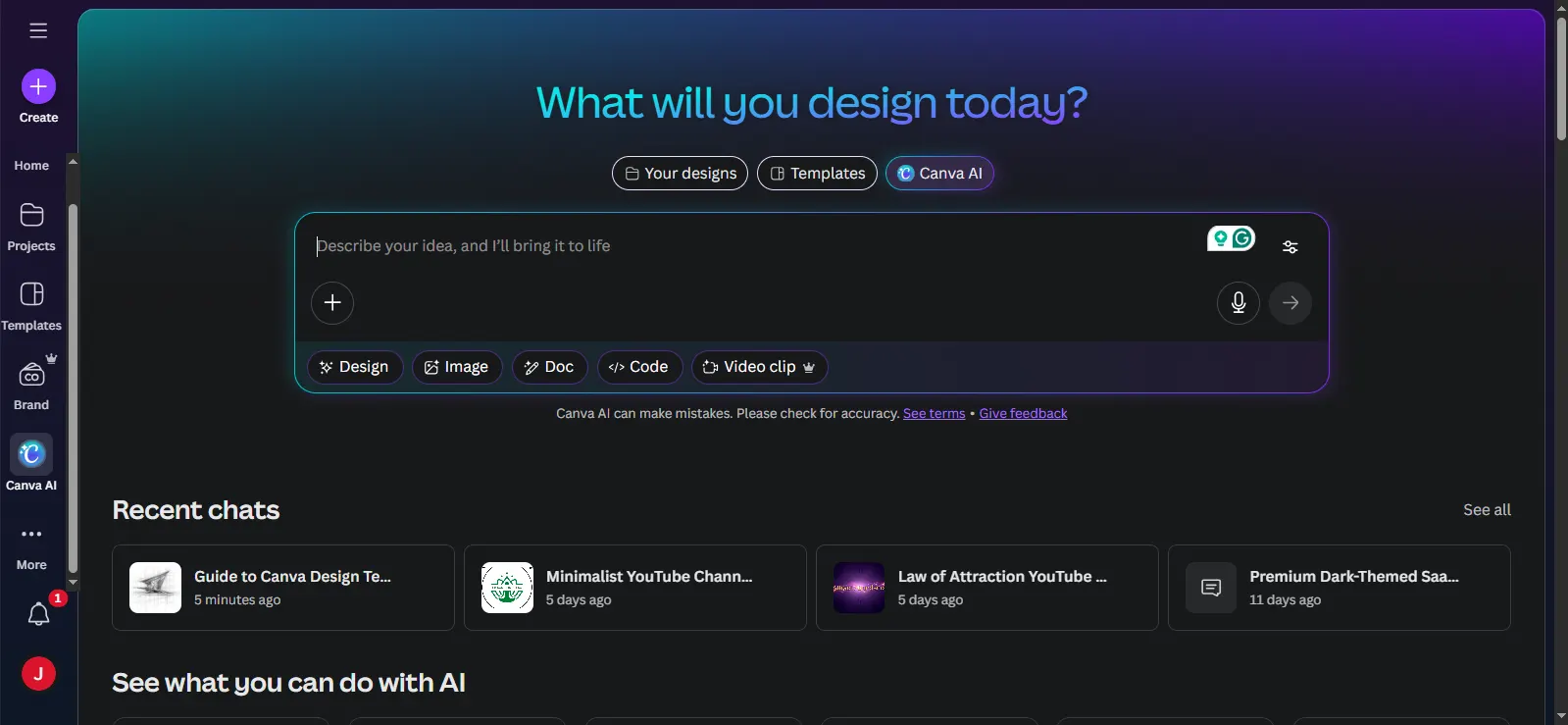
The Canva dashboard is the main page after login. It shows recent designs, templates, and folders. A search bar helps users find designs quickly. Everything is neatly organized. Therefore, beginners understand the dashboard easily.
Perspective Cropping
Perspective cropping is a useful feature in Canva that helps fix tilted or uneven images. Sometimes photos look slanted because they were taken from an angle. This tool helps straighten and adjust the image so it looks balanced and natural. Perspective cropping improves image quality and presentation. It makes documents easier to read. It also makes product photos look more professional.

Canva Design Templates
Templates are one of the most helpful Canva features. This Complete Guide to Canva Features and Tools explains how templates make design faster and easier.
Social Media Templates
Canva provides ready social media templates for platforms like Instagram, Facebook, and YouTube. These templates already have the correct size. Users do not need to resize designs. The layouts look modern and attractive. Students can create posts for school clubs or events easily. This saves time and effort.
Business and Marketing Templates
Business templates include flyers, posters, brochures, and presentations. These templates look professional and well-structured. Students can use them for school projects or competitions. Small businesses use them for promotions. These templates help users create clean and organized designs quickly.
Personal and Educational Templates
Canva also offers educational templates. Students can design resumes, certificates, and reports. Teachers create worksheets, lesson slides, and class materials. These templates make learning more creative. They also help students present work neatly and clearly.
Canva Design Tools and Editing Features
Canva provides simple but powerful editing tools. This Complete Guide to Canva Features and Tools explains the main design features.
Drag-and-Drop Editor
The drag-and-drop editor allows users to move text, images, and shapes easily. Elements can be placed anywhere on the page. Canva aligns items automatically. This keeps designs neat and balanced. Even young students can use this editor without difficulty.
Text, Fonts, and Colors
Canva offers many fonts and color options. Users can change text size, style, spacing, and color easily. Color palettes help designs look attractive. Students can match colors for charts and posters. This improves readability and appearance.
Layouts, Alignment, and Styles
Layouts and alignment tools help designs look organized. The Styles feature applies matching fonts and colors instantly. This saves time and improves design quality quickly.
Photo, Video, and AI Tools in Canva
Canva also includes modern tools for images and videos. This Complete Guide to Canva Features and Tools explains these tools clearly.
Photo Editing Tools
Canva has easy photo editing tools. Users can adjust brightness, contrast, and sharpness. The background remover removes unwanted backgrounds quickly. Filters improve image quality. These tools help students edit photos without extra software.
Video Editing Tools
Canva supports basic video editing features. Users can trim clips, add text, animations, and music. Ready-made video templates are also available. Students can create short videos for school presentations easily.
AI-Powered Features
Canva offers smart AI-powered features. Magic Design creates layouts automatically. Text-to-image generates images from words. AI writing tools help create captions and ideas. These tools save time and boost creativity.
Brand Management, Exporting, and Sharing
Canva also helps users manage, download, and share designs easily. This Complete Guide to Canva Features and Tools explains these options.
Brand Kit and Team Collaboration
The Brand Kit stores logos, fonts, and colors in one place. Teams can work together in real time. Students can collaborate on group projects smoothly. This improves teamwork and organization.
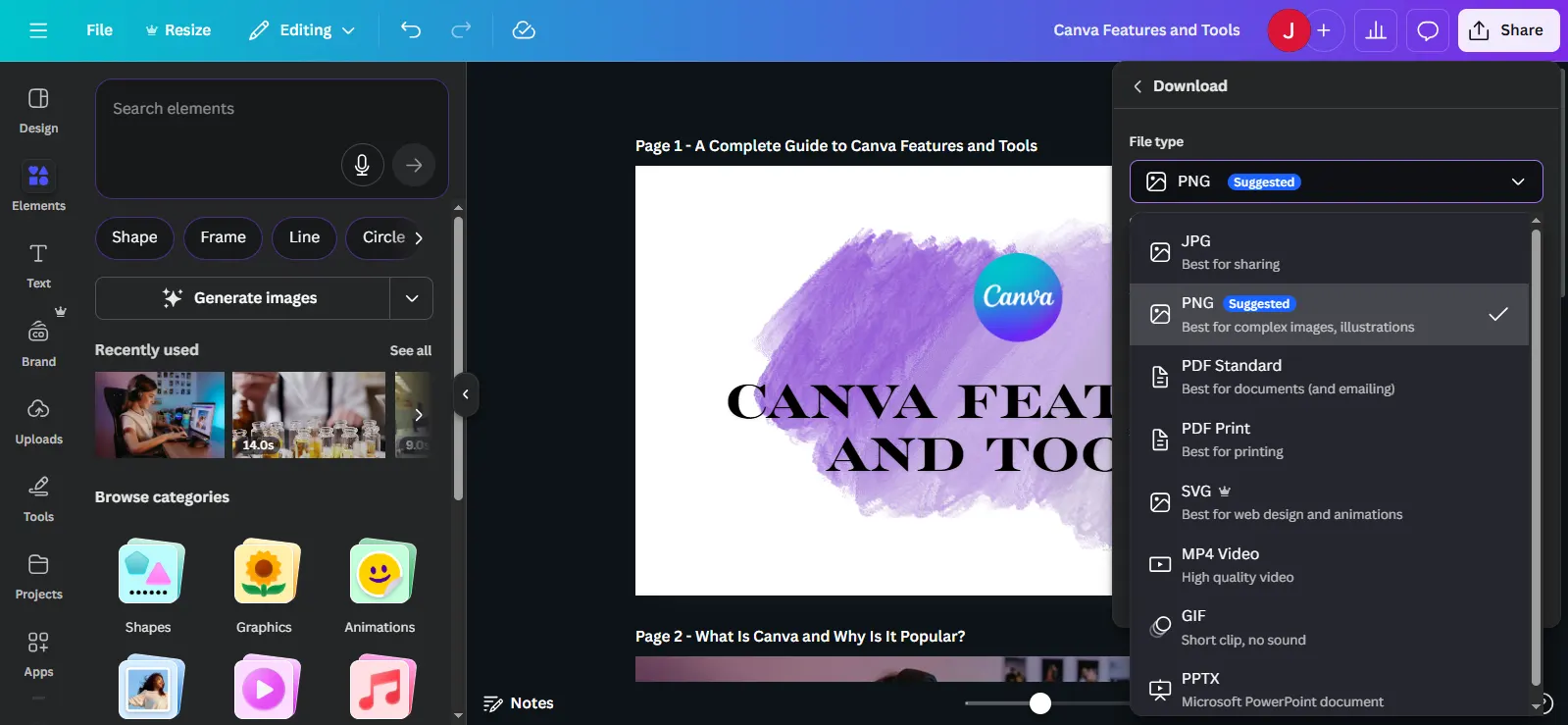
Download Formats
Canva supports different download formats such as PNG, JPG, and PDF. Print-ready PDFs are useful for school assignments and posters. Users can choose the format they need easily.
Sharing and Publishing Options
Canva offers simple sharing options. Users can send links to teachers or friends. Permission settings control access. Designs can also be published directly on social media platforms.
Conclusion
This Complete Guide to Canva Features and Tools helps students understand Canva step by step. Canva makes design simple, fun, and creative. It helps students build visual skills early. With regular practice, anyone can design confidently. Start using Canva today and enjoy learning through design.
Frequently Asked Questions (FAQs)
How to use Canva tools?
Log in to Canva and choose a design template. Use the drag-and-drop editor to add text, images, and shapes. Click elements to edit colors and fonts. Canva automatically aligns designs. Finally, download or share your finished design easily.
What are the new features of Canva?
Canva now offers AI-powered tools like Magic Design and Text-to-Image. These features help create designs faster. Canva also improved video editing, animations, and real-time collaboration. These updates make Canva more creative, fast, and beginner-friendly.
What are the tools and features of Canva?
Canva includes templates, fonts, icons, stock photos, and a drag-and-drop editor. It also offers photo editing, video editing, AI tools, Brand Kit, sharing options, and multiple download formats for easy design creation.
Is Canva better than Photoshop?
Canva is better for beginners, students, and quick designs. It is easy to use and does not require training. Photoshop is more advanced and suited for professional designers and complex photo editing tasks.
What are the best Canva design tips?
Use simple templates, limit colors, and choose readable fonts. Keep enough spacing between elements. Align text and images properly. Avoid overcrowding designs. Simple and balanced layouts always look more professional and attractive.