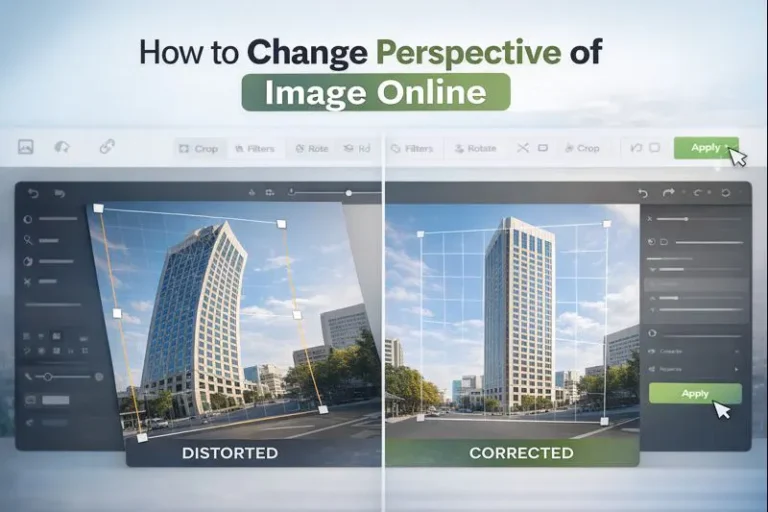
Images taken from the wrong angle often look distorted or unbalanced. Learning how to change perspective of image online helps fix these issues. Online and AI tools now make perspective correction easy. You no longer need advanced photo-retouching skills or expensive software to adjust image angles. This guide explains simple tools and methods to change image perspective online.
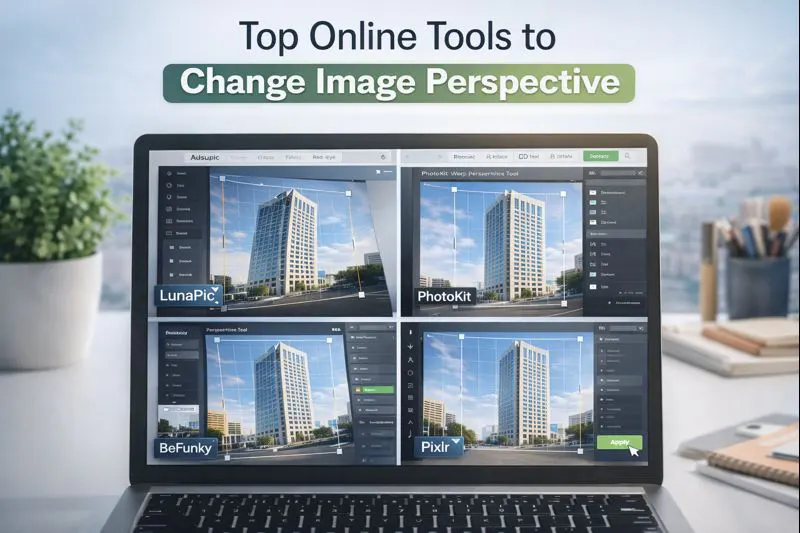
Top Online Tools to Change Image Perspective
Many online tools make it easy to change perspective of image online without advanced skills. Many online editors offer simple tools that allow you to adjust image viewpoints without advanced skills. Below are some popular tools and step-by-step methods to change image perspective easily.
Fix Photo Perspective Online in Lunapic
LunaPic allows you to change the perspective of an image online easily.
You can tilt, warp, or stretch an image to fix angled or distorted photos. The tool works by dragging the corner points on the image.
Steps to Change Image Perspective in LunaPic
- Open the LunaPic website.
- Upload the image you want to edit.
- Go to Adjust > Perspective from the top menu.
- Drag the corner handles to change the image angle.
- Click Apply to save the changes.
- Download the edited image to your device.
Image Perspective Correction in Photokit
PhotoKit lets you change the perspective of an image online using the Warp: Perspective tool. You can fix tilted images or change the angle of an object by dragging image corners.
Step-by-Step Guide with PhotoKit
- Open the PhotoKit website and locate the Warp: Perspective tool. This tool is available inside the image tools section.
- Upload the image you want to edit into the editor. PhotoKit supports common formats like JPG and PNG.
- Select the Perspective or Warp option to activate the tool. You will see control points appear on the corners of the image.
- Drag the four corner points to adjust the image angle. This helps straighten the photo or change its viewpoint.
- Click the Apply button once you are satisfied with the adjustment. The perspective changes will be finalized.
- Finally, download the edited image to your device. You can save it in your preferred format.
Adjust Image Perspective Online in Befunky
BeFunky lets you change the perspective of an image online using the Perspective tool, which is available as a Plus feature.
You can fix lens distortion, adjust angles, and warp images by controlling the grid corners.
Step-by-Step Guide with BeFunky
- Open the BeFunky Photo Editor and upload your image. Make sure you are logged in to access Plus features.
- Go to the Edit tab from the left-hand menu. Select Perspective under the Essentials section.
- Choose the Inward option to pull image edges inward. This helps add depth and correct wide-angle distortion.
- Use the Outward option to push image edges outward. This is useful for straightening lines and fixing lens issues.
- Drag the four corner points of the grid overlay. Adjust them until the image perspective looks correct.
- Click the Apply button to finalize the changes. Finally, download the edited image to your device in your preferred format.
Change Photo Viewpoint Online in Pixlr
Pixlr allows you to change the perspective of an image online using its Distort and Perspective tools. You can fix tilted images, correct angles, or adjust the viewpoint by dragging image corners.
Guideline to Change with Pixlr
- Open the Pixlr Editor and upload your image. You can use Pixlr X or Pixlr E for more control.
- Go to the Edit or Arrange menu and select the Distort or Perspective option.
- Choose the Perspective tool to activate it. Control points will appear on the corners of the image.
- Drag the four corner points to adjust the image angle. This helps straighten the photo or change its viewing direction.
- Fine-tune the adjustment until the perspective looks natural. Avoid over-distorting the image.
- Click Apply to confirm the changes. Finally, download the edited image to your device.
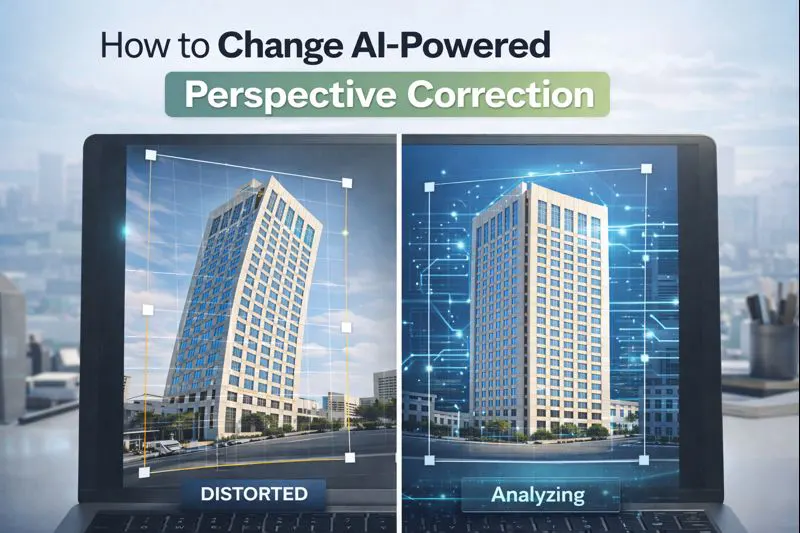
How to Change AI-Powered Perspective Correction
AI-powered tools help you change perspective of image online faster. These tools reduce manual work and deliver a fast, realistic perspective.
Autoenhance.ai Change Image Perspective
Autoenhance.ai uses AI to automatically correct perspective and image geometry.
It is mainly used for real estate and professional photo enhancement.
Step-by-Step Guide with Autoenhance.ai
- Open the Autoenhance.ai website and log in to your account.
- Upload the image you want to correct. The platform supports high-resolution photos.
- Enable the Perspective Correction or Geometry option. The AI will analyze the image automatically.
- Let the AI adjust vertical and horizontal lines. No manual corner dragging is required.
- Review the corrected image and make small adjustments if needed.
- Download the final image after the processing is complete.
Change Image Angle Online with Higgsfield Ai
Higgsfield AI Angle Editor allows you to change the viewing angle of images using AI. It is useful for changing object orientation and creating dynamic perspectives.
Step-by-Step Guide with Higgsfield AI
- Visit the Higgsfield AI Angle Editor and upload your image.
- Select the Angle Editor or Perspective feature from the tool options.
- Choose the desired angle or direction for the image.
- Let the AI generate a new perspective automatically.
- Preview the result and select the best version.
- Download the edited image to your device.
Change Image Perspective with Imagine.Art
Imagine.Art uses generative AI to create new image perspectives.
It can generate alternative viewpoints instead of simple distortion correction.
Step-by-Step Guide with Imagine.Art
- Open the Imagine.Art platform and upload your image.
- Enter a prompt describing the new angle or perspective you want.
- Select the perspective or transformation style.
- Let the AI generate a new version of the image.
- Review the generated outputs and choose the best one.
- Download the final image in your preferred format.
Change Photo Viewpoint Online General Steps
Changing image perspective online is simple and does not require advanced editing skills.
Most tools follow a similar process, whether they are manual or AI-powered.
- Open an online image editing tool or AI platform. Choose one that supports perspective adjustment.
- Upload the image you want to edit. Make sure the image is clear and high quality.
- Select the Perspective, Warp, or Distort option from the editor. This will activate the perspective controls.
- Adjust the image by dragging corner points or using AI auto-correction. Change the angle until the image looks straight and natural.
- Preview the edited image carefully. Check for distortion or loss of image quality.
- Apply the changes once you are satisfied. Save and download the final image to your device.
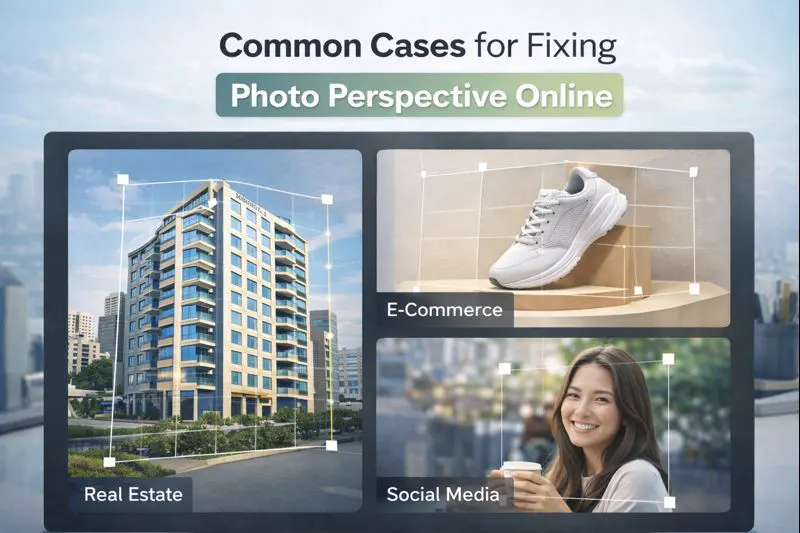
Common Cases for Fixing Photo Perspective Online
Changing image perspective online is widely used across different industries and creative tasks. It helps correct distorted angles, improve visual balance, and make images look more professional. Both individuals and businesses rely on perspective correction to enhance image quality. Below are some common situations where changing image perspective is especially useful.
Real Estate Photos
Real estate photos often look tilted because of wide-angle lenses. Perspective correction helps straighten walls, windows, and buildings. This makes the property look more professional and realistic. Clean images build trust with buyers. Better visuals can also increase inquiry rates.
E-Commerce Product Images
Product photos must look balanced and centered. Changing image perspective online helps fix uneven angles and distorted views. It makes products appear clean and properly aligned. E-commerce photo editing improves product presentation on marketplaces. Better visuals often lead to higher conversions.
Architecture and Interior Design
Architectural images need accurate proportions. Perspective correction helps align walls, floors, and ceilings correctly. It removes distortion caused by camera angles. This makes designs easier to understand. It is useful for presentations and client approvals.
Marketing and Advertising
Ads require strong and clean visuals to grab attention. Perspective correction improves symmetry and visual balance. It helps images look more professional across banners and landing pages. Clear visuals increase engagement and trust. This supports better campaign performance.
Social Media Content
Social media images need to stand out quickly. Proper perspective makes photos look polished and high-quality. It helps remove awkward angles and distortions. Clean images attract more likes and shares. This improves overall brand appearance.
Photography Corrections
Photos often suffer from lens distortion or poor camera angles. Perspective correction fixes these technical issues easily. It restores natural proportions in the image. This helps photographers deliver better results. It also reduces the need for reshoots.
Conclusion:
Changing image perspective online helps improve the look and balance of photos. It is useful for real estate, e-commerce, marketing, and social media images. Online tools and AI solutions make this process simple and fast. ImageExpertIndia is one of the best options to change perspective of image online with expert image editing services. Choosing the right tool or service ensures clean, realistic, and high-quality visuals every time.