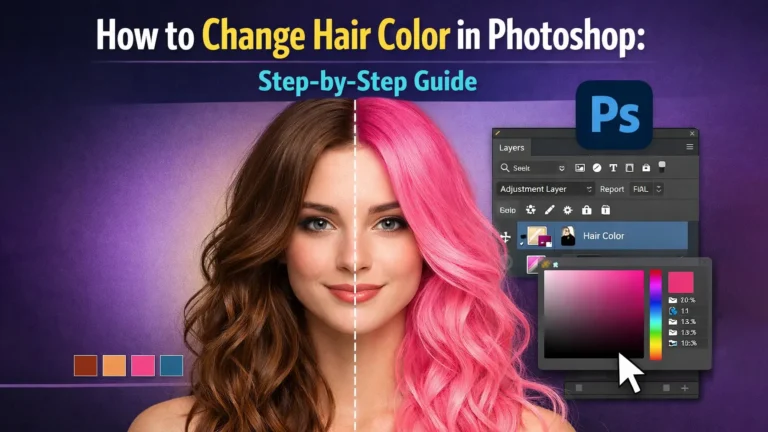
Changing hair color in a photo can completely change the look of a portrait. Instead of dyeing hair in real life, many editors use Photoshop to do it digitally. With the right tools, you can try different colors and see what looks best.
In this guide, you will learn how to change hair color in Photoshop step by step. We will also cover simple tips to make the new hair color look natural while keeping the original hair texture.
What Is Photoshop Hair Color Change
Photoshop hair color change is the process of changing the color of hair in a photo using Adobe Photoshop. Instead of coloring the hair in real life, editors adjust the color digitally. This allows them to try different hair shades quickly and safely.
For example, you can change black hair to blonde, brown, red, or even creative colors like blue. The goal is to keep the natural hair texture while updating the color. Because of this, the final image still looks realistic.
To perform a photoshop hair color change, editors usually select the hair first. Then they apply tools like Hue/Saturation or Color Balance to adjust the color. This method is common in portrait editing, fashion photos, and beauty retouching.
Why Use Photoshop Hair Color Change in Photo Editing
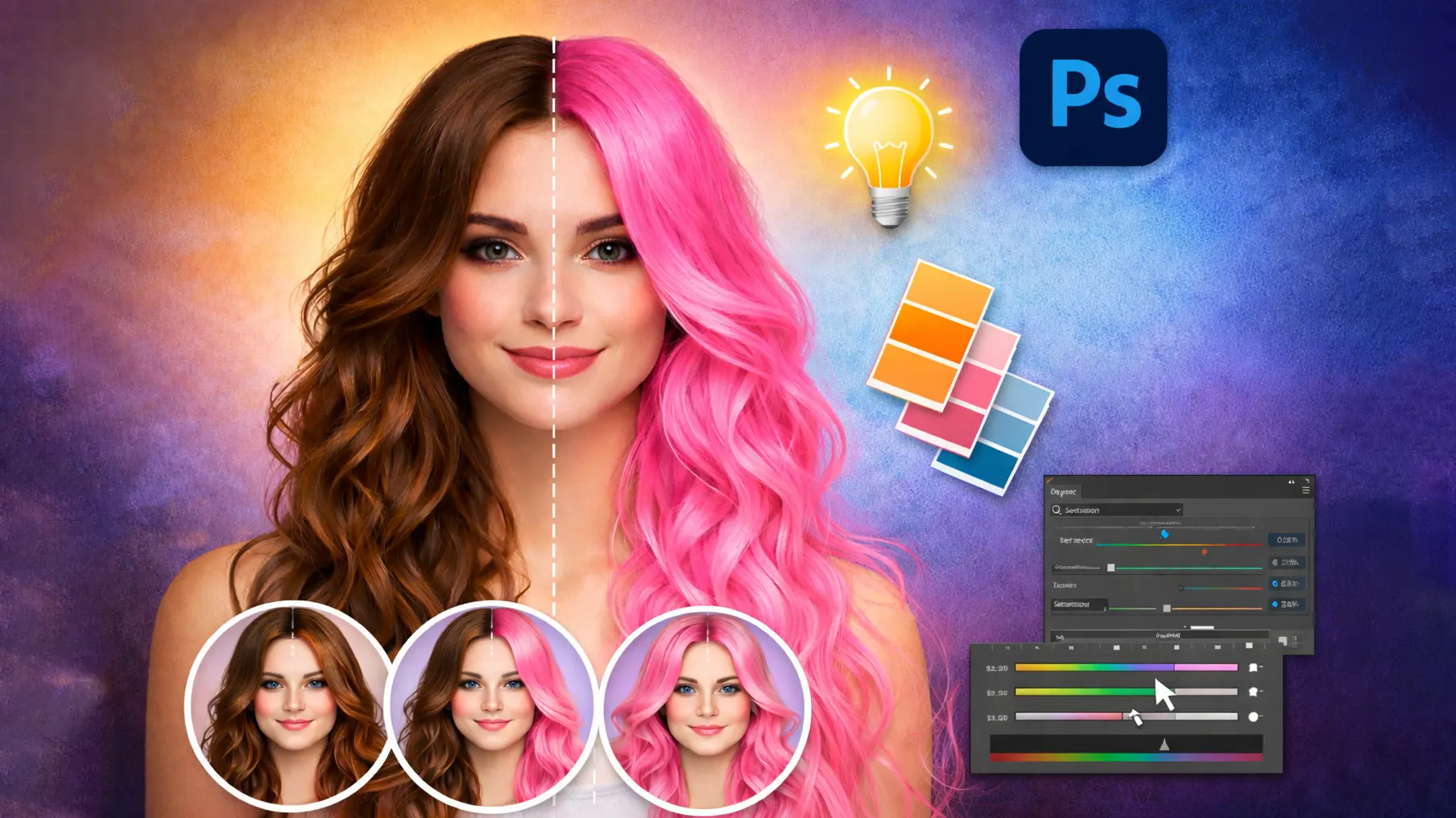
Hair color can change the entire look of a photo. Sometimes the original hair color does not match the style, lighting, or mood of the image. In that case, editors use photoshop hair color change to improve the final result and create a better visual style.
This technique also helps photographers and designers test different looks without taking another photo. For example, a fashion editor may try blonde, brown, or red hair to see which color fits the image best.
In addition, photoshop hair color editing is common in portrait retouching, beauty photos, and social media content. A small color change can make an image look fresh, creative, and more professional.
Tools Needed for Photoshop Hair Color Editing
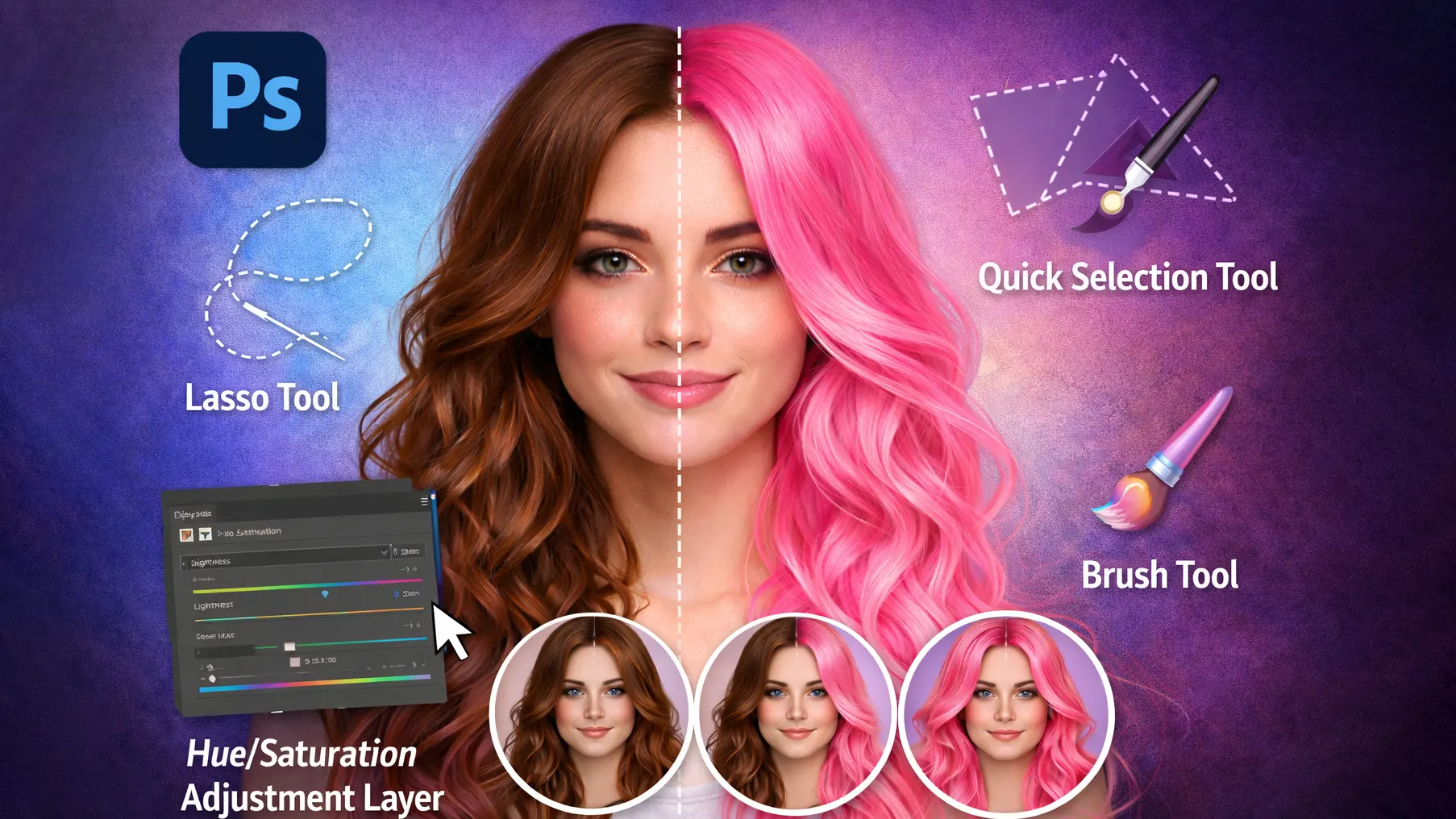
Before starting a photoshop hair color change, it is important to know the basic tools used in the process. Photoshop offers several tools that make hair selection and color editing easier. When you combine these tools correctly, you can change hair color while keeping the natural texture.
Most editors use selection tools to isolate the hair. After that, they apply adjustment layers to modify the color safely. This method helps perform photoshop hair color editing without damaging the original image.
Here are the main tools used for this process:
Quick Selection Tool
The Quick Selection Tool helps you select the hair area quickly. It detects edges automatically and makes the selection process faster. Because of this, beginners often use it when they first learn photoshop hair color change.
Select and Mask
Select and Mask helps refine the hair selection. It improves small details such as soft hair strands and uneven edges. As a result, the edited hair looks more natural and realistic.
Hue/Saturation Adjustment Layer
This is one of the most common tools for photoshop hair color editing. By adjusting the Hue slider, you can change the hair color instantly. It also allows you to control color intensity using the Saturation slider.
Color Balance
Color Balance helps fine-tune the tones of the hair. You can adjust shadows, midtones, and highlights separately. This makes the final photoshop hair color change look more balanced and natural.
Layer Mask
Layer Mask controls where the color effect appears in the image. It allows you to hide or reveal parts of the adjustment layer. Because of this, you can prevent the color from affecting the skin or background.
Photoshop Hair Color Change Step by Step
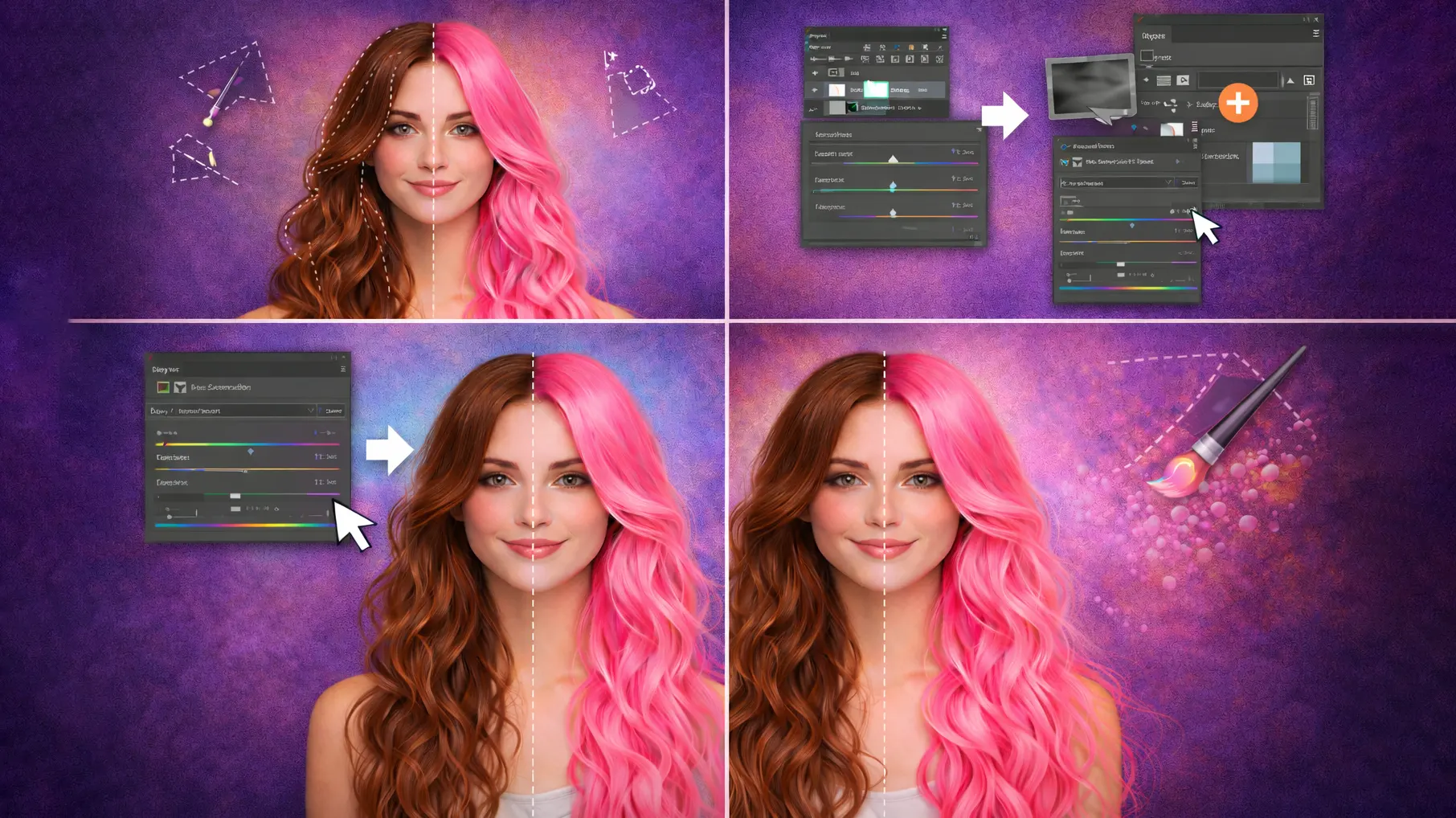
Changing hair color in Photoshop is easier when you follow a clear process. First, you select the hair area. Then you adjust the color using safe editing tools. These steps help you complete a clean photoshop hair color change while keeping the hair texture natural.
Step 1: Select the Hair Area
First, open the image in Photoshop. Then choose the Quick Selection Tool from the toolbar. Carefully drag the tool over the hair to create a selection.
Zoom in while selecting the hair so you can see the edges clearly. If the selection includes unwanted areas, hold Alt (Option on Mac) and remove them. A clean selection makes it easier to change hair color in Photoshop without affecting the face or background.
Step 2: Refine the Hair Selection
After selecting the hair, click Select and Mask at the top of the screen. This workspace helps refine the edges of the hair.
Use the Refine Edge Brush Tool to capture soft hair strands and small details. This step improves the selection and prevents rough edges. As a result, the photoshop hair color change will look smoother and more natural.
Step 3: Add a Hue/Saturation Adjustment Layer
Next, go to the Layers panel and click Create New Adjustment Layer. Then choose Hue/Saturation from the list.
This adjustment layer lets you change the hair color without damaging the original image. Move the Hue slider to test different colors. Because the edit is non-destructive, you can adjust the color anytime.
Step 4: Adjust the Hair Color
Now adjust the Hue, Saturation, and Lightness sliders to get the color you want. Each slider controls a different part of the color.
For example, Hue changes the main color tone, while Saturation controls how strong the color looks. Lightness adjusts the brightness. By balancing these settings, you can complete a smooth photoshop hair color change.
Step 5: Blend the Color for a Realistic Look
Finally, check how the new color blends with the rest of the photo. Sometimes the color may look too strong or slightly unnatural.
If that happens, lower the layer opacity or refine the layer mask. These small adjustments help the hair match the lighting and shadows of the image. As a result, the final photoshop hair color change looks more realistic and professional.
Tips for Realistic Photoshop Hair Color Change
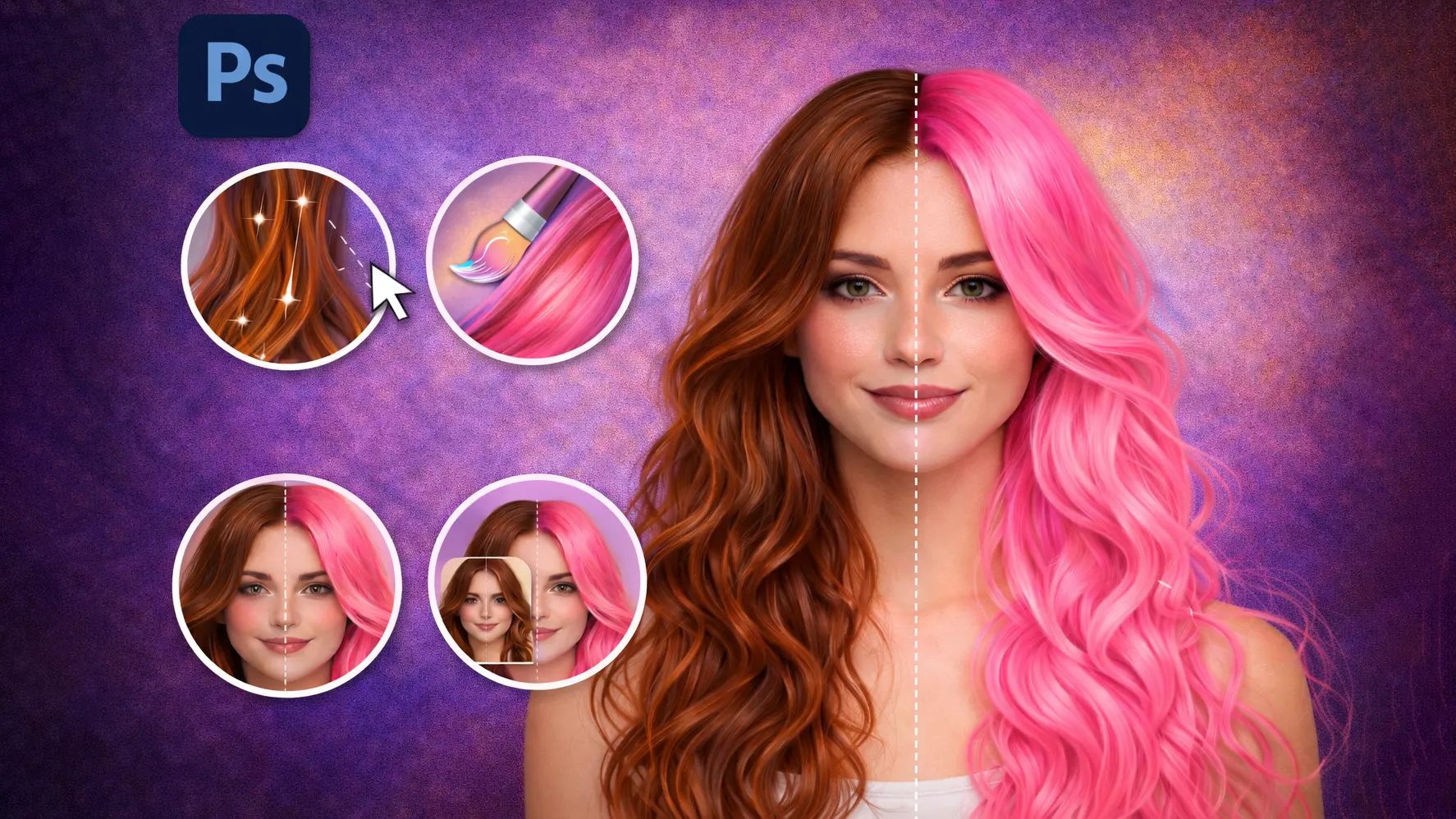
When you change hair color in Photoshop, the goal is not just to add a new color. The result should still look like real hair. That means the texture, light, and shadows should stay natural. If the color looks too strong, lower the saturation slightly. Softer tones usually create a more believable photoshop hair color change.
Lighting also affects how hair color appears in a photo. For example, hair often looks brighter where light hits it and darker in the shadow areas. When editing, try to keep these light differences visible. This helps the new color blend better with the rest of the image.
Another helpful tip is to zoom in while checking the edges. Sometimes color may spread outside the hair area. If that happens, refine the mask and clean the edges carefully. Small adjustments like this often make the final photoshop hair color change look much more natural.
Common Mistakes When Changing Hair Color in Photoshop
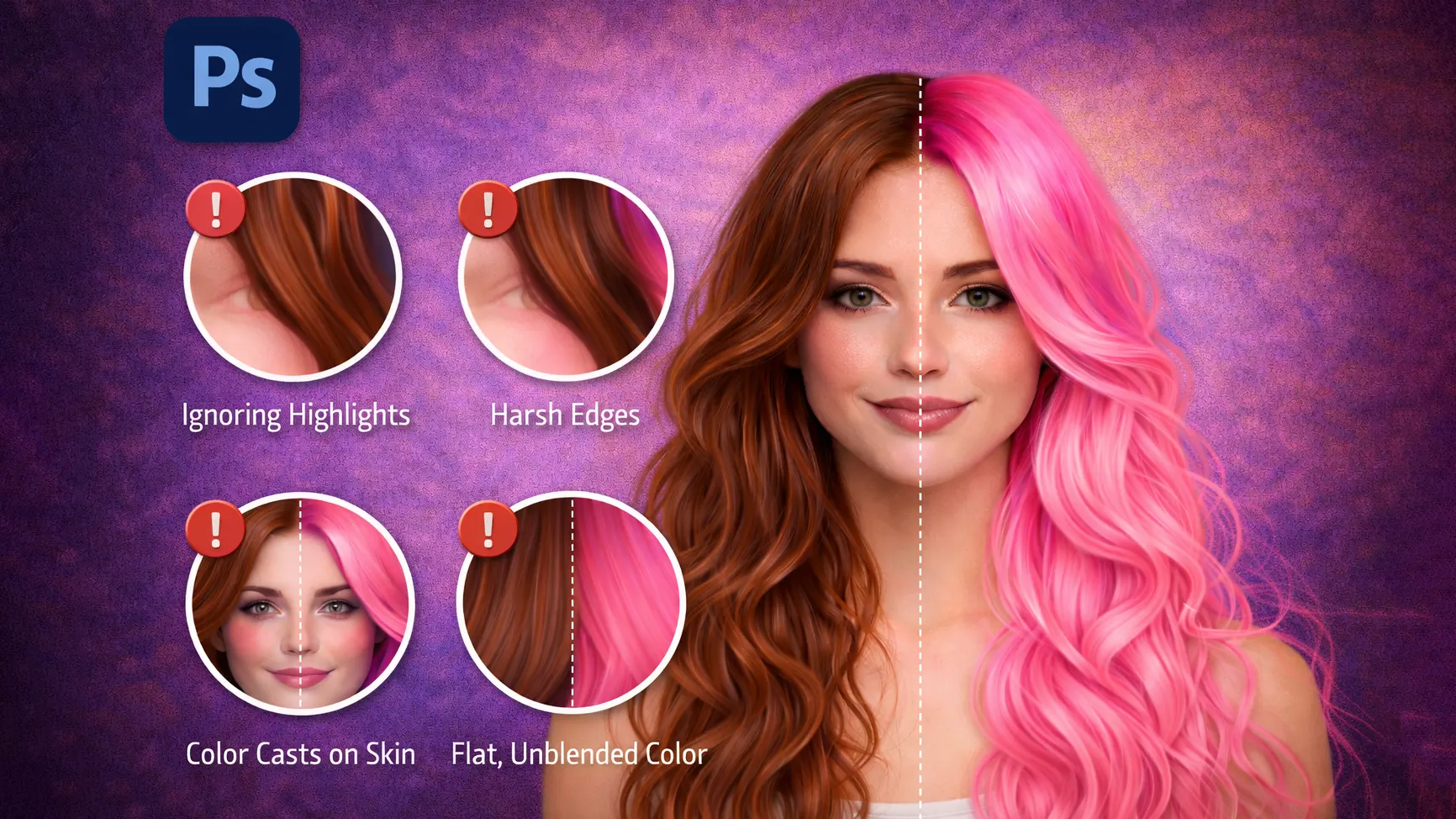
Many beginners make small mistakes when they try a photoshop hair color change for the first time. These mistakes can make the hair look unnatural or poorly edited. However, once you know what to watch for, it becomes much easier to avoid them.
One common problem is poor hair selection. If the hair area is not selected carefully, the color may spread to the skin or background. Because of this, always zoom in and refine the selection before applying any color changes.
Another mistake is using very strong or unrealistic colors. When the saturation is too high, the hair may look artificial. For a better photoshop hair color editing result, start with subtle adjustments and increase the color slowly.
Editors also forget to check lighting and shadows. Real hair reflects light in different areas, so the new color should follow the same pattern. Keeping these details helps the final photoshop hair color change look more natural and professional.
Best Hair Colors to Try in Photoshop
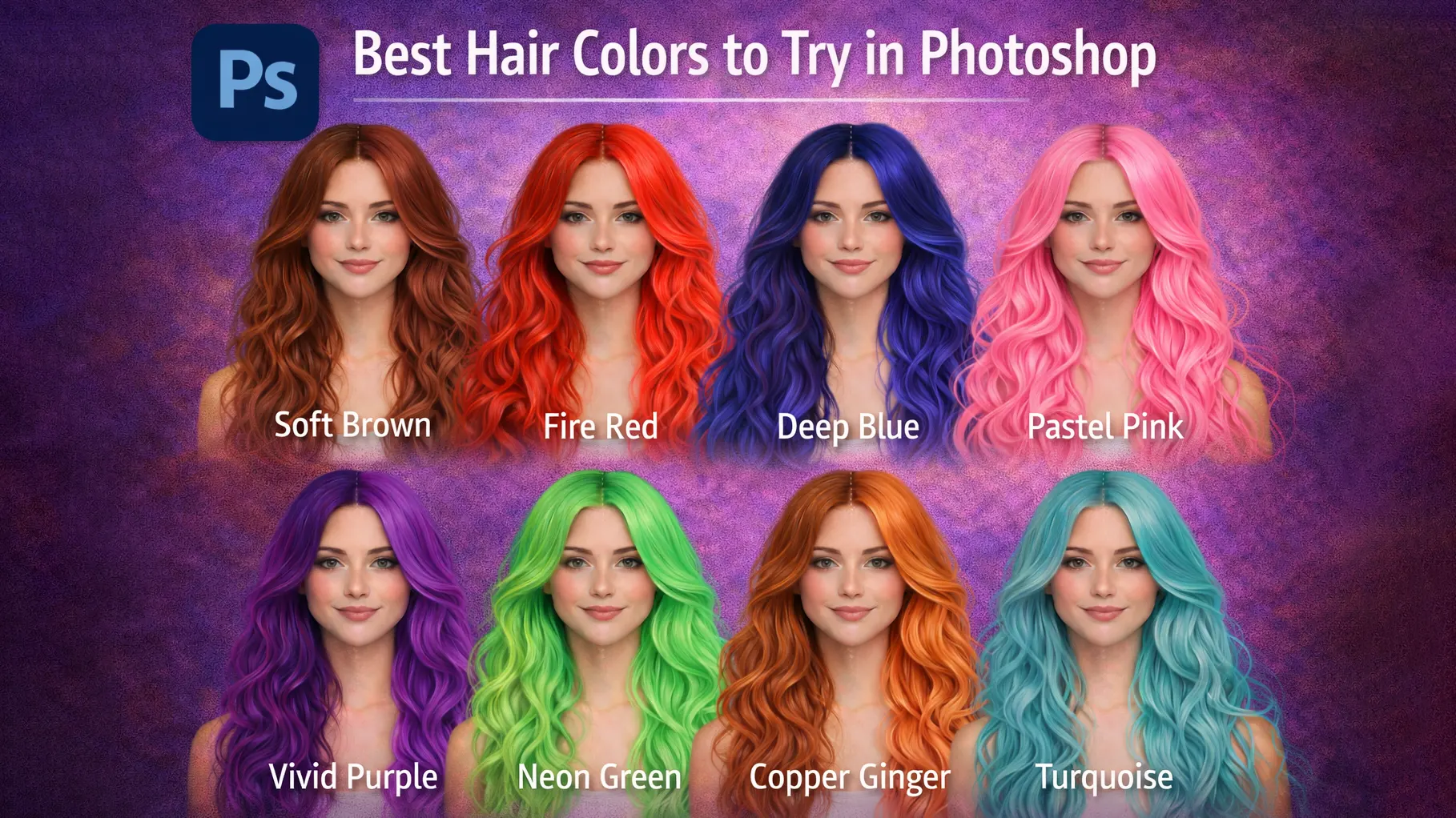
Photoshop makes it easy to test different hair colors without changing the real photo. This is helpful for portrait editing, fashion images, or social media content. With a simple photoshop hair color change, you can quickly see how different shades affect the overall look.
Some hair colors work well in most photos. For example, blonde, brown, and auburn often look natural and blend easily with different skin tones. These shades are commonly used in portrait and beauty editing.
You can also try more creative colors when the photo style allows it. Colors like red, blue, or purple can give the image a bold and modern look. However, it is important to adjust the saturation and lighting so the photoshop hair color change still looks balanced and realistic.
Frequently Asked Questions
Can you change hair color in Photoshop easily?
Yes, you can change hair color in Photoshop quite easily. By selecting the hair area and using adjustment layers like Hue/Saturation, editors can modify the color in just a few steps. With practice, the photoshop hair color change process becomes quick and simple.
What tool is used for photoshop hair color change?
Several tools help with photoshop hair color change. The most common ones are the Quick Selection Tool, Select and Mask, and the Hue/Saturation Adjustment Layer. These tools allow editors to select the hair and adjust the color without damaging the original image.
How do you recolor hair in Photoshop without losing texture?
To recolor hair in Photoshop without losing texture, it is important to use adjustment layers instead of painting directly on the image. Adjustment layers change the color while keeping the original hair details, highlights, and shadows intact. This helps the hair look natural after editing.
Is photoshop hair color editing good for portrait photos?
Yes, photoshop hair color editing is very useful for portrait photos. Photographers and designers often use it to test different looks or improve the style of an image. A small hair color change can make a portrait look fresh and more visually appealing.
Conclusion
Changing hair color in Photoshop is a useful editing skill. It helps you try different styles without changing the real photo. With the right tools, a photoshop hair color change becomes quick and simple.
First, select the hair carefully. Then adjust the color with tools like Hue/Saturation. With practice, your photoshop hair color editing will look more natural and professional.