A reflection shadow is a popular effect in photo editing. It creates a mirror-like reflection under an object or product. As a result, the image looks more realistic and professional. Many designers use this effect in AI product photography and eCommerce images.
For example, online stores often show products with a soft reflection on a clean surface. This style helps the product stand out and look more polished. In this guide, you will learn how to add reflection shadow in Photoshop step by step. By the end, you will also know how to create a clean and realistic reflection shadow in Photoshop for your photos.
What Is Reflection Shadow in Photoshop?
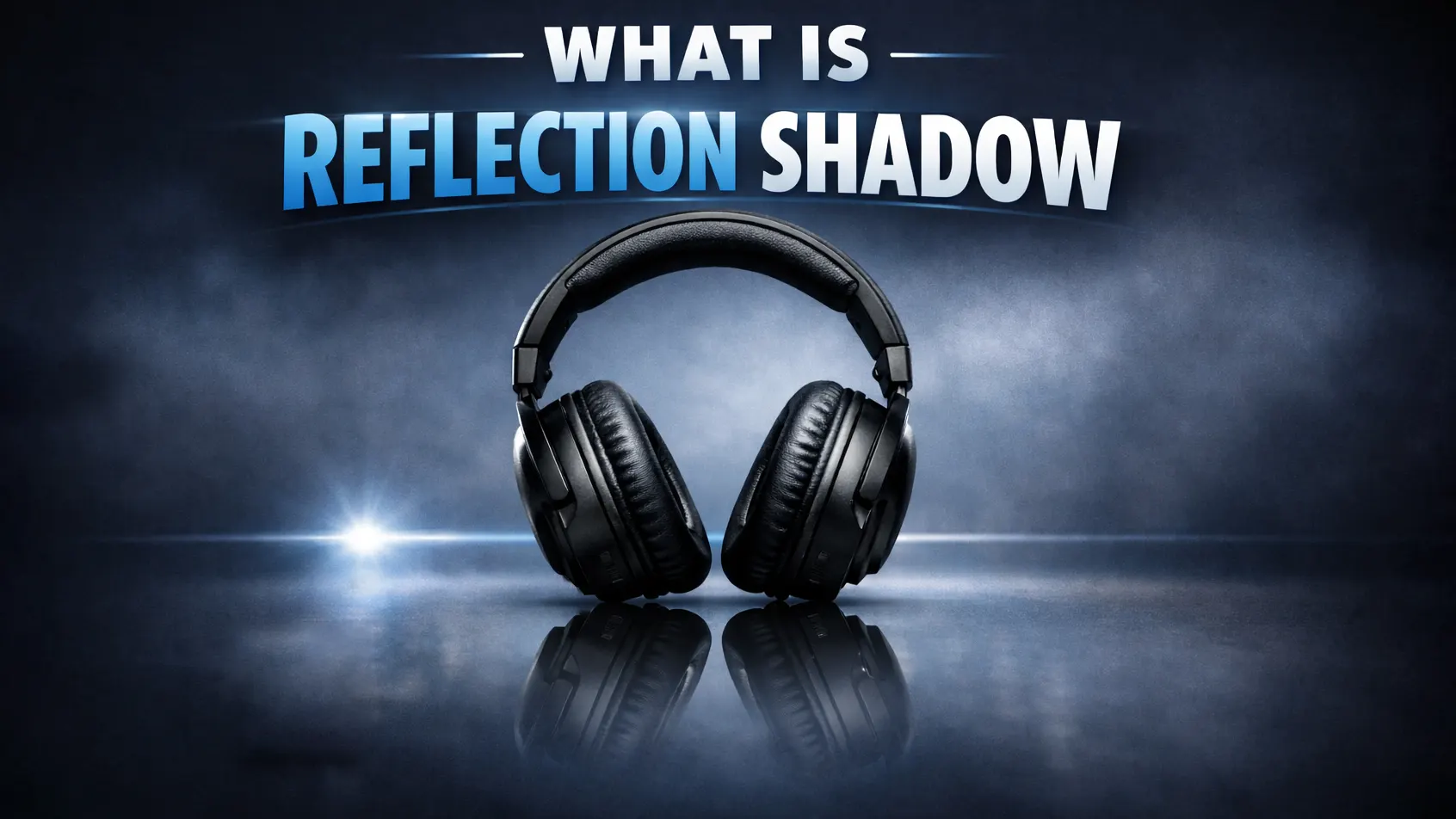
A reflection shadow in Photoshop is a simple effect that creates a mirror-like reflection under an object. You often see this style in product photos where the item appears to sit on a shiny surface. Because of this reflection, the image feels more realistic and polished.
However, a reflection shadow is not the same as a drop shadow. A drop shadow only adds a dark shadow behind or under an object. In contrast, a reflection shadow shows a flipped version of the object itself. As a result, it looks like the product is reflecting on glass or a smooth table.
This effect is common in product photography and eCommerce images. For example, many online stores use reflection shadows for electronics, cosmetics, and shoes. The reflection helps the product stand out and gives the photo a clean, professional look.
Why Use Reflection Shadow in Product Photos?
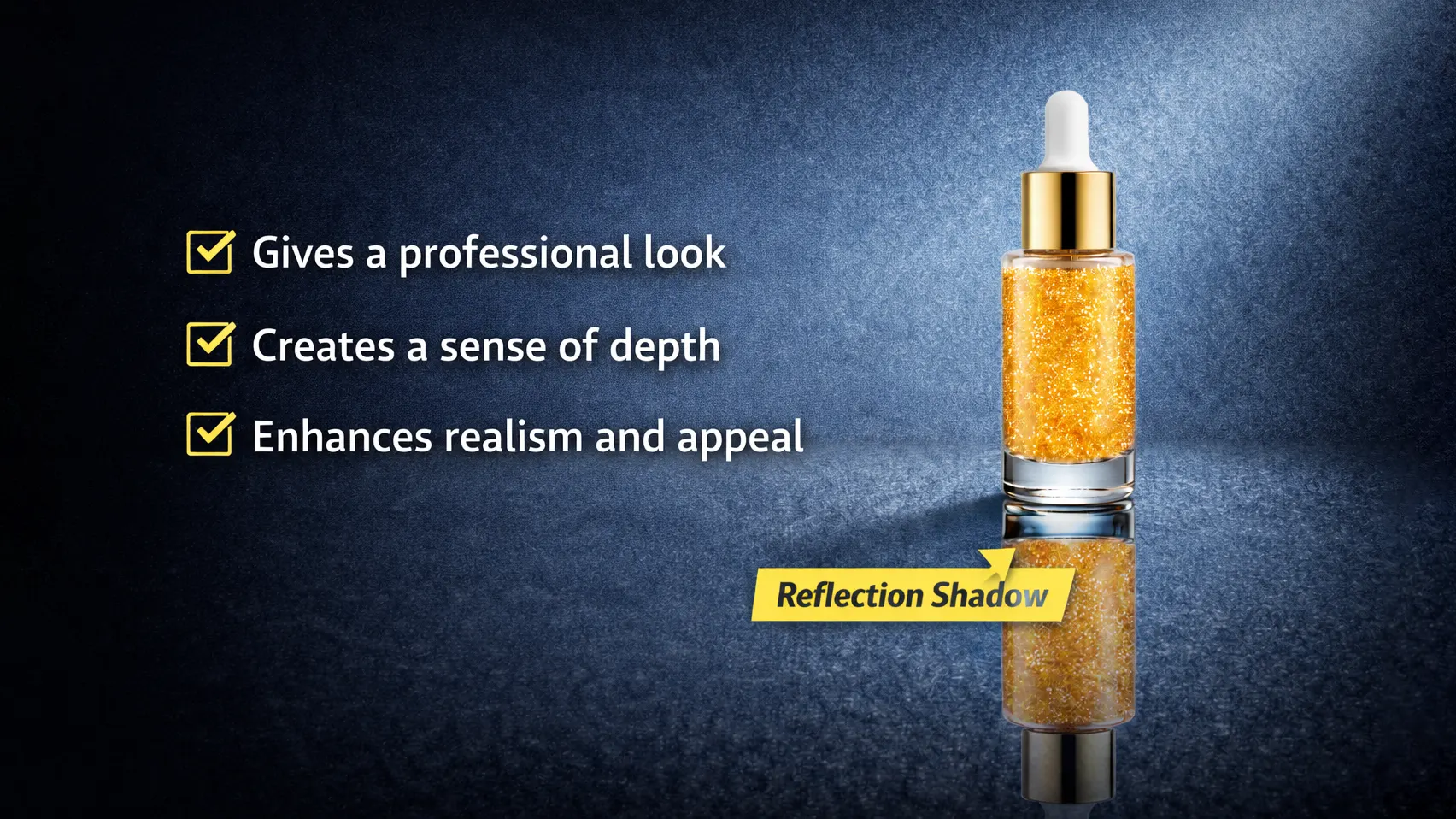
Reflection shadows help product photos look more realistic. When a soft reflection appears under the product, it creates the feeling that the item is placed on a smooth surface. Because of this effect, the image looks more natural and visually balanced. As a result, many designers add reflection shadow in Photoshop to improve product photos.
In addition, reflection shadows give product images a more professional look. Many eCommerce websites use this style to present products in a clean and modern way. A subtle reflection can make the photo look polished without adding too many effects. Therefore, the product becomes the main focus of the image.
Moreover, a well-edited image can increase customer trust. When product photos look clear and professional, shoppers feel more confident about the brand. The reflection effect also improves the overall visual appeal of the image. Because of this, many online stores use Photoshop reflection effects to make their products stand out.
Preparing Your Image Before Creating Reflection Shadow
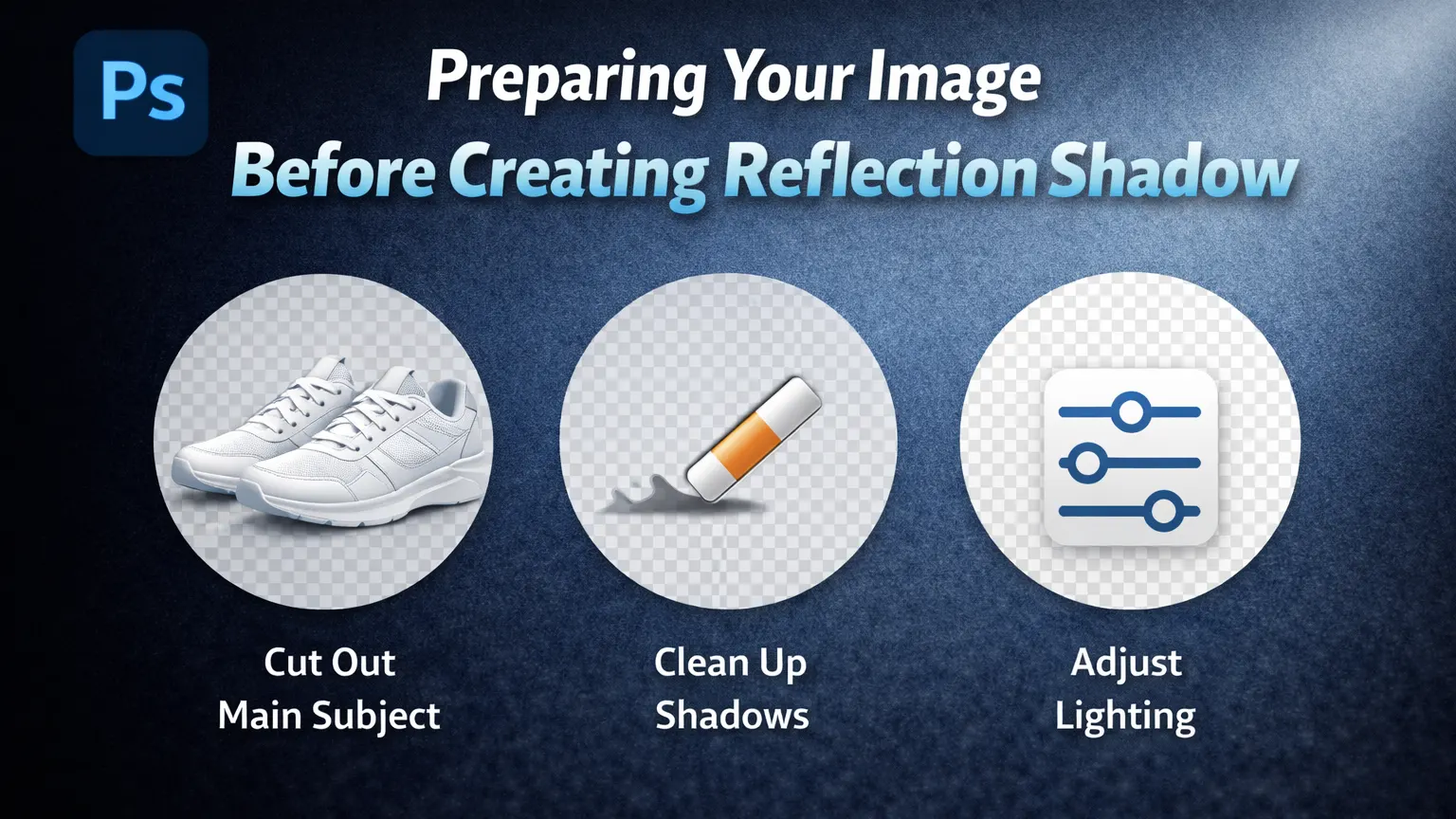
Before you create a reflection shadow in Photoshop, it is important to prepare the image properly. A clean and well-organized image makes the reflection effect look natural. In addition, proper preparation helps you edit faster and avoid mistakes later. Therefore, taking a few simple steps first will improve the final result.
Remove the Background
First, remove the background from the image. A clean background makes it easier to create a clear reflection under the product. If the background is messy, the reflection may look unnatural or distracting. For this reason, many designers prefer to place the product on a simple white or transparent background before adding the reflection shadow.
Use a High-Resolution Image
Next, make sure the product image is high resolution. A sharp image helps the Photoshop reflection effect look more realistic. On the other hand, a low-quality image may look blurry when you create the reflection. Because of this, always use a clear and detailed product photo for better results.
Place the Product on a New Layer
Finally, place the product on a separate layer in Photoshop. Layer separation makes it easier to duplicate and flip the object when creating the reflection. In addition, working with layers keeps the editing process organized. As a result, you can adjust the reflection shadow in Photoshop without affecting the original image.
How to Add Reflection Shadow in Photoshop (Step-by-Step)
Creating a reflection shadow in Photoshop is simple when you follow the right steps. This method works well for product photos, advertising images, and eCommerce listings. First, prepare the image and place the product on a separate layer. Then, follow the steps below to create a clean Photoshop reflection effect.
Step 1: Duplicate the Product Layer
First, select the product layer in the Layers panel. Then press Ctrl + J (Windows) or Cmd + J (Mac) to duplicate it. This new layer will be used to create the reflection. Keeping the original layer unchanged helps you edit the reflection safely.
Step 2: Flip the Image Vertically
Next, select the duplicated layer. Go to Edit → Transform → Flip Vertical. This action flips the object upside down. As a result, the flipped image will act as the base for the reflection shadow.
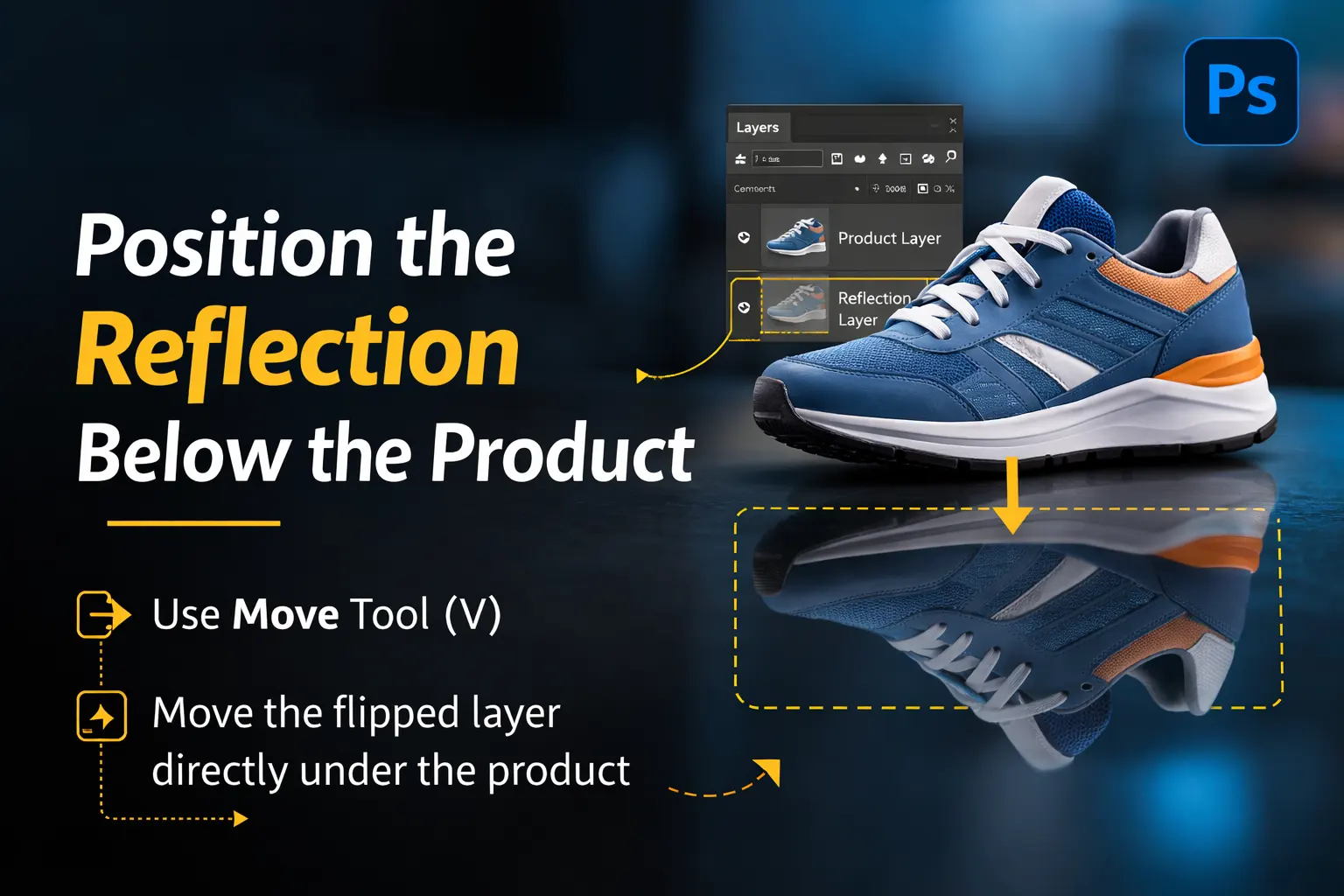
Step 3: Position the Reflection Below the Product
After flipping the layer, move it below the original product. Use the Move Tool (V) to adjust the position. The flipped image should sit directly under the product so it looks like a natural reflection on the surface.
Step 4: Apply Gaussian Blur for Soft Reflection
Now soften the reflection slightly. Go to Filter → Blur → Gaussian Blur and apply a small blur value. This step helps the reflection look more realistic. In real life, reflections are rarely sharp, so a soft blur improves the effect.
Step 5: Reduce Opacity for a Natural Look
Next, reduce the opacity of the reflection layer. Lower opacity makes the reflection lighter and more natural. Usually, designers set it between 20% and 50%, depending on the image.
Step 6: Add Gradient Mask for Realistic Fade
Finally, add a layer mask to the reflection layer. Then use the Gradient Tool to fade the reflection from top to bottom. This technique creates a smooth transition, which makes the reflection shadow in Photoshop look more realistic and professional.
Tips to Create a Realistic Reflection Shadow
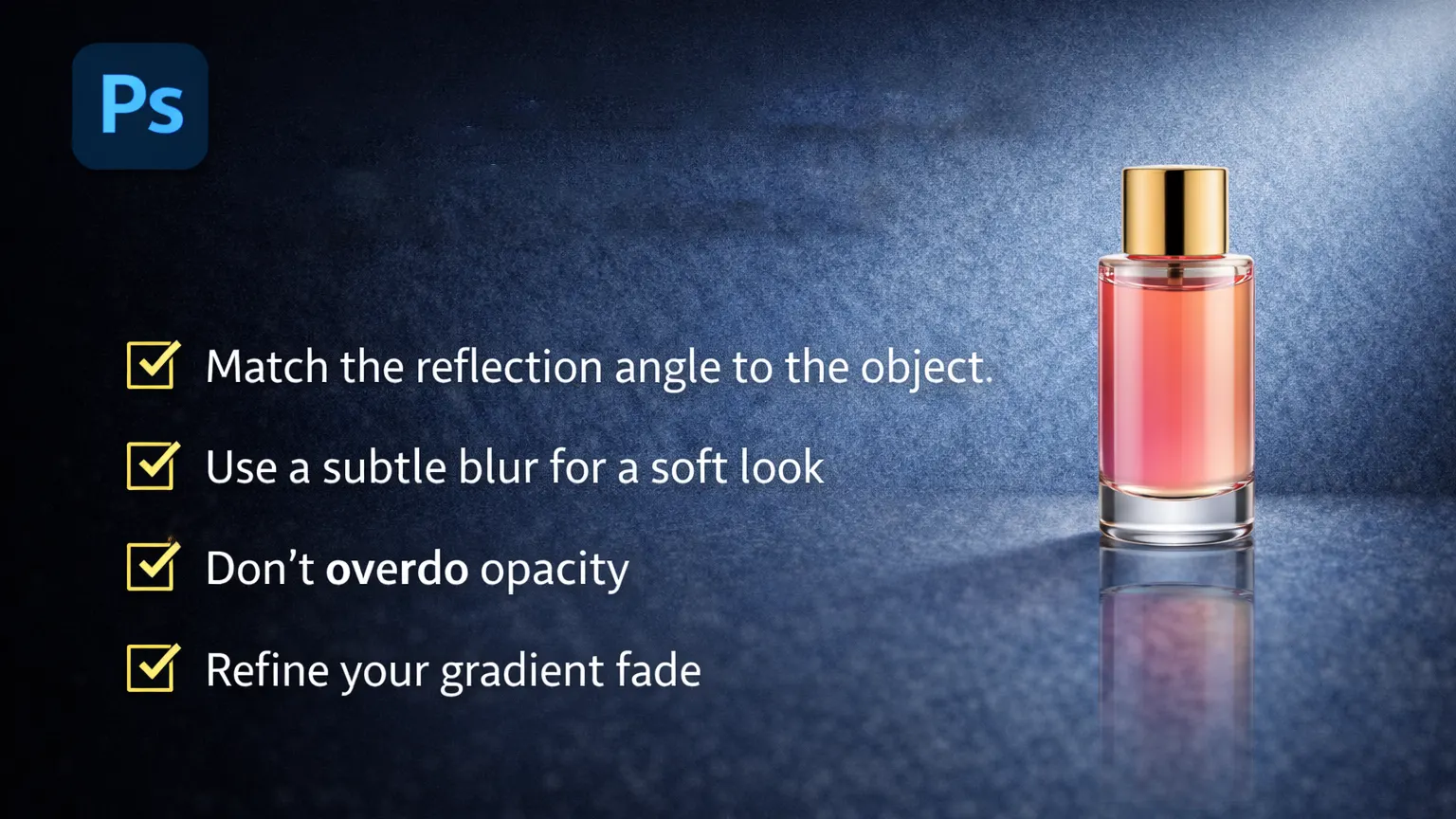
Creating a reflection shadow in Photoshop is not only about flipping the image. You also need to adjust a few details so the reflection looks natural. Small changes in opacity, blur, and perspective can make a big difference. Therefore, follow these tips to create a clean and realistic Photoshop reflection effect.
Do Not Make the Reflection Too Dark
First, avoid making the reflection too dark. In real life, reflections are usually softer than the original object. If the reflection is too strong, the image may look unnatural. For this reason, reduce the opacity until the reflection looks light and subtle.
Balance Blur and Opacity
Next, try to balance the blur and opacity. A slight blur helps the reflection look more natural. However, too much blur can remove important details. Therefore, use a small amount of Gaussian Blur and adjust the opacity until the reflection looks smooth and realistic.
Match the Surface Perspective
Finally, make sure the reflection matches the surface perspective. The reflection should follow the same angle and position as the product. If the alignment looks wrong, the effect will not feel natural. Because of this, always adjust the reflection carefully so it matches the product and surface.
Common Mistakes When Creating Reflection Shadow
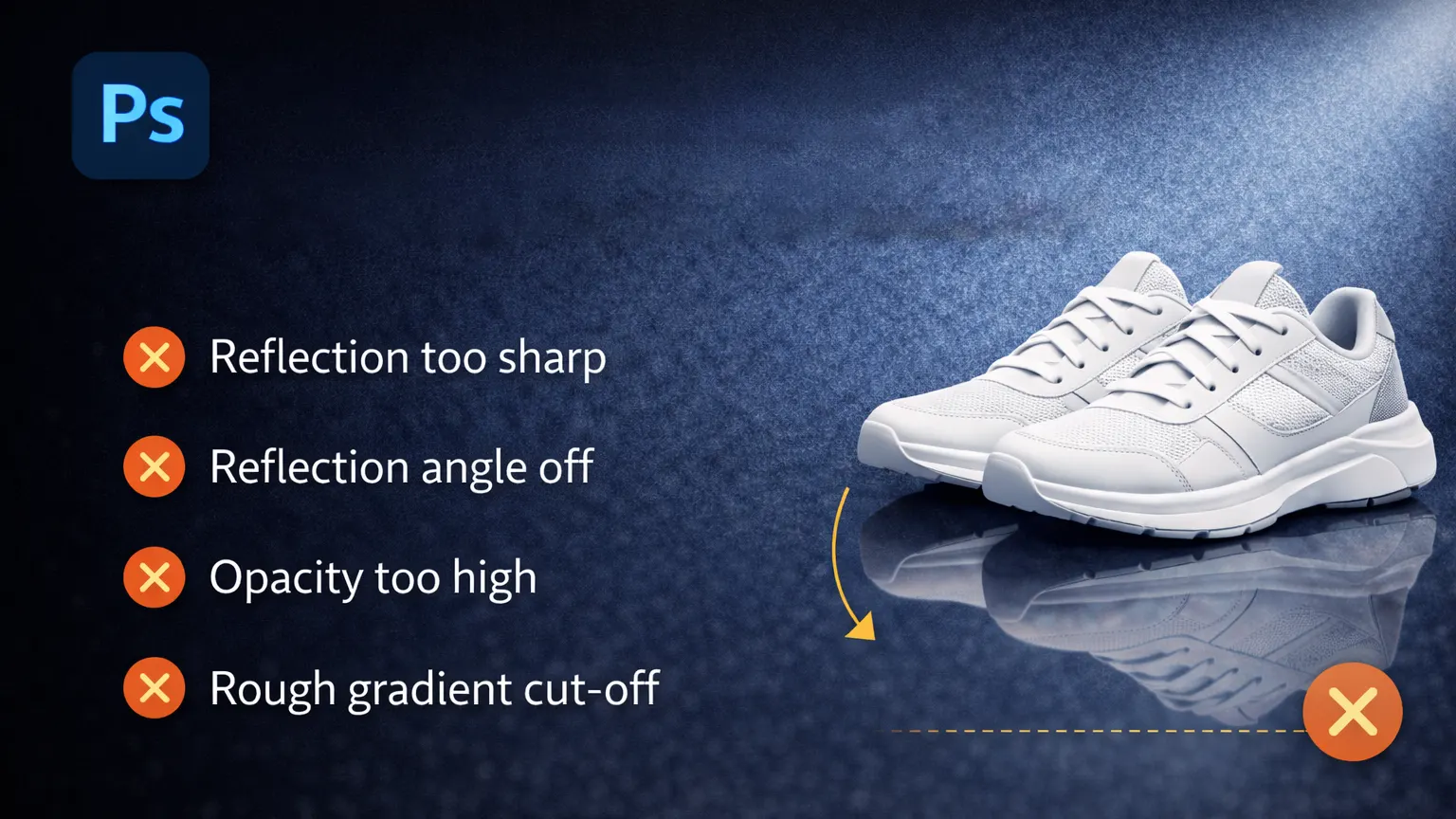
When people first try to create a reflection shadow in Photoshop, the result does not always look natural. In many cases, the problem comes from small editing mistakes. However, once you know what to watch for, these issues are easy to avoid. The following mistakes are very common when creating a Photoshop reflection effect.
Keeping the Reflection Too Sharp
One common mistake is leaving the reflection too sharp. In real life, reflections usually look softer than the original object. If the reflection is too clear, the image may look unrealistic. For this reason, it is better to apply a small amount of blur. A light Gaussian Blur often helps the reflection look smoother and more natural.
Using the Wrong Reflection Size
Another issue appears when the reflection size does not match the product. Sometimes the flipped image looks too long or too short. As a result, the reflection does not align with the base of the object. To fix this, adjust the reflection layer carefully so it sits naturally under the product.
Skipping the Gradient Fade
A reflection without a gradient fade can look unnatural. In many real surfaces, reflections slowly fade as they move away from the object. Because of this, adding a gradient mask is an important step. A soft fade helps the reflection shadow in Photoshop blend smoothly with the background and look more realistic.
Reflection Shadow vs Drop Shadow in Photoshop
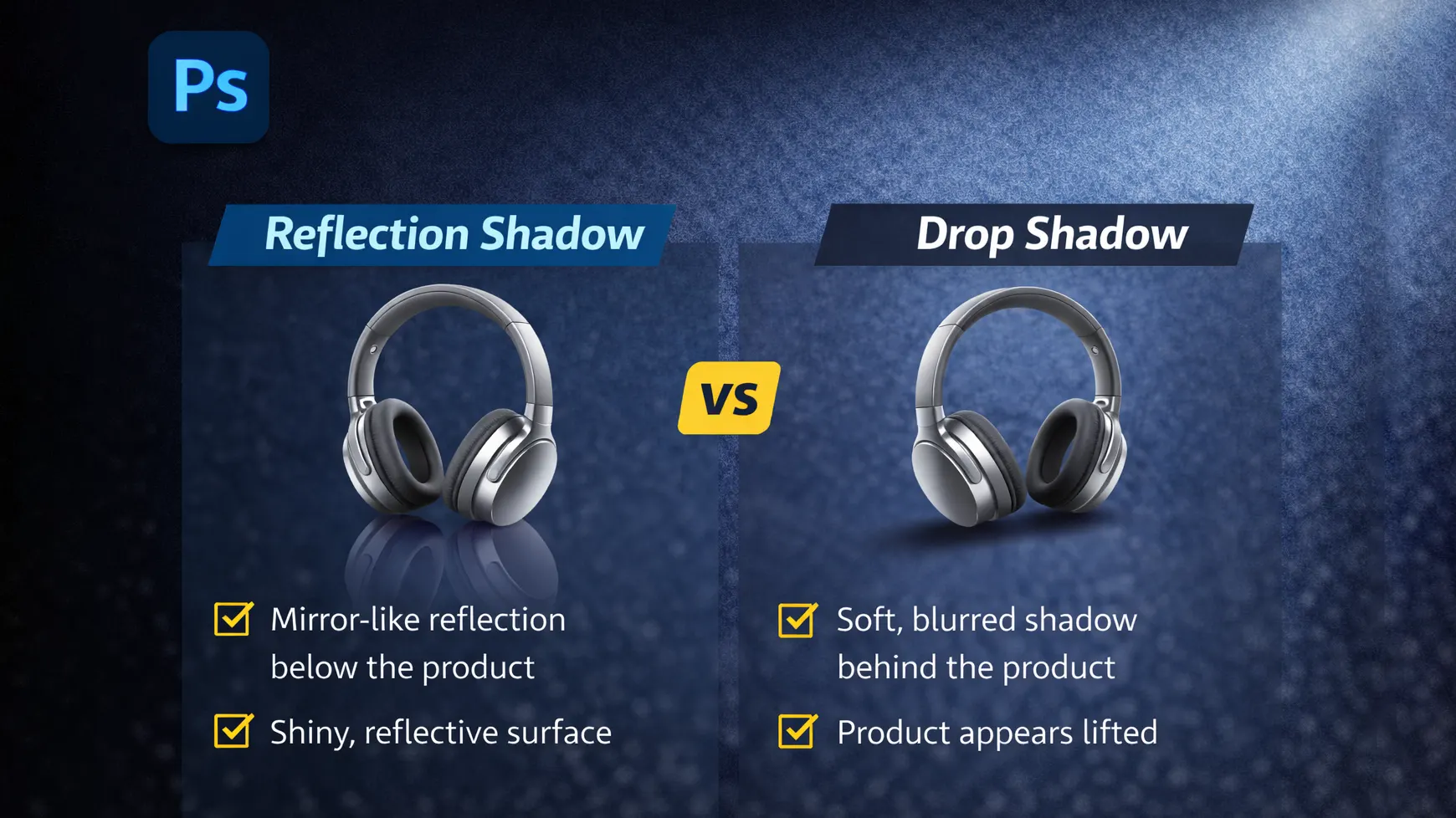
In Photoshop, both reflection shadow and drop shadow are used to add depth to an image. However, these two effects work in different ways. A reflection shadow shows a mirrored version of the object, while a drop shadow creates a soft shadow behind or below it. Because of this difference, each effect is useful in different situations.
A reflection shadow in Photoshop creates a mirror-like effect under the object. It makes the product look as if it is placed on a shiny surface, such as glass or a polished table. For this reason, designers often use this effect in product photography and eCommerce images.
On the other hand, a drop shadow adds a simple dark shadow behind the object. This shadow helps separate the subject from the background and gives the image a sense of depth. Many designers use drop shadows for website graphics, banners, and simple product images.
In general, reflection shadows work best when you want a clean and modern product presentation. They are common in electronics, cosmetics, and fashion product photos. However, drop shadows are better when you only need a light shadow to make the object stand out from the background.
Frequently Asked Questions
What is reflection shadow in Photoshop?
A reflection shadow in Photoshop is an effect that creates a mirror-like reflection under an object or product. It makes the image look as if the item is placed on a shiny surface. Because of this effect, the photo often looks more realistic and visually appealing.
How do you create a reflection effect in Photoshop?
To create a reflection effect, first duplicate the product layer. Then flip the duplicated layer vertically and place it under the original image. After that, reduce the opacity and apply a small blur. Finally, add a gradient mask so the reflection fades naturally.
Can reflection shadows be used for product photos?
Yes, reflection shadows are widely used in product photography. Many brands add this effect to make products look more professional. In addition, the reflection can help highlight the product and improve the overall image quality.
What tools are used to create reflection shadows in Photoshop?
Several simple tools help create this effect. Designers often use layer duplication, transform tools, Gaussian blur, opacity settings, and gradient masks. These tools work together to create a clean and realistic reflection shadow.
Is reflection shadow useful for eCommerce images?
Yes, reflection shadows are very useful for eCommerce product images. They make the product look polished and modern. As a result, many online stores use the Photoshop reflection effect to create attractive and professional product photos.
Conclusion
A reflection shadow in Photoshop can make a photo look more realistic and professional. This effect is often used in product and eCommerce images to create a clean presentation. The process is also simple. With a few steps like duplicating, flipping, and adjusting opacity, you can create a natural reflection. With practice, it becomes easier to produce polished product photos.