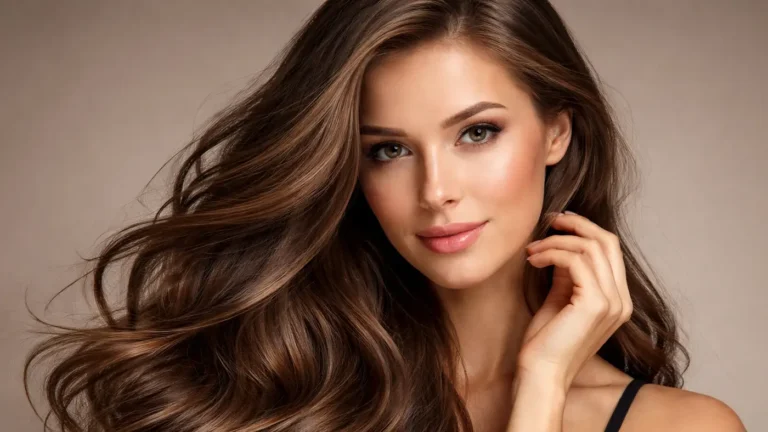
Editing hair in Photoshop can feel difficult, especially when you want clean, natural results. Many beginners struggle with fixing messy edges, adding volume, or creating smooth strands. In portrait or headshot retouching, learning how to brush hair properly is very important. It helps make the image look more natural and polished.
The good news is that you can do all of this easily once you learn how to use the right tools and techniques. In this guide, you will learn how to brush hair in Photoshop step by step. We will also explore how to use a hair brush Photoshop setup to improve your edits.
What Does “Brushing Hair” Mean in Photoshop?
Brushing hair in Photoshop means fixing, shaping, and improving hair using digital tools. It includes smoothing rough areas, removing stray strands, and adding new hair details to make the image look clean and natural. This process helps turn messy or flat hair into a more polished and professional look.
When you use a hair brush Photoshop technique, you are not just painting randomly. You follow the natural direction of the hair and use soft strokes to blend everything smoothly. Many image editors also use photoshop hair brushes to create realistic strands and add volume where needed.
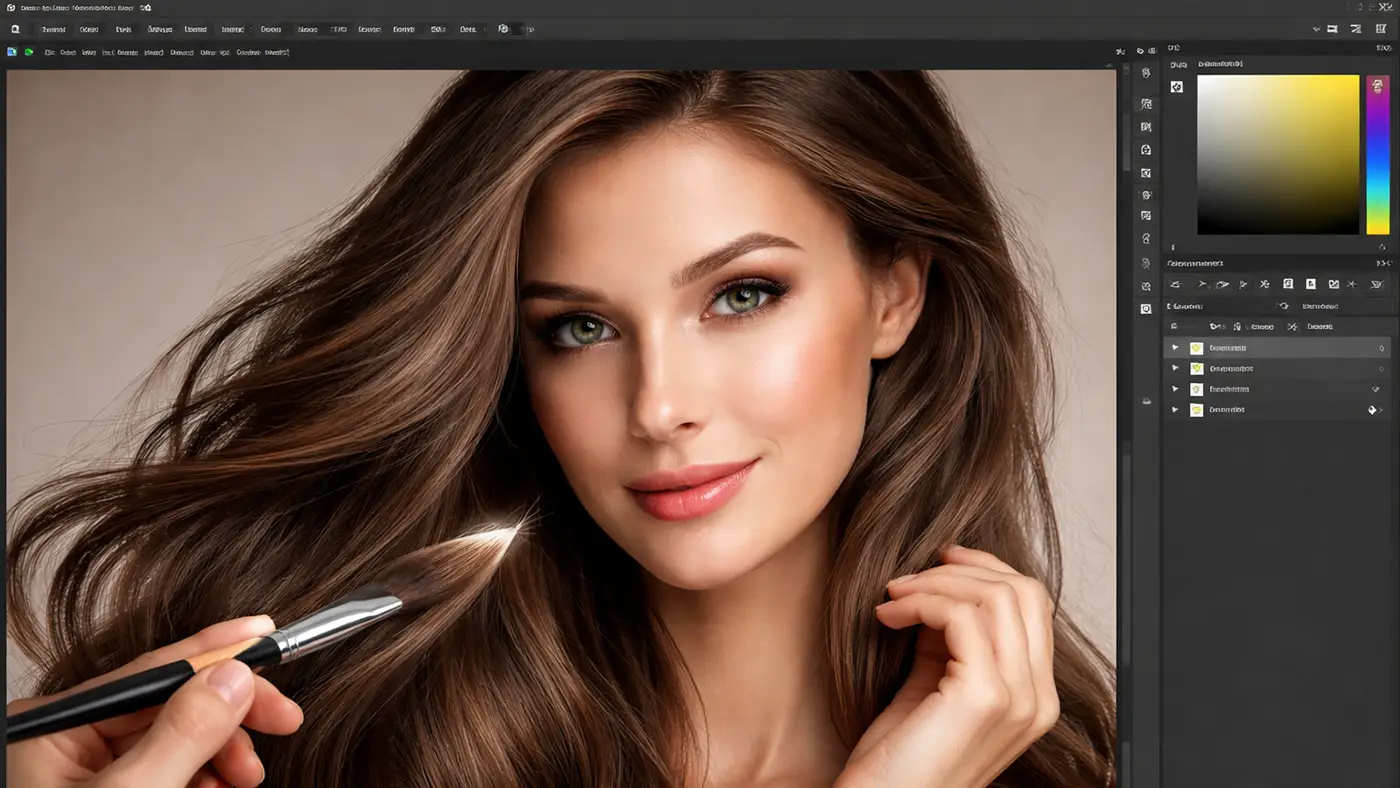
Hair Brush Photoshop Tools You Need
Brush Tool
The Brush Tool is one of the most important tools for hair editing. You can use it to paint new strands and fill in thin areas. When you use a soft brush with low opacity, your strokes look more natural. It works best when you follow the real direction of the hair.
Clone Stamp Tool
The Clone Stamp Tool helps you copy clean hair from one area and place it over messy or empty spots. This is very useful for fixing gaps or uneven sections. You need to sample carefully so the texture matches the surrounding hair. Always use a soft brush setting to keep the result smooth.
Spot Healing Brush
The Spot Healing Brush is perfect for removing small flyaways and tiny imperfections. You just click or drag over unwanted hairs, and Photoshop blends the area automatically. It saves time and keeps the edit clean. This tool works best on small details rather than large sections.
Smudge Tool
The Smudge Tool helps blend hair and soften harsh lines. You can gently drag it along the hair direction to create a smooth flow. It is useful for making strands look more natural after using other tools. Use a low strength setting to avoid over-smudging.
Pen Tool
The Pen Tool gives you very precise control when selecting hair edges. You can create clean paths around the subject and refine the hairline. It is especially helpful for advanced edits and cutouts. While not always needed, it improves accuracy in detailed work.
Mixer Brush
The Mixer Brush blends colors and textures together for a soft, realistic look. It works well for smoothing transitions between light and dark areas of hair. This tool helps create a natural finish instead of sharp or rough patches. Use it lightly to maintain the hair’s original texture.
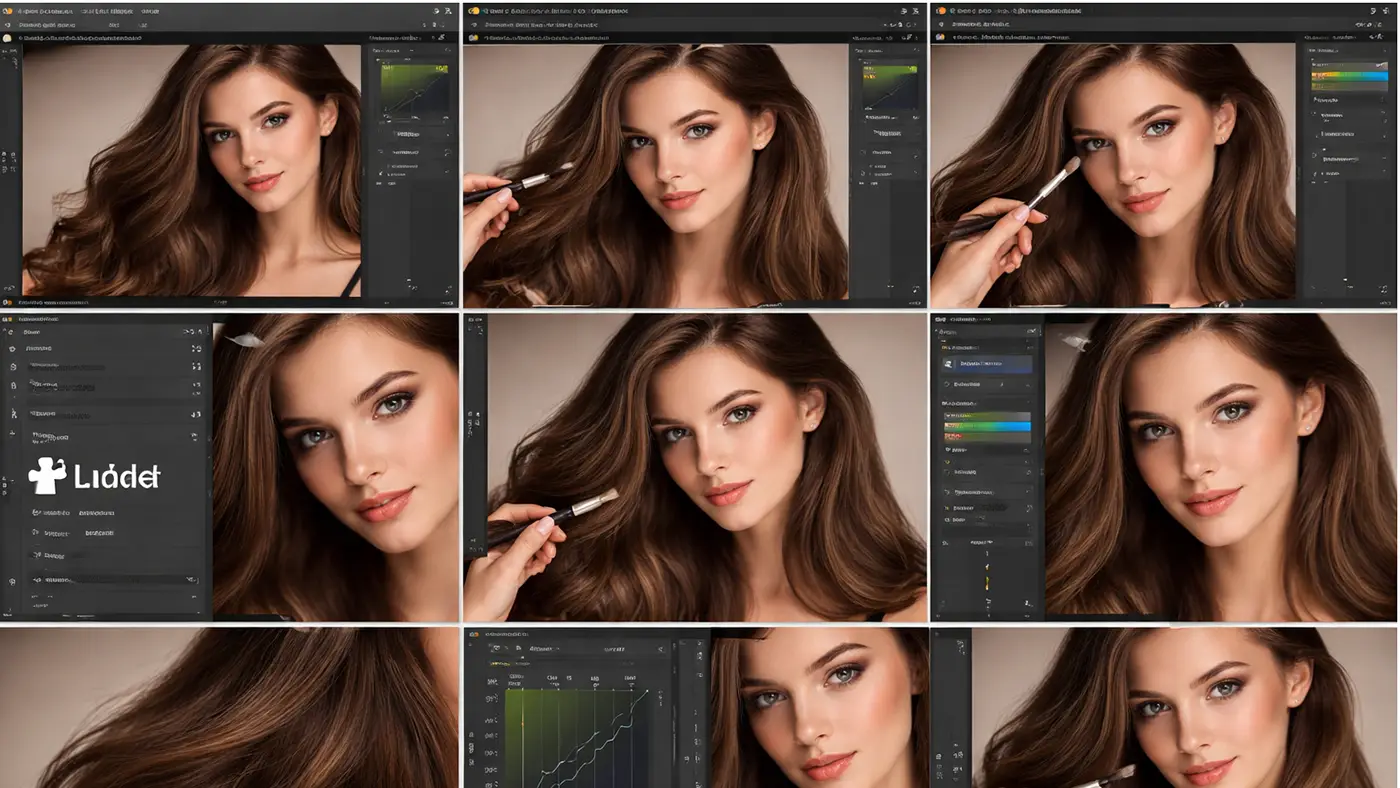
Step-by-Step: How to Brush Hair in Photoshop
Editing hair in Photoshop can be challenging, especially when you want clean and natural results. With the right hair brush Photoshop techniques, you can fix messy strands, add volume, and improve overall hair detail. In this step-by-step guide, you will learn simple methods to edit hair easily and professionally.
Step 1: Open Your Image
Start by opening your photo in Photoshop. Go to File > Open and select your image. After that, duplicate the layer by pressing Ctrl + J so you can work safely without damaging the original. This step helps you edit non-destructively and makes it easy to undo changes later.
Step 2: Clean Up Flyaways
Select the spot healing brush Tool from the toolbar. Use it to remove small stray hairs and tiny imperfections around the edges. Simply click or drag over unwanted strands, and Photoshop will blend the area automatically. Work slowly and zoom in for better accuracy.
Step 3: Use Clone Stamp for Filling Hair
Choose the Clone Stamp Tool and hold Alt (Option on Mac) to sample clean hair. Then paint over gaps or thin areas to make the hair look fuller. Make sure you sample from a nearby area so the texture matches. Use a soft brush to keep everything natural.
Step 4: Create Hair Brush (Optional Advanced)
Select a soft round brush from the Brush Tool settings. Adjust the size, opacity (20–50%), and flow to control how strong your strokes appear. Lower opacity helps create more realistic strands. This setup is useful when you want to build custom hair details.
Step 5: Paint New Hair Strands
Use the Brush Tool to paint small, thin strokes that follow the natural direction of the hair. Do not draw straight lines—keep your strokes slightly curved and varied. This helps the hair look more realistic. Work in layers to build depth and texture gradually.
Step 6: Blend Using Smudge Tool
Pick the Smudge Tool and set a low strength level. Gently drag along the hair to soften harsh edges and blend strands together. Always move in the same direction as the hair flow. This step helps create a smooth and natural finish.
Step 7: Adjust Lighting & Color
Use Dodge & Burn to add highlights and shadows for depth. Then adjust Hue/Saturation to match the hair color with the overall image. You can also use Curves to fine-tune brightness and contrast. These adjustments make the hair look more realistic and polished.
Pro Tips for Realistic Hair Editing
Always follow the natural flow of the hair when you retouch photos. Hair does not move in straight lines, so your strokes should match its direction and curve. This simple habit makes your results look more real.
Use a low opacity brush when working with a hair brush Photoshop technique. This helps you build up details slowly instead of creating harsh lines. Soft strokes always look more natural than strong ones.
Zoom in while editing small details like flyaways and edges. It helps you see what you are doing clearly and improves accuracy. But also zoom out sometimes to check the overall look.
Do not over-edit the hair. Keep some natural texture so the image does not look fake. Many beginners using photoshop hair brushes make the mistake of smoothing too much.
Common Mistakes to Avoid
One common mistake is over-smoothing the hair. When you remove too much texture, the hair looks flat and unrealistic. Always keep some natural detail in place.
Using a hard brush is another problem. Hard edges make the hair look fake and unnatural. Instead, use soft hair brushes for Photoshop for better blending.
Ignoring lighting direction can ruin your edit. Hair should match the light and shadows of the original image. If not, the edit will stand out in a bad way.
Copy-paste patterns with the Clone Stamp Tool can also look fake. Try to vary your strokes when using photoshop hair brush tools so the texture stays natural.
Best Photoshop Settings for Hair Brush
Using the right settings makes a big difference when working with hair brushes photoshop techniques. Keep your brush softness low for better blending.
Set the hardness between 0–30% to avoid sharp edges. This helps your strokes look smooth and natural.
Keep opacity around 20–50% so you can build hair gradually. Lower opacity gives you more control over each stroke.
Set flow between 10–30% to control how much color applies with each movement. Also, keep spacing low so your brush strokes stay smooth and continuous.
Conclusion
Learning how to brush hair in Photoshop can improve your photo editing skills in a big way. With the right tools and proper use of a hair brush Photoshop method, you can fix messy hair, add volume, and create clean, natural results.
Mastering this technique takes practice, but you will improve over time. Start simple, use the right photoshop hair brushes, and follow natural hair flow. Keep practicing, and your edits will look more professional with every project.
FAQ of Hair Photoshop Brush
Q1: How Do You Smooth Hair in Photoshop?
You can smooth hair in Photoshop by using the Spot Healing Brush, Clone Stamp Tool, and Smudge Tool. Start by removing flyaways with the Spot Healing Brush. Then use the Clone Stamp to fix gaps and uneven areas. Finally, use the Smudge Tool gently to blend the hair and make it look soft and natural.
Q2: Which Brush Is Best for Hair in Photoshop?
The best option is a soft round brush with low opacity and flow. Many editors also use custom photoshop hair brushes to create realistic strands. A good photoshop hair brush should have soft edges and allow you to build hair gradually. This helps create a natural and detailed look.
Q3: How Do You Remove Flyaway Hair?
Use the Spot Healing Brush Tool for quick fixes. Simply click or drag over small stray hairs, and Photoshop will blend the area automatically. For more control, you can also use the Clone Stamp Tool to replace messy areas with clean hair. Always zoom in for better accuracy.
Q4: Can Beginners Edit Hair in Photoshop Easily?
Yes, beginners can learn it with practice. Start with basic tools like the Brush Tool and Spot Healing Brush. Use simple hair brushes for Photoshop and follow step-by-step techniques. With time, even beginners can achieve clean and professional-looking results.